

The Cloudamize Installed Apps Report provides a detailed inventory of all software and applications discovered on your on-premises servers. This report is an essential part of the discovery phase, giving you a clear picture of what's running in your environment. The report helps you identify application dependencies, manage software licenses, and build a comprehensive migration plan.
The Installed Apps Report lists all applications and software packages discovered on each machine that Cloudamize has analyzed.
Key Components of the Report
1. Machine Name / Hostname
-
Indicates where the application is installed.
-
Each row is tied to a specific machine in your environment.
2. Application Name
-
The name of the installed application or software package.
-
For example:
Microsoft SQL Server,Apache Tomcat,7-Zip, andOracle Java.
3. Version
-
The specific version of the installed application.
4. Publisher / Vendor
-
The vendor or software publisher.
-
Useful for licensing (e.g., Microsoft, Oracle, Adobe).
Steps to navigate to the Installed Apps Report:
-
Log in to the console: https://console.cloudamize.com/#/
-
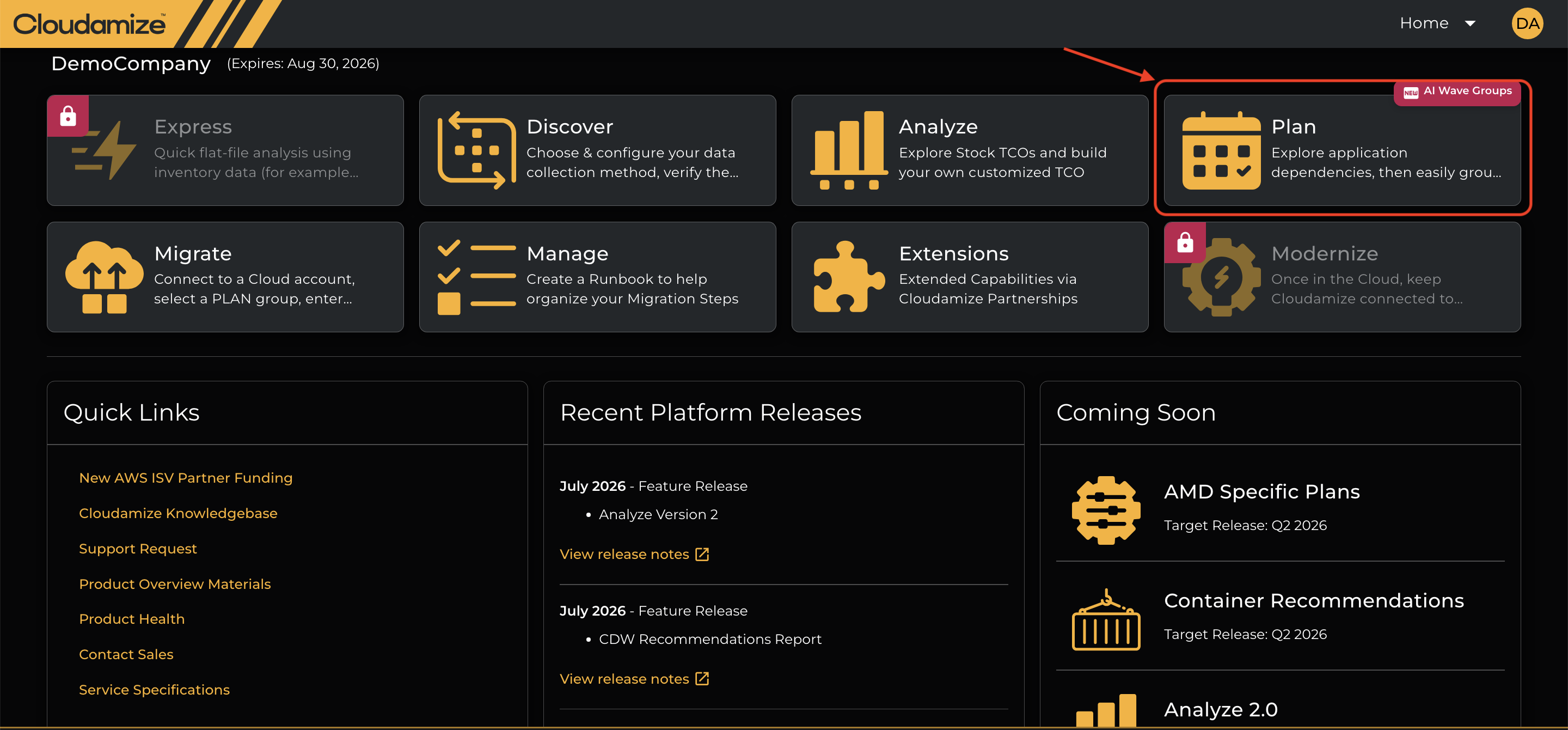
Navigate to the Plan page of your completed assessment.
-
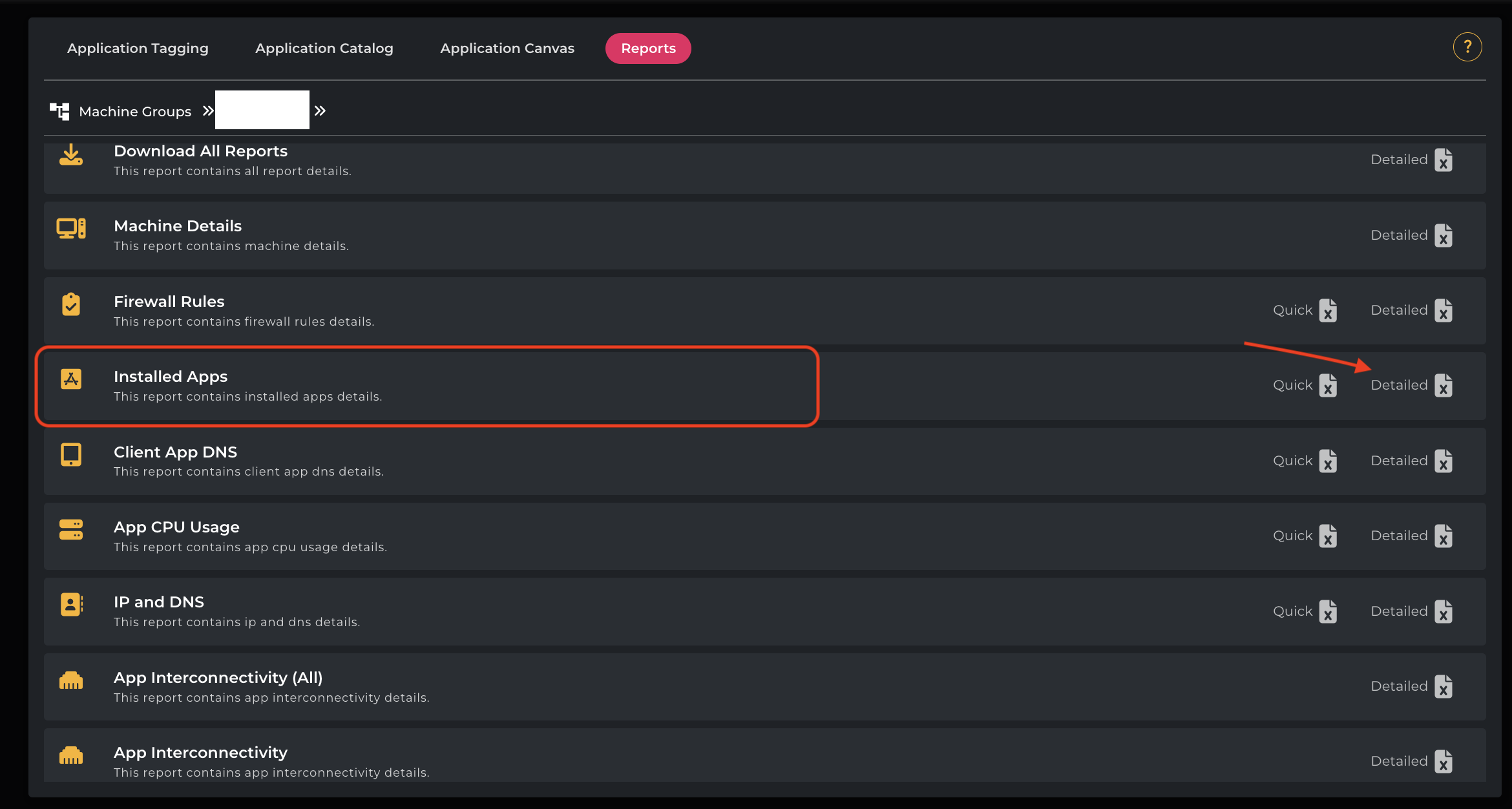
Under the “Plan” section, click “Reports” (as shown in the screenshot below).
-
Select “Installed Apps” → “Detailed” to download the report.
|
Column Name |
Description |
|---|---|
|
Application Name |
Name of the installed software application. |
|
Version |
Version number of the installed application. |
|
Vendor |
Name of the company or individual that developed or distributed the application. |
|
Group Name |
Categorization or group label for the application within the organization. |
|
Asset Name |
Identifier for the asset (device or resource) where the application is installed. |
|
Instance Name |
Specific instance identifier of the application installation. |
Example Report:
MigrationPlanner-InstalledApps-Report.xlsx
If you have any queries, please get in touch with the helpdesk via our Helpdesk Portal or by email at helpdesk@cloudamize.com.