

Overview
The Application Catalogue is designed to track and define metadata associated with the Business Applications created by our customers. This feature allows you to define your Business Applications more comprehensively, providing you with the tools to better organize and plan your migration groups effectively.
Key Features
-
MetaData: Enhance your business applications by adding metadata in the form of key-value pairs. This metadata serves as additional information, providing distinguishing characteristics that set one business application apart from another. It allows for more detailed classification and organization, enabling you to easily identify and manage your applications based on specific attributes.
-
Business Application-based grouping view: This view provides a list of machines and processes tagged under their respective Business Applications
Business Applications List Section
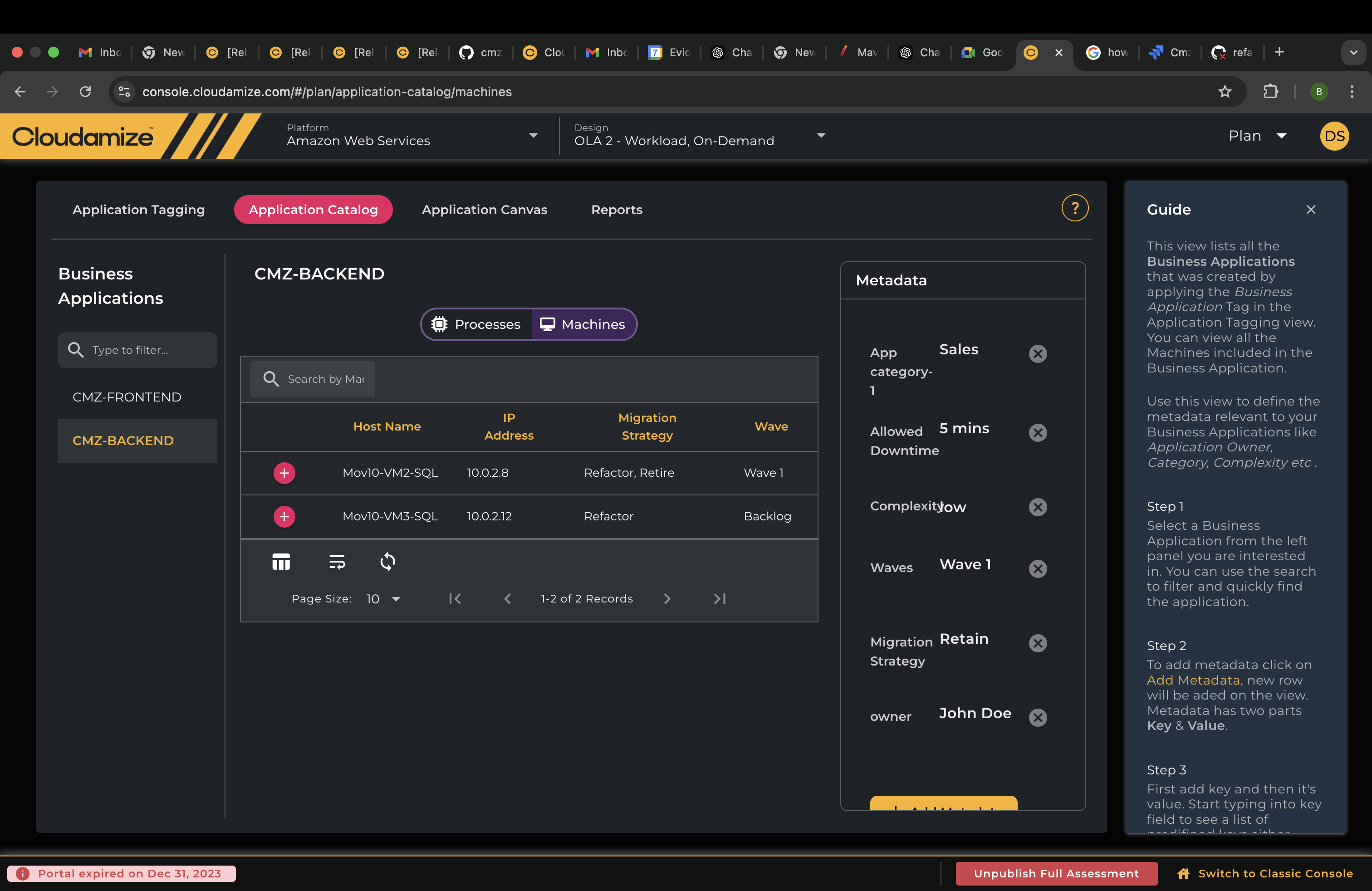
The left menu displays a list of all business applications you have created. A search filter allows you to easily find and select a specific business application from the list. Additionally, you can delete business applications directly from this menu.
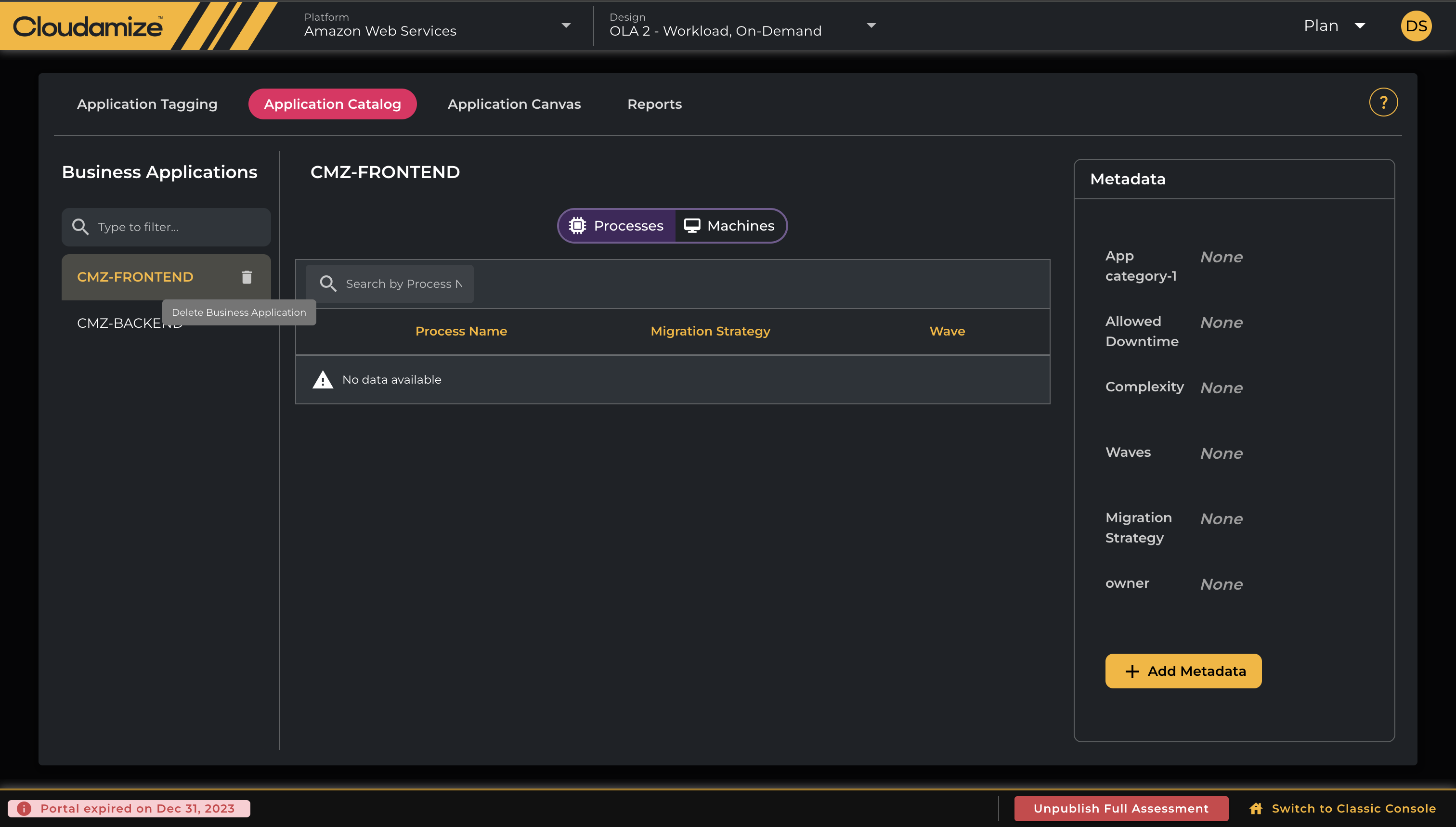
Business Applications Detailed Section
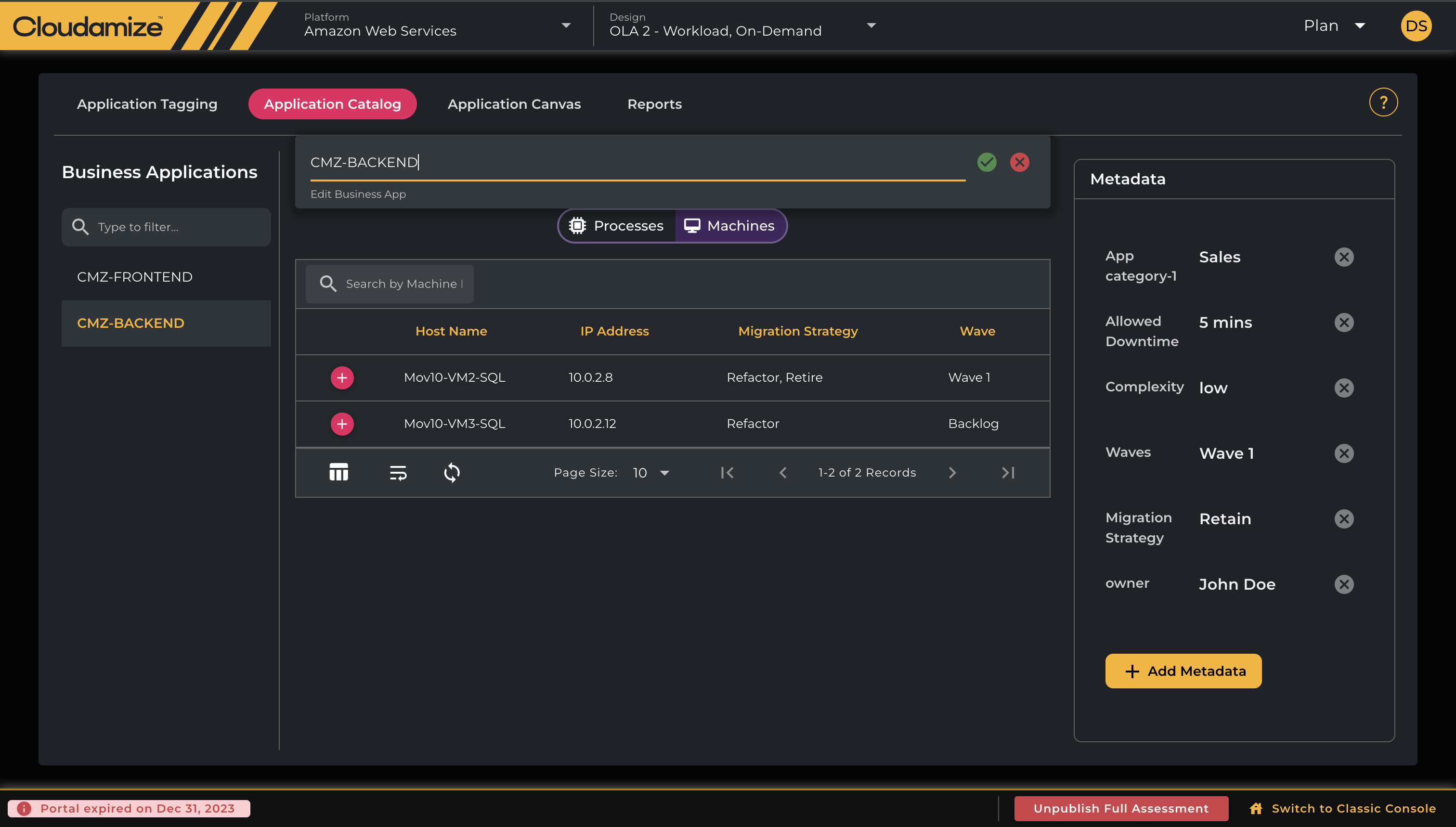
When you select a Business Application from the left menu listing, a detailed view of the selected application is displayed in the center panel.
This view provides a list of Machines and Processes that are tagged under the selected Business Applications.
You can also edit the name of each business application in this view.
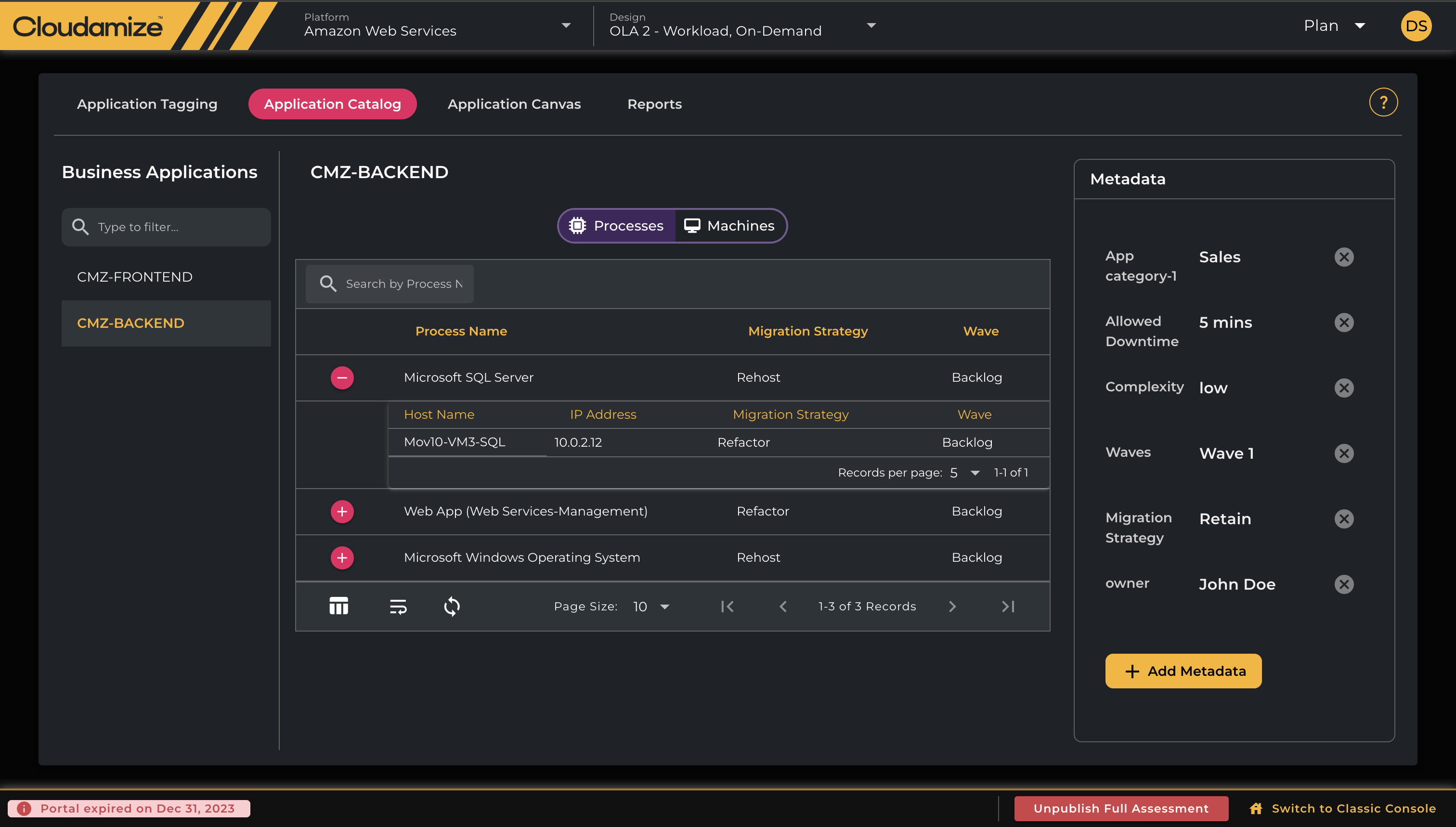
Process View
The process view displays all server processes associated with the selected business application, along with their tagged migration strategy and wave values.
Each record in the process view is expandable. When expanded, it reveals a list of machines where the corresponding server processes are running.
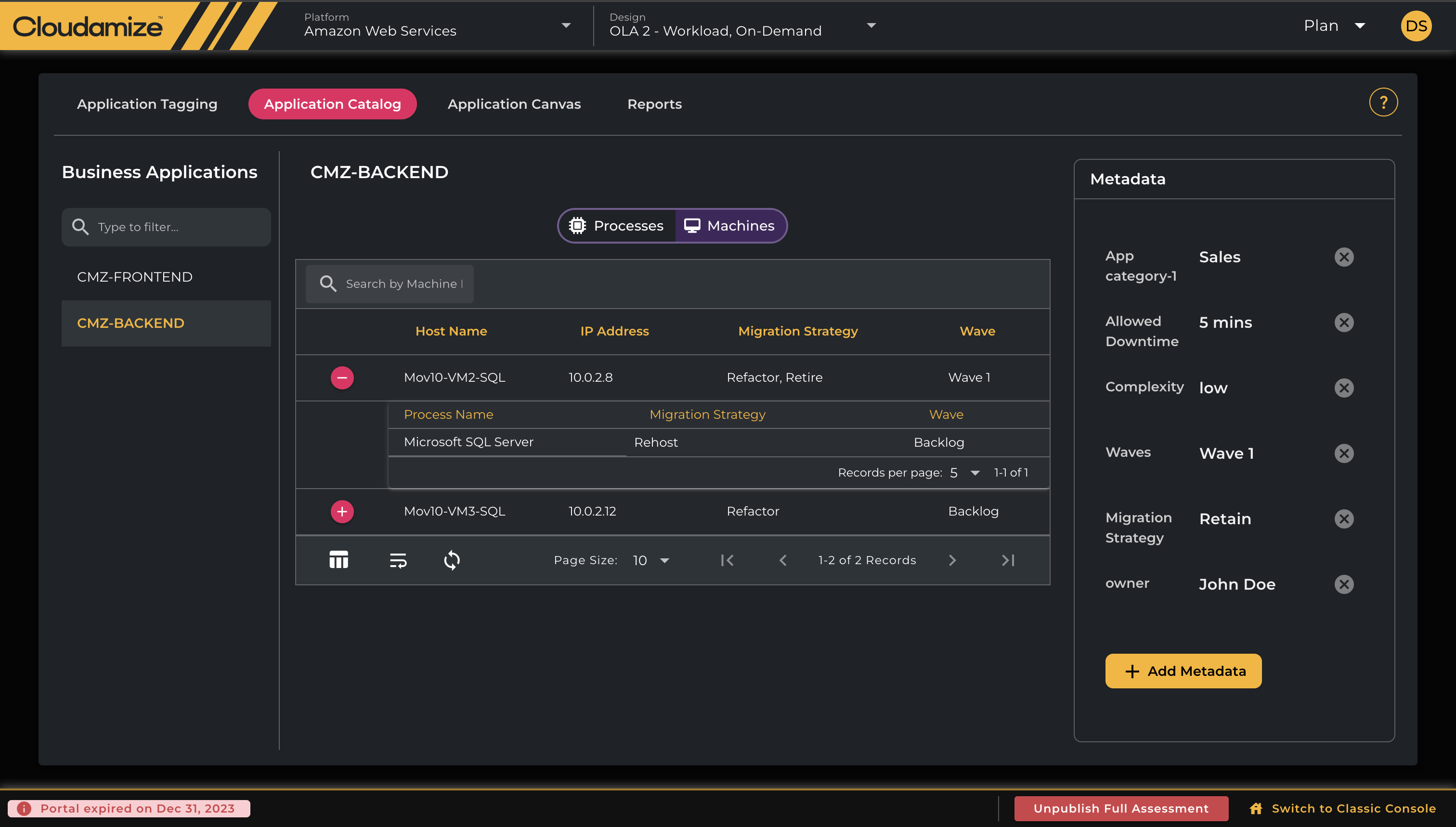
Machines View
The machines view displays all machines associated with the selected business application, along with their tagged migration strategy and wave values.
Each record in the machines view is expandable. When expanded, it reveals the list of server processes running under the corresponding machine.
MetaData Section
The metadata section on the right side of the screen corresponds to the selected business application.
Configuring MetaData
When you click “Add Metadata”, you can add custom key-value pair attributes to the selected Business Application. The keys “Waves” and “Migration Strategy” are included by default.
Guide Popout
The guide popout is open by default when you first navigate to the Application Catalogue page. It provides key insights into the usability and functionality of the Application Catalogue to help you navigate its features..
If you have any queries, please get in touch with the helpdesk via our Helpdesk Portal or by email at helpdesk@cloudamize.com.