

Overview
Cloudamize offers two reports relating to NetApp storage. They can be found in the Reports section (note that the FSx report is only available in AWS assessments)
Steps to navigate to the NetApp ONTAP Storage Report-
-
Log in to the console: https://console.cloudamize.com/#/
-
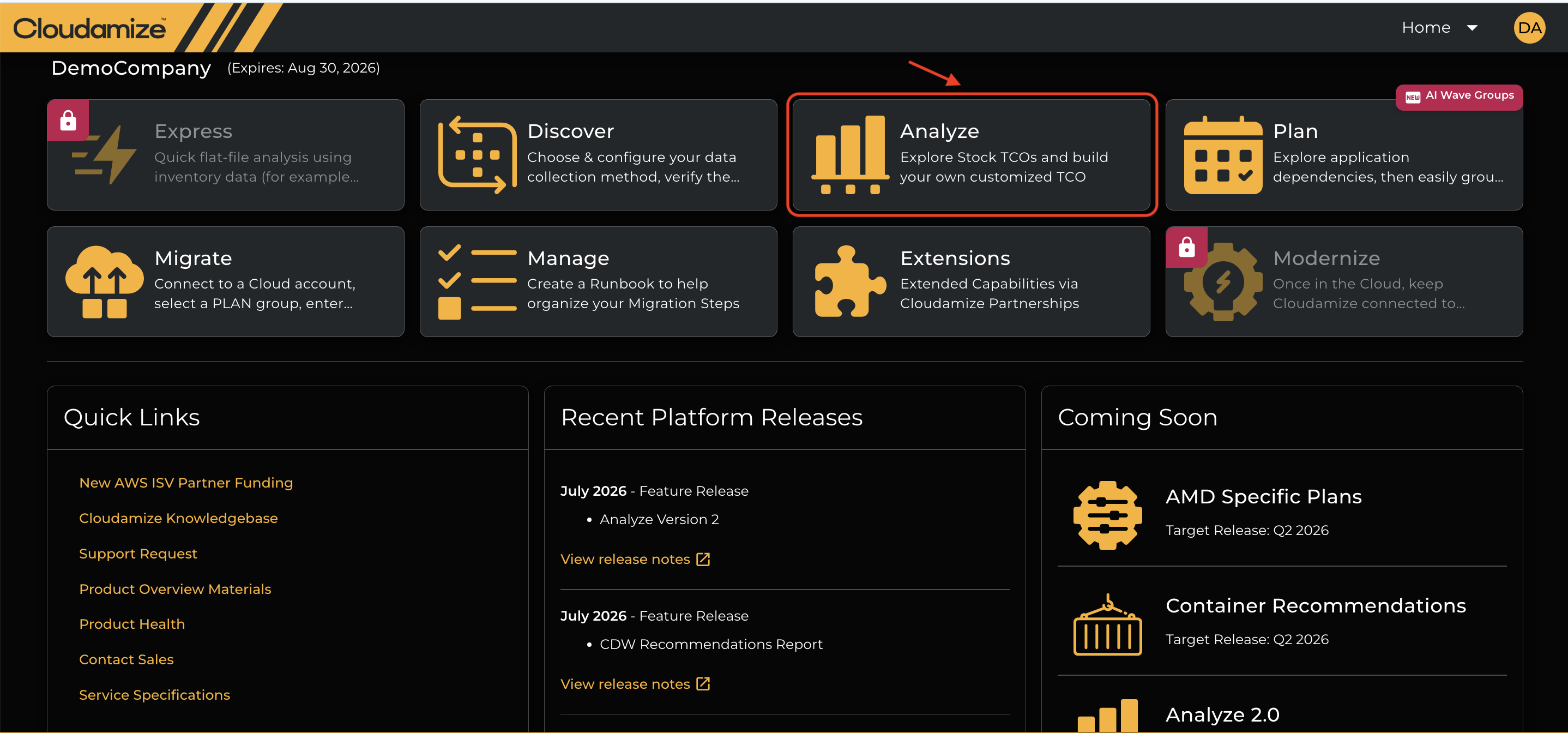
Once logged into the console, you will see a home page with the icons as shown below-
-
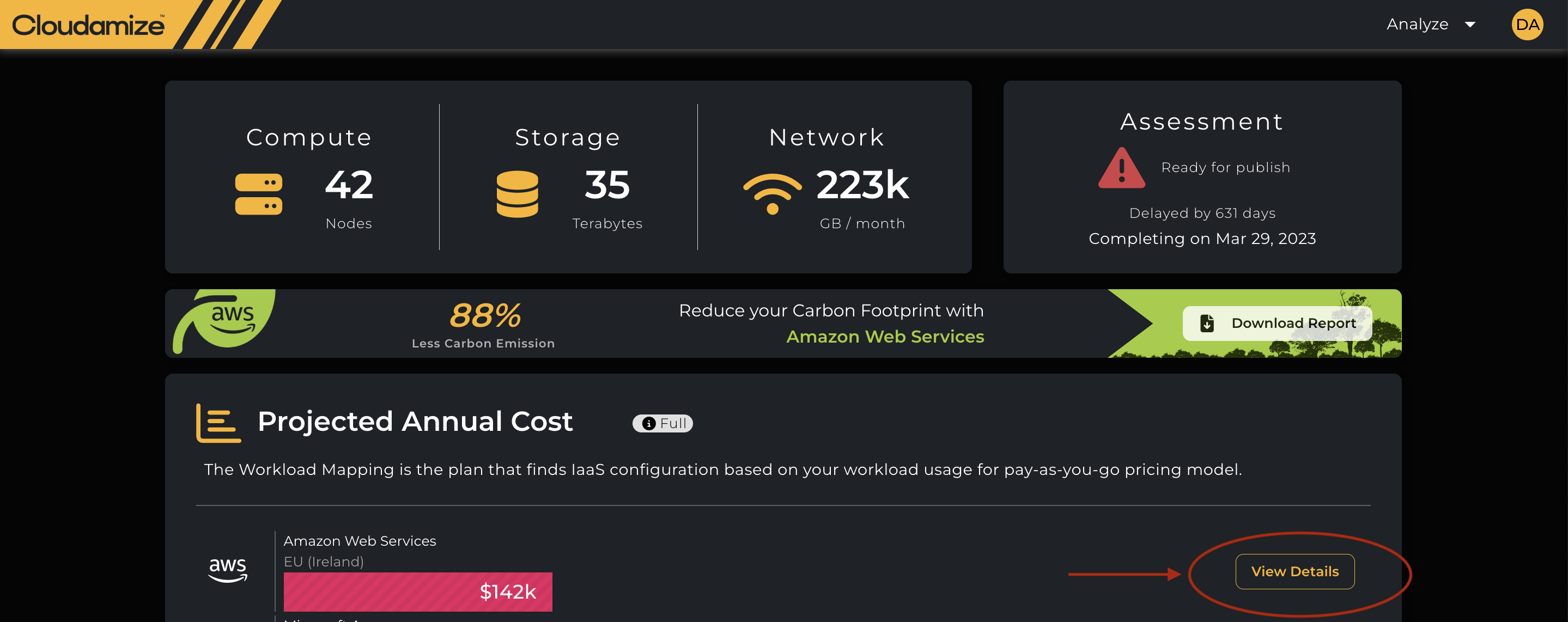
Click on the Icon “Analyze” which navigates to the results page, and then click on the view details as shown below-
-
After clicking on the “View Details” tab, it will take you to the page that shows the “Reports” as shown below-

-
As a final step, click on the “Reports” tab, which will show the NetApp Detached Storage report as shown below-
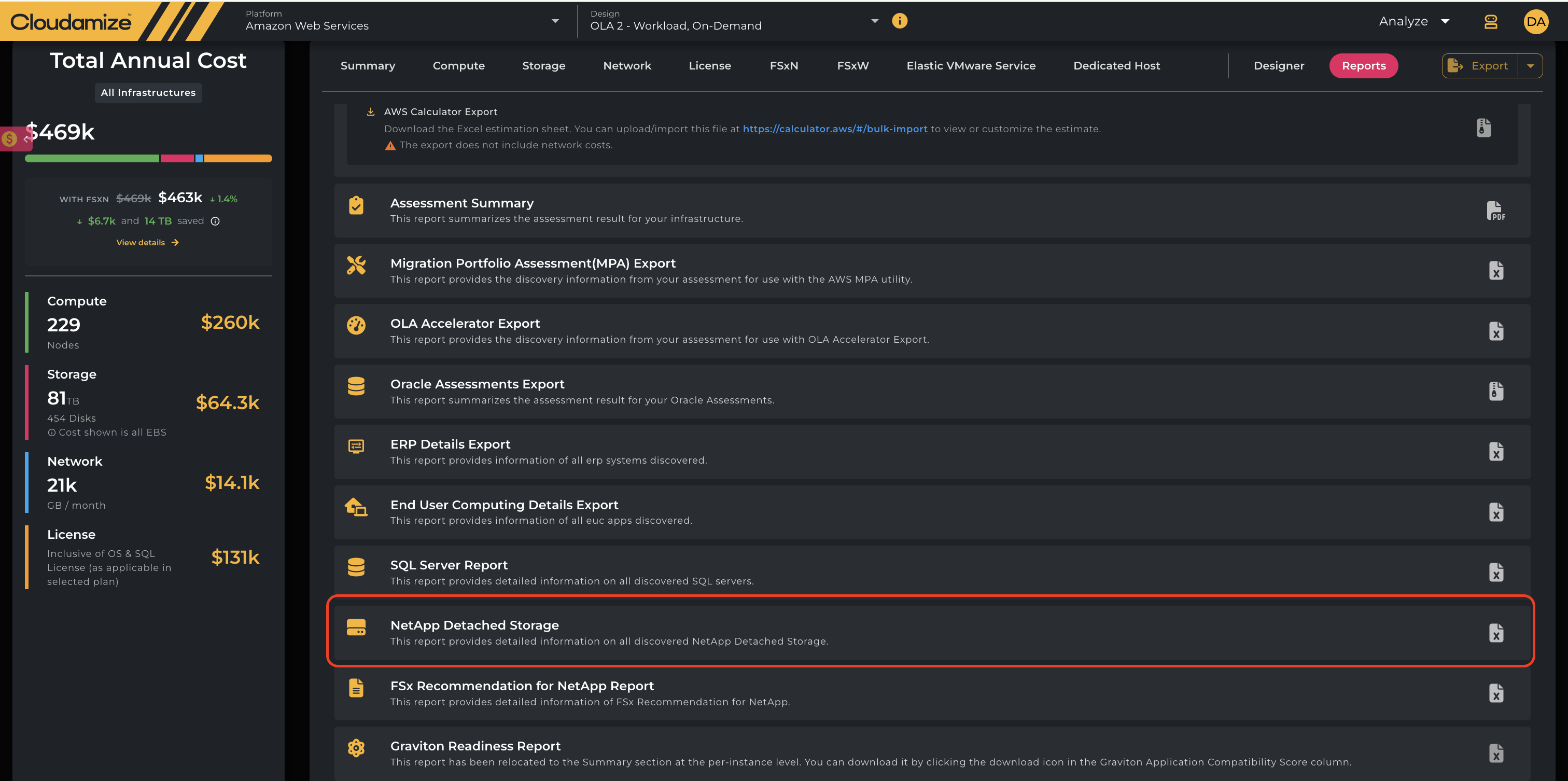
NetApp Detached Storage Report
This report offers comprehensive details on all discovered NetApp ONTAP Detached Storage units. You can access in-depth information about detached storage components, aiding in better resource management and troubleshooting.
This offers improved visibility into detached storage, allows for more effective management of storage resources, and helps in identifying unused or underutilized storage assets.
FSx Recommendation for NetApp Report (AWS Assessments Only)
This report provides a detailed analysis of FSx recommendations tailored for NetApp configurations. It is designed to assist in optimizing FSx implementations with customized suggestions based on current NetApp setups.
This can enable better decision-making by offering specific recommendations, ensuring that FSx configurations are optimally aligned with NetApp environments to maximize performance and cost-efficiency.
Collecting Data for NetApp Storage
The data for the NetApp Detached Storage Report and FSx Recommendation for NetApp is collected via the Cloudamize Agentless Data Collector (ADC). You can install the Agentless DC from its own tab on the Setup page of the Discover section of the portal, using our existing guides: Agentless
The ADC installer is also available in the NetApp Setup tab on the Setup page of the Discover section in the portal:
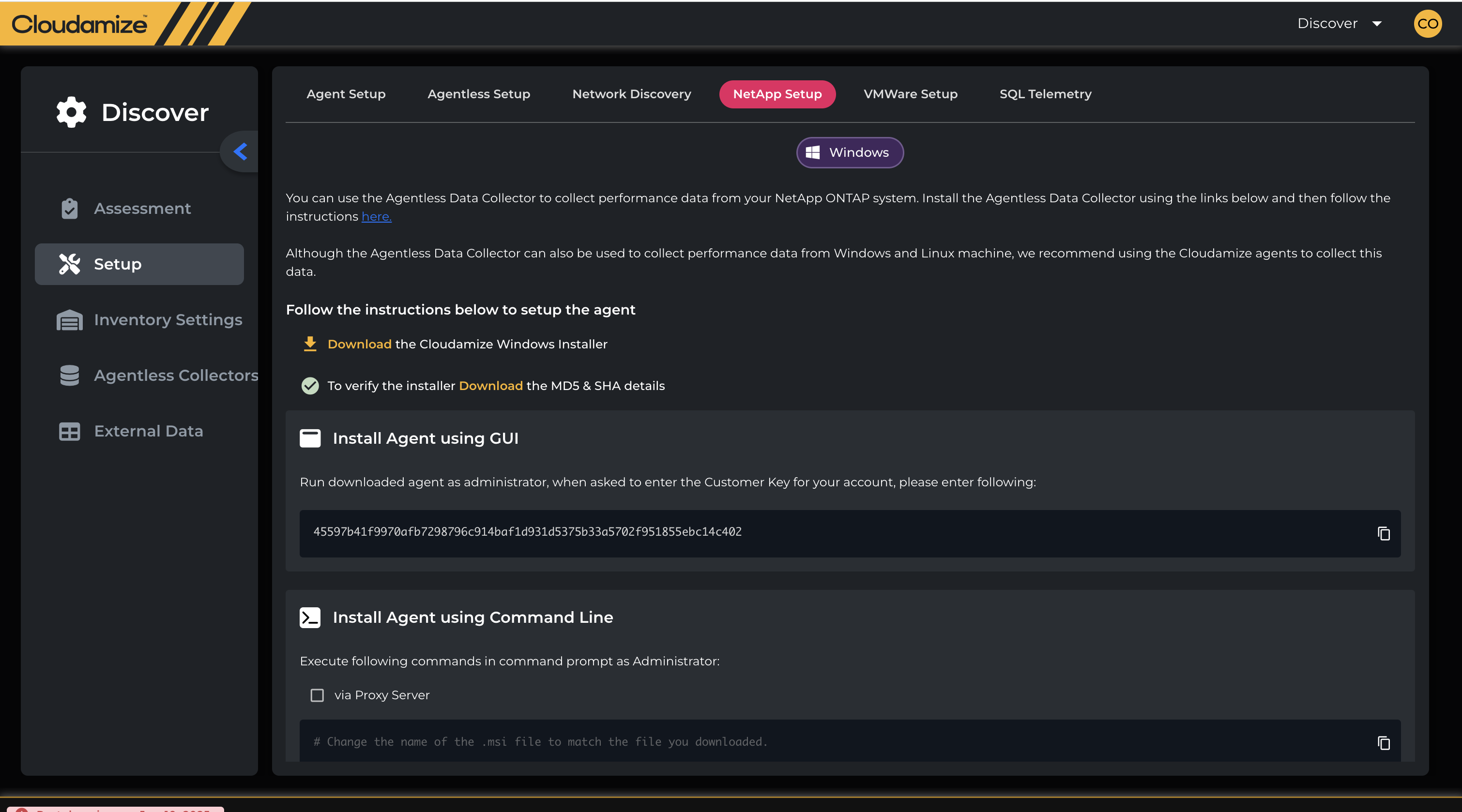
Please refer to the guides linked above for full details on installing the Agentless DC.
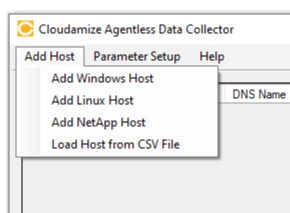
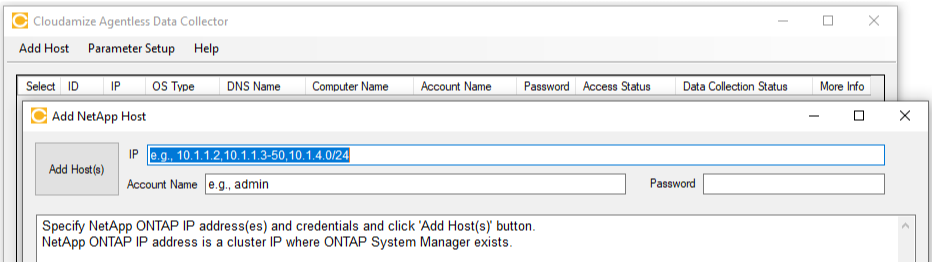
Once the ADC is installed, you can add NetApp systems to the collector UI using the “Add NetApp Host” option. You must specify the URL or IP address of your NetApp system(s) and NetApp credentials. The ADC will collect the actual capacity, IOPS, throughput, etc. via the NetApp ONTAP API.
The minimum version of NetApp ONTAP required is 9.6. It is recommended that a read-only user is used or created for Cloudamize to connect to, as admin/write permissions are not necessary. The user must have HTTP added as a “User Login Method”.
You can add a NetApp system using the drop-down menu in the Agentless Data Collector by selecting “Add NetApp Host”:
Sample Reports (Blank)
NetApp-Detached-Storage-Report.xlsx
FSx-Recommendation-For-NetApp.xlsx
If you have any queries, please get in touch with the helpdesk via our Helpdesk Portal or by email at helpdesk@cloudamize.com.