

Problem
-
After the installation of the Cloudamize Proxy, the status of the connection to your vCenter is "DISCONNECTED" with a message such as:
-
"Invalid Login: The credentials provided were not accepted by your vCenter endpoint. Please check that the read-only account credentials provided to Cloudamize match your local setup."
-
Solution
-
This error occurs when the username and password provided during the registration are not accepted by the vCenter authentication mechanism:
-
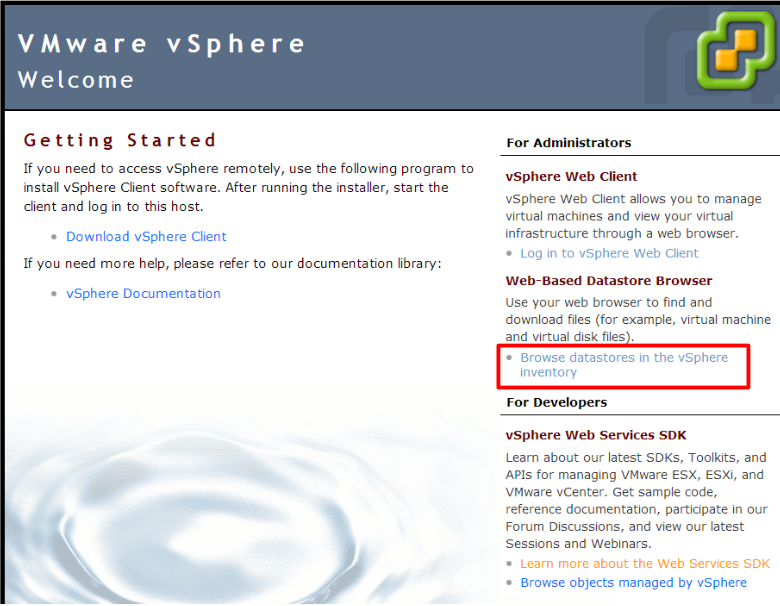
Please go to a browser and go to https://<vcenter_ip_provided_during installation>
-
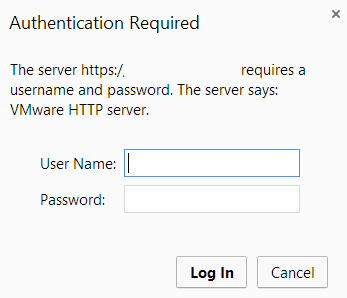
Go to: For Administrators → Web-Based Datastore Browser → Browse datastores in the vSphere inventory. You should be getting the following vCenter authentication form.
-
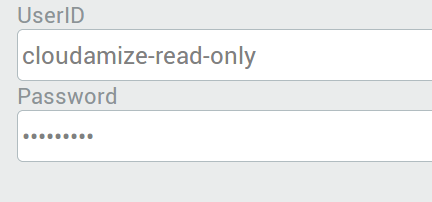
Please enter the same credentials that you used on the Cloudamize Web registration form.
-
If you are not able to login to the vCenter Datastore using these credentials:
-
1) Check that you have the correct username and password provided to Cloudamize
-
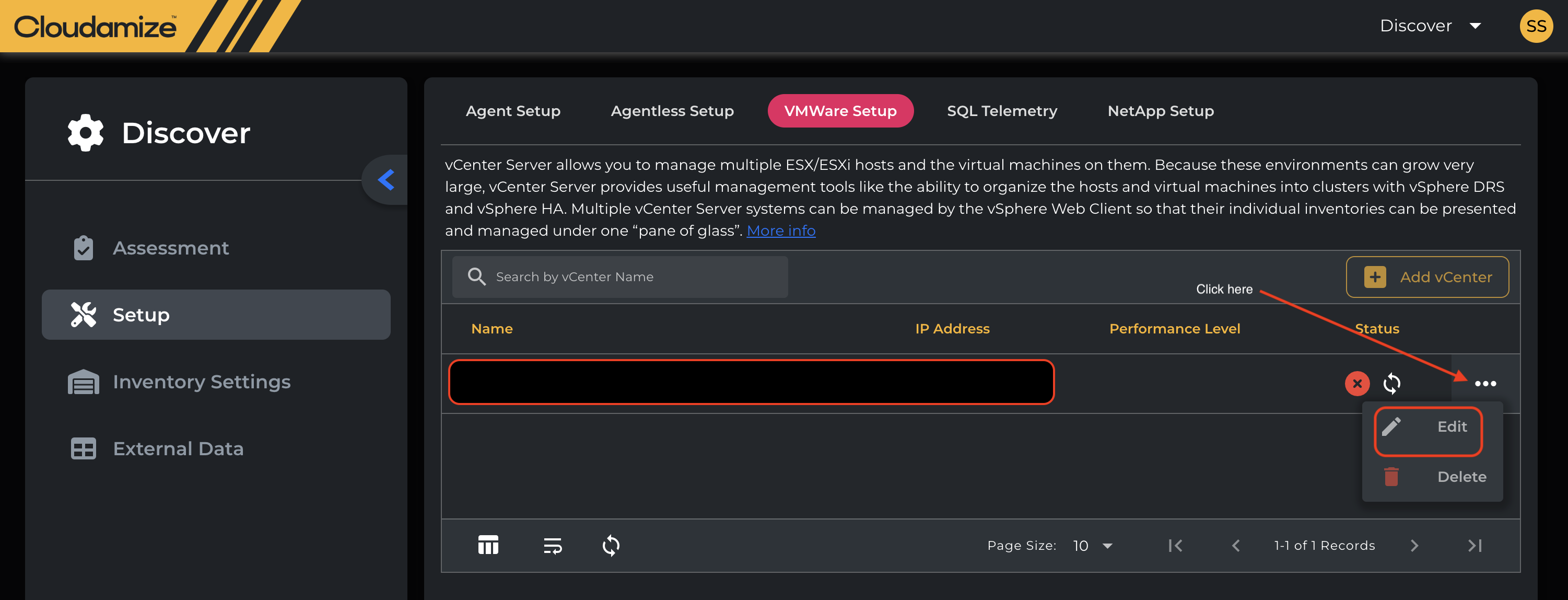
2) Update your vCenter information on the Cloudamize website.
-
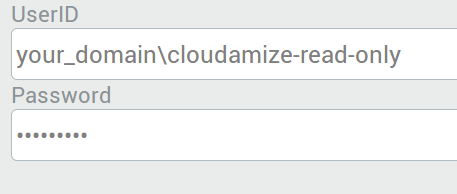
If you are using an Active Directory domain account to access your vCenter, please enter your username in the following format:
-
If you are using a local account to access your vCenter, please enter your username in the following format:
-
-
-
If you are still not able to connect after going through these steps, please contact helpdesk@cloudamize.com for further assistance.
If you have any queries, please get in touch with the helpdesk via our Helpdesk Portal or by email at helpdesk@cloudamize.com.