

Overview
Designed to help manage the migration process, Runbooks allow users to define and track the tasks related to migrating on-premises servers to the cloud.
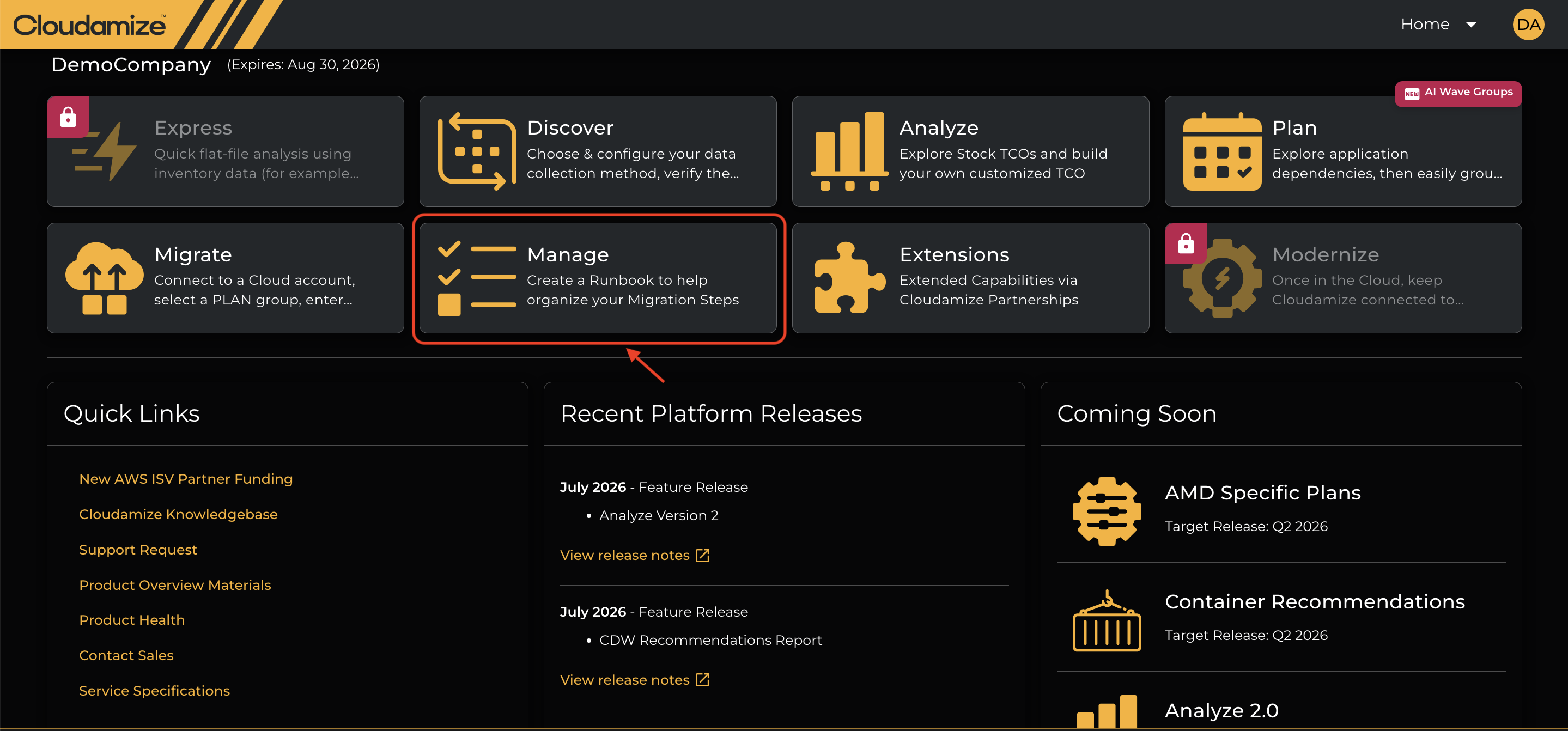
The list of Runbooks is available under the Manage section on the landing page.
The Runbook name and status are displayed, and the user can add new runbooks.
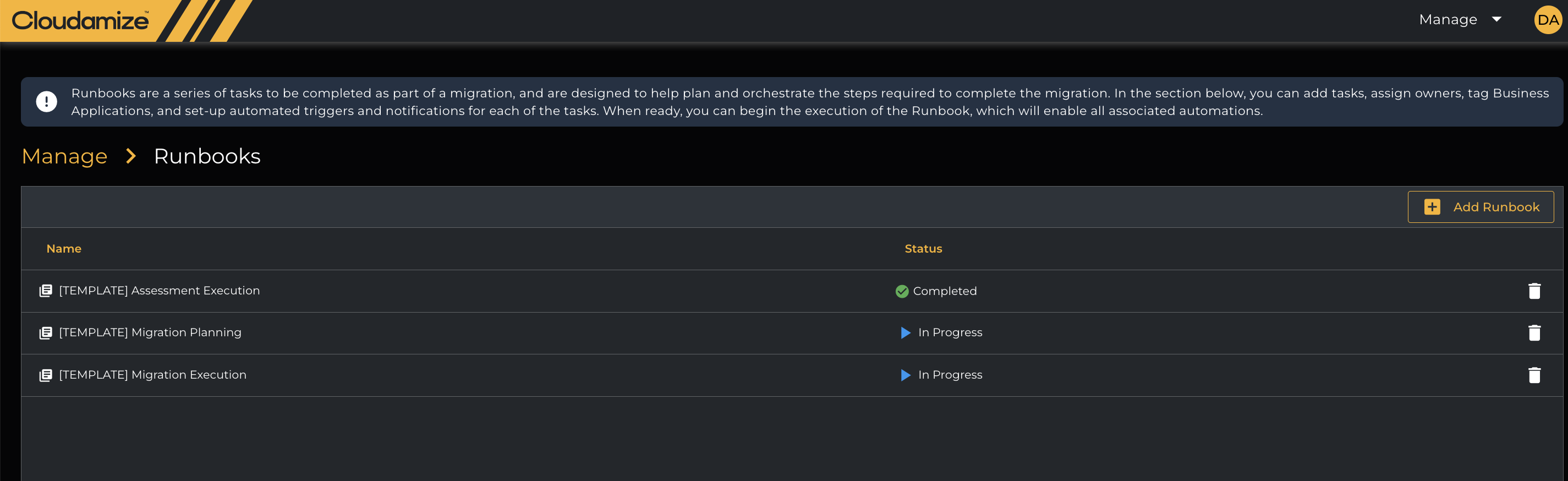
Add Runbook
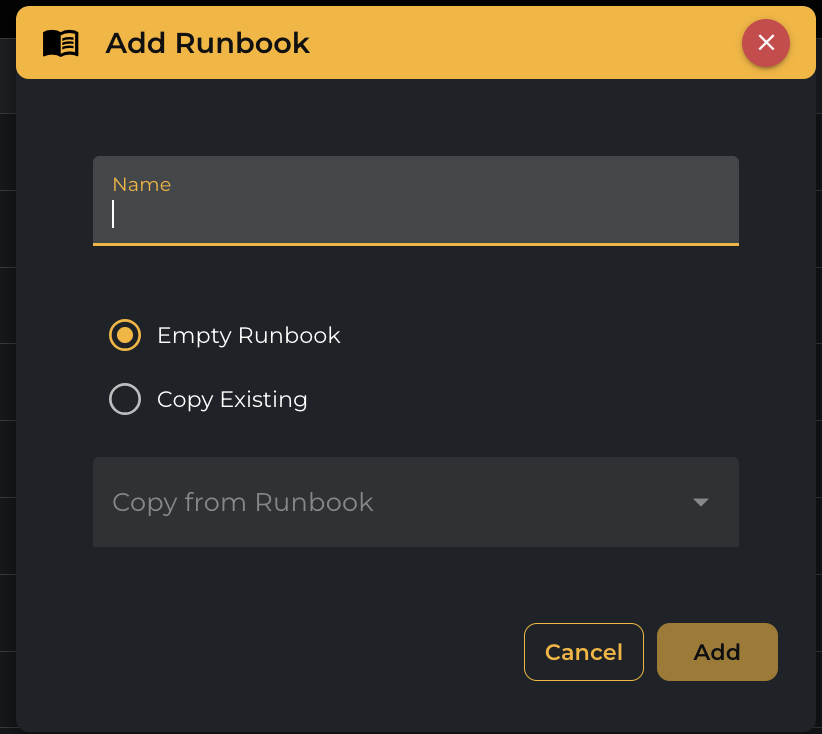
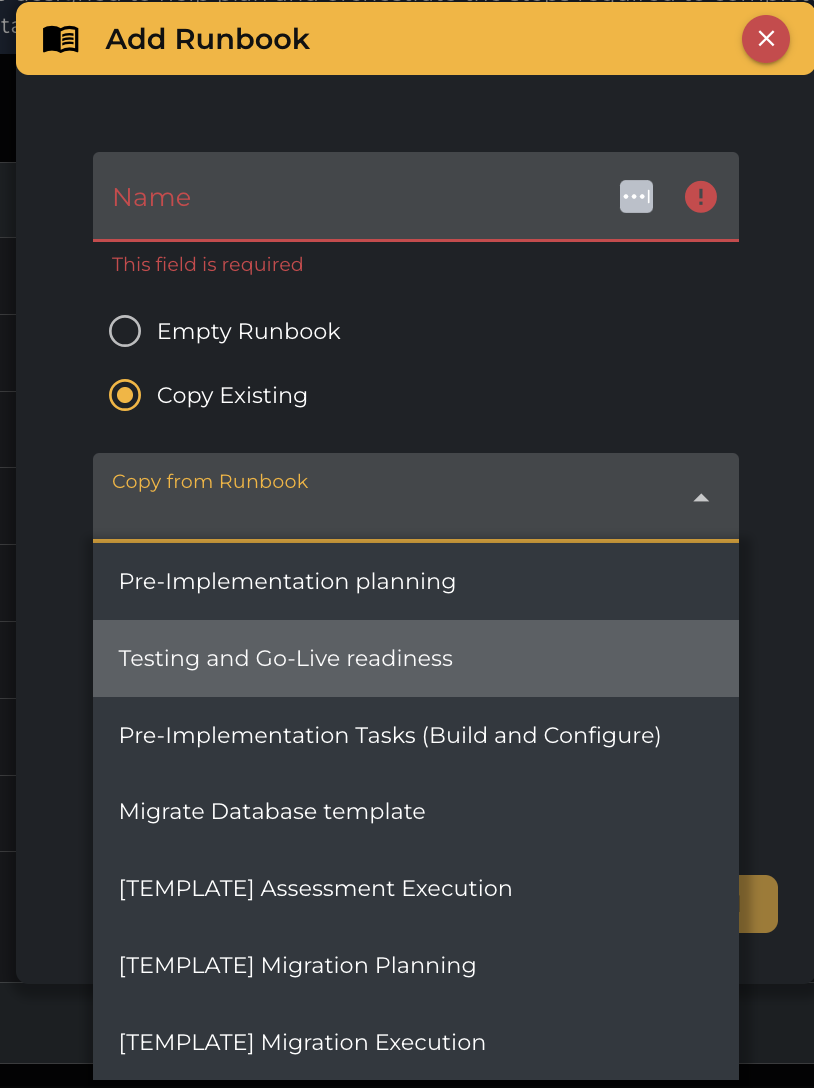
When adding a Runbook, you can either create a new empty runbook or you can start with an existing runbook. If you start with an existing runbook, you can optionally add text that will be added as a prefix to each of the tasks in the runbook. For example, you could start with a generic “database migration” runbook with all of the tasks normally required when migrating a database and specify the database name as a prefix that will be added to each of the tasks in the new runbook for that database.
-
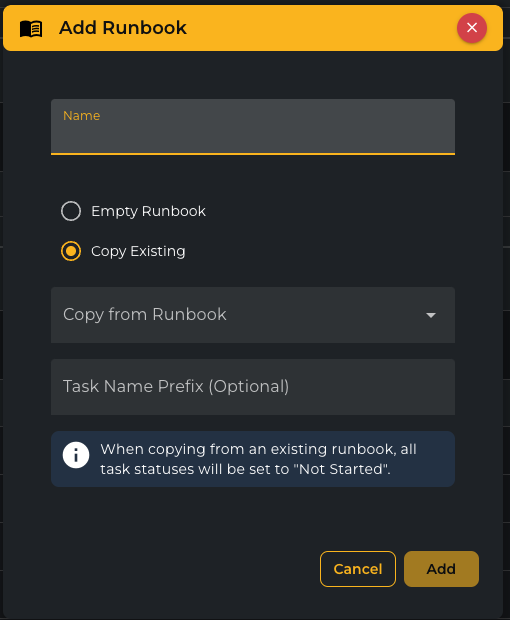
You can also copy from an existing Runbook using the Copy from Runbook drop-down option, as shown below. When copying from an existing runbook, all the task statuses will be set to “Not started.”
Runbook Tasks
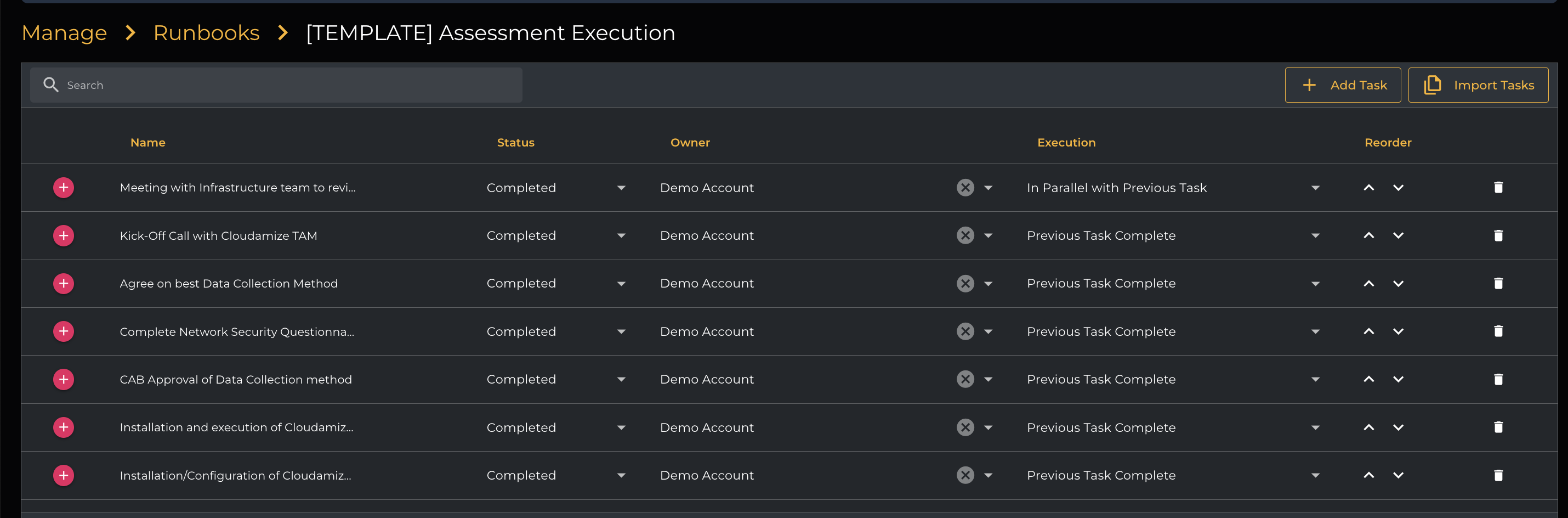
Runbook tasks fields
-
Reorder - used to reorder tasks by clicking on the cap symbols(^⌄)
-
Task Name - editable
-
Status
-
Not Started
-
In Progress
-
Completed
-
Failed
-
-
Owner - can be assigned to any users who belong to the assessment
-
Users can be added in Settings, User Management
-
-
Execution - When should this task be executed
-
Previous Task Complete
-
In Parallel with the Previous Task
-
Manually Triggered

-
-
The Task can be expanded as shown above and will also allow you to add the task description, and then click on the Save button.
Notify Users -
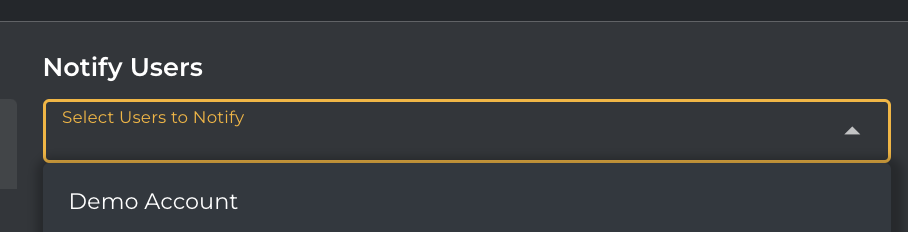
It has a section to Notify Users and will allow you to select the users from the drop-down menu.
Reports -
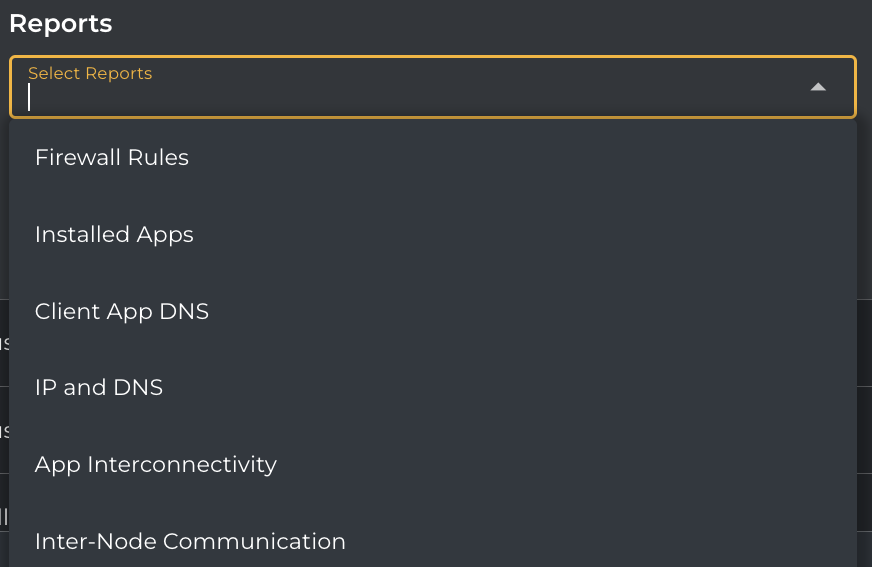
The Reports section allows you to select multiple reports of a Migration Planner through a drop-down option, as shown below
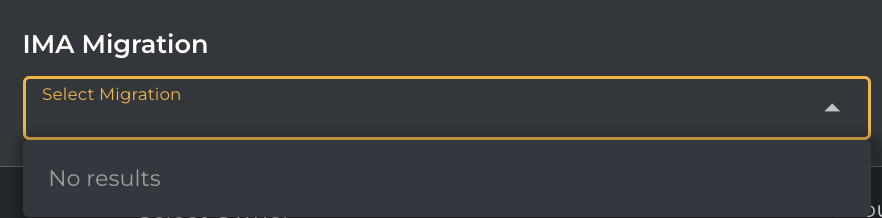
IMA Migration
-
This section allows you to select IMA Migration from the available options in the drop-down menu, as shown below.
Business Application
-
This section allows you to select the Business Applications if created using the Business Application Tag in the Application Tagging view.

Add Tasks
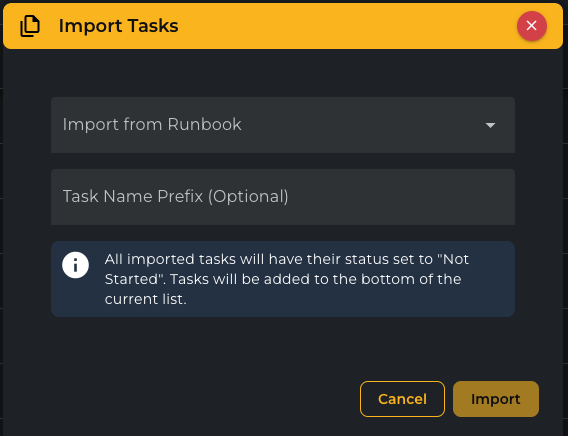
You can either add a new “blank” task to the bottom of the runbook or import all tasks from an existing runbook as new tasks in the current runbook. If you import tasks from an existing runbook, you can optionally add text that will be added as a prefix to each of the tasks when they are imported.

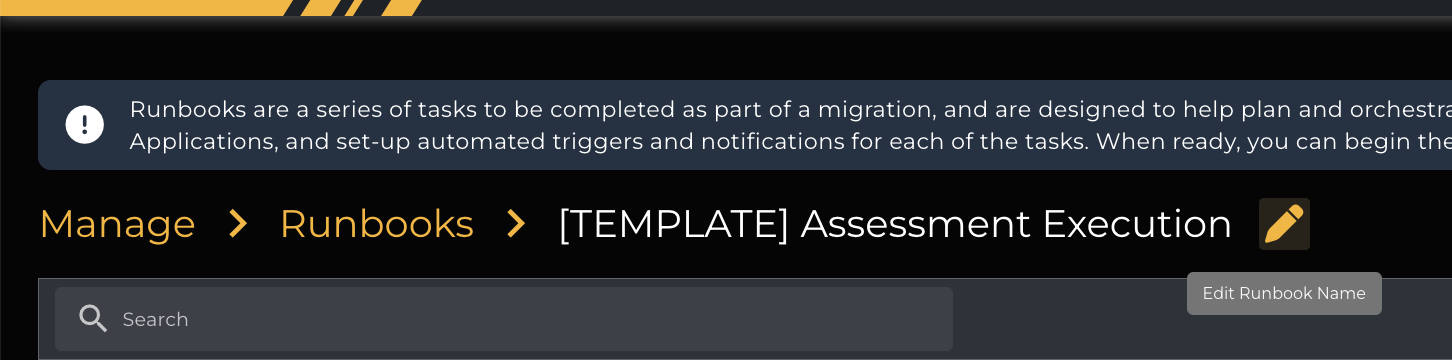
Editing the Runbook name
The Runbook name can be edited on the Runbook Tasks page. To return to the list of Runbooks, click “Runbooks.”
If you have any queries, please get in touch with the helpdesk via our Helpdesk Portal or by email at helpdesk@cloudamize.com.