

Version: 1.0.0
Last Updated:
AWS Marketplace: https://aws.amazon.com/marketplace/pp/prodview-xxv2mi3oqqduw?sr=0-1&ref_=ucaf&applicationId=AWSMPContessa
Purpose
This guide explains how to deploy, configure, run, and troubleshoot the Cloudamize Data Ingestion Agent in AWS Transform. The content is structured for easy reading in Confluence and clean export to PDF.
Overview
The Cloudamize Data Ingestion Agent retrieves migration discovery data from Cloudamize and delivers it in the AWS Transform schema. It pulls server inventory, application details, dependencies, and database information from a Cloudamize plan, then returns a normalized JSON payload ready for AWS migration planning.
Use this agent when you already have Cloudamize discovery data and want to bring it into AWS Transform without manual export or reformatting.
How the solution works
Two agents work together on the AWS Transform platform:
-
Cloudamize Migration Orchestrator — the agent you interact with in the Transform chat UI. It handles credential setup and coordinates the pull workflow.
-
Cloudamize Data Ingestion Agent — a background worker that connects to the Cloudamize MCP server, retrieves data, and normalizes it.
You interact only with the orchestrator. The pull agent runs automatically behind the scenes.
Normalized output collections
|
Collection |
Contents |
|---|---|
|
Server Details |
Hostname, operating system, CPU, RAM, storage, and utilization data |
|
Application Details |
Application name, type, and connection counts |
|
Application Mapping |
Mapping of applications to servers |
|
Database Details |
Engine type, edition, and size |
|
Server Communications |
Network flows between servers including ports and processes |
|
Application Dependencies |
Directed dependency relationships between applications |
Prerequisites
Complete the following requirements before deployment.
-
An active AWS account with AWS Transform enabled
-
Bedrock model access enabled for
us.anthropic.claude-sonnet-4-5-20250929-v1:0 -
A Cloudamize account with at least one active migration plan
-
A valid Cloudamize JWT token for MCP access
-
Your account allowlisted for the Cloudamize agents in AWS Transform
-
Visibility of
cloudamize-data-ingestion-agentandcloudamize-migration-orchestratorin the Transform configuration flow -
IAM permissions to deploy CloudFormation stacks, create IAM roles, and manage Secrets Manager secrets
Container images
The pre-built container images are shared with your AWS account from the Cloudamize production registry. The default image URIs in the CloudFormation template already point to the production account. You do not need to build or push images.
Note
If your account lacks access to the agent’s images and you do not see it in the partner agent list, contact Cloudamize support.
Network access requirements
The agent containers require outbound HTTPS access to the following endpoints:
-
mcp.cloudamize.comon port443 -
AWS Secrets Manager API endpoints
-
AWS CloudWatch Logs API endpoints
-
Amazon ECR endpoints for image pulls
-
Bedrock model inference endpoints
-
AWS Transform Agentic API endpoints
If deploying in VPC mode, ensure egress is available through a NAT gateway or equivalent routing path.
Subscription
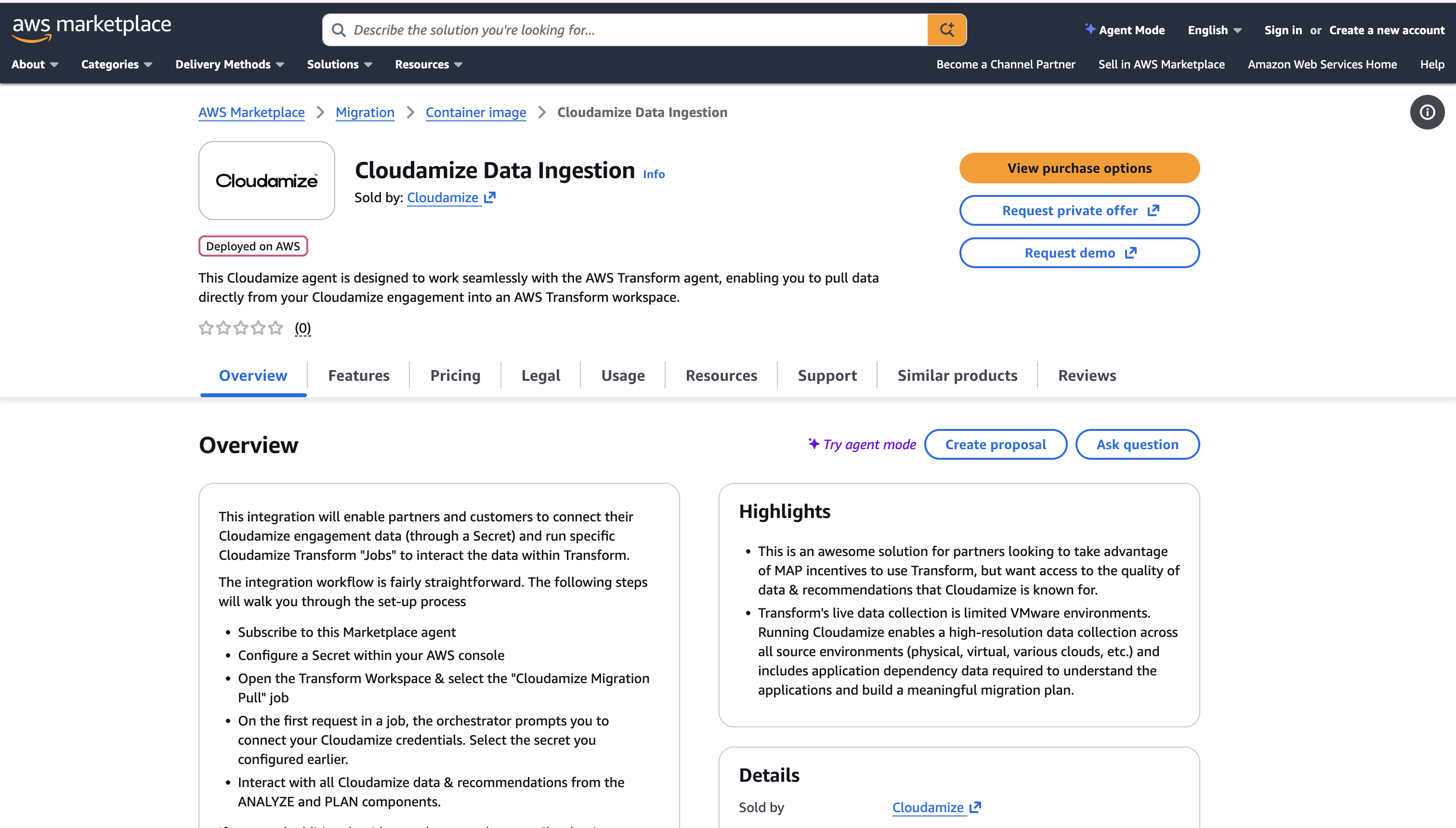
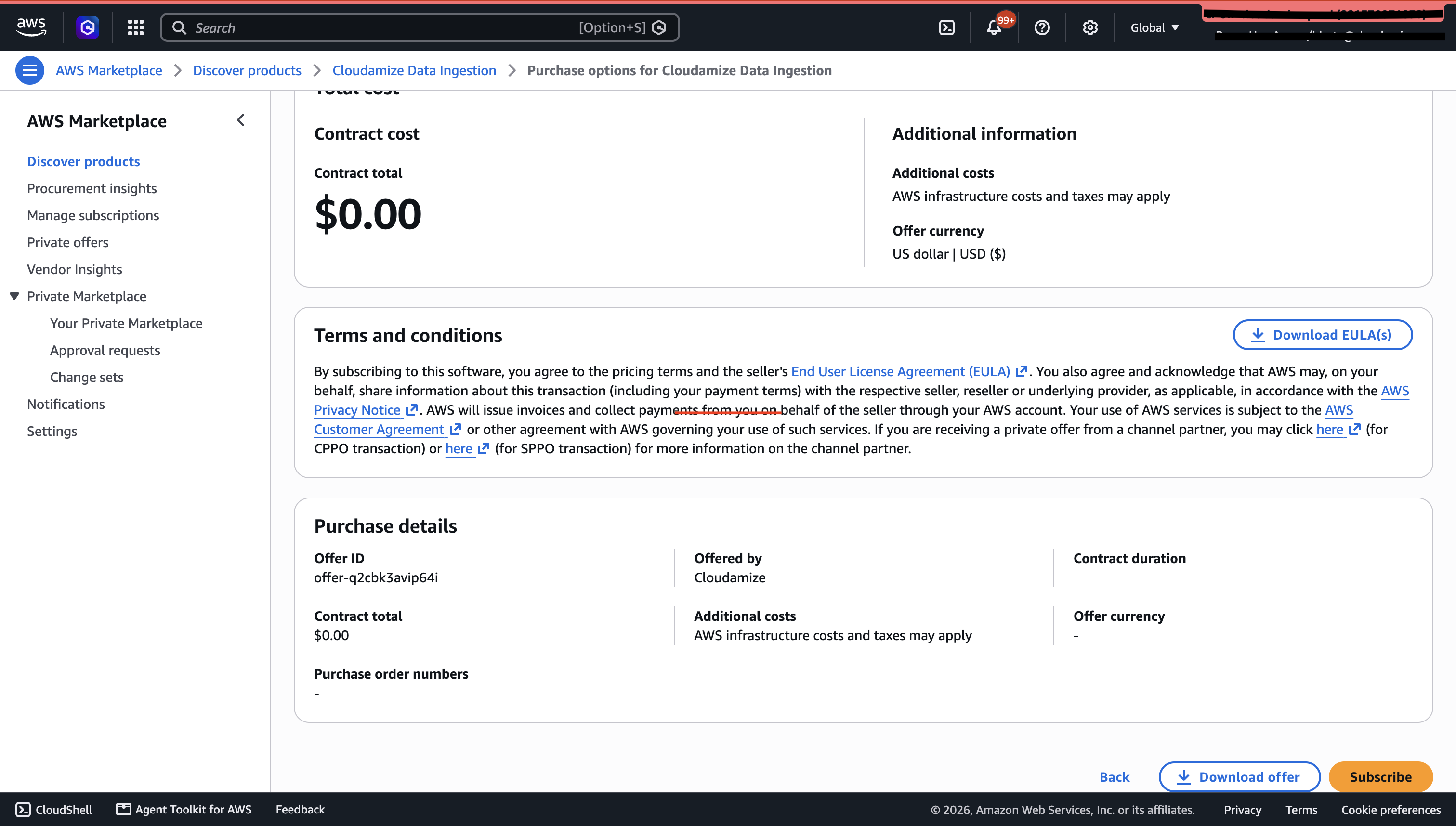
Step 1: Subscribe via AWS MarketPlace
-
Product market place listing: https://aws.amazon.com/marketplace/pp/prodview-xxv2mi3oqqduw?sr=0-1&ref_=ucaf&applicationId=AWSMPContessa
-
Click on View Purchase Options
-
Click on Subscribe
Installation:
Deployment uses a single CloudFormation template that creates both agent runtimes, IAM roles, and optionally the JWT secret.
cloudamize-agents-marketplace.yaml
Deployment through the AWS Console
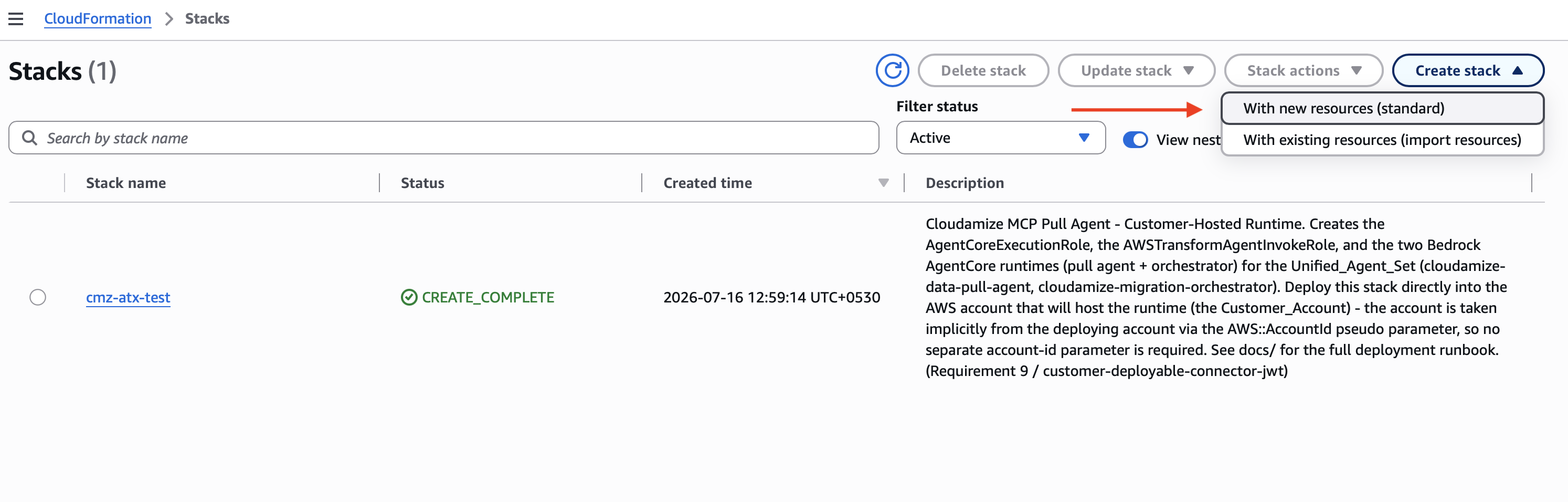
Step 1: Deploy the CloudFormation stack(using Admin access credentials)
-
Open the AWS CloudFormation console in
us-east-1. -
Select Create stack and choose With new resources (standard).
-
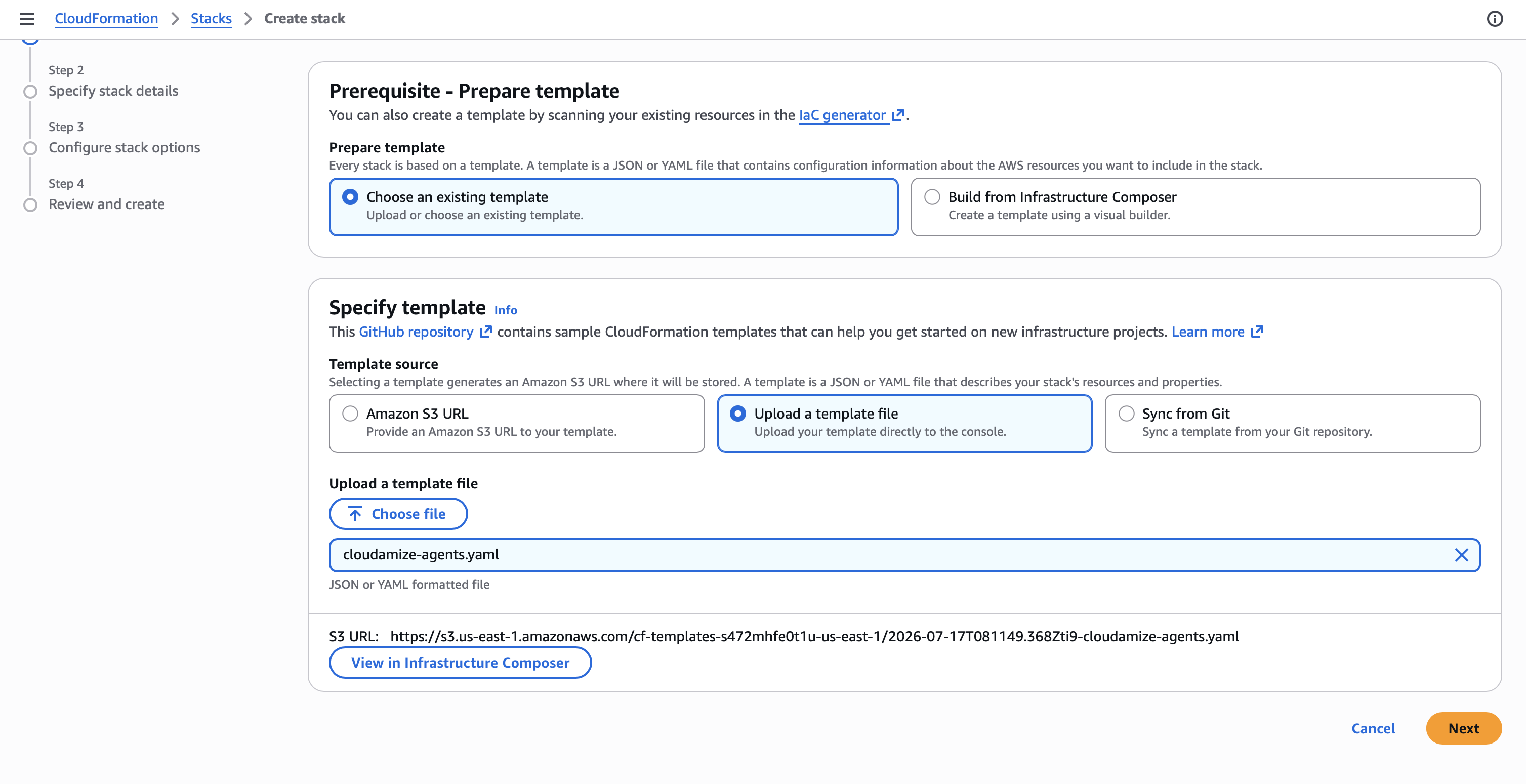
Upload the template file
deployments/cloudformation/cloudamize-agents.yaml.
-
Enter the required and optional parameters shown below.
-
Acknowledge IAM resource creation and submit the stack.
-
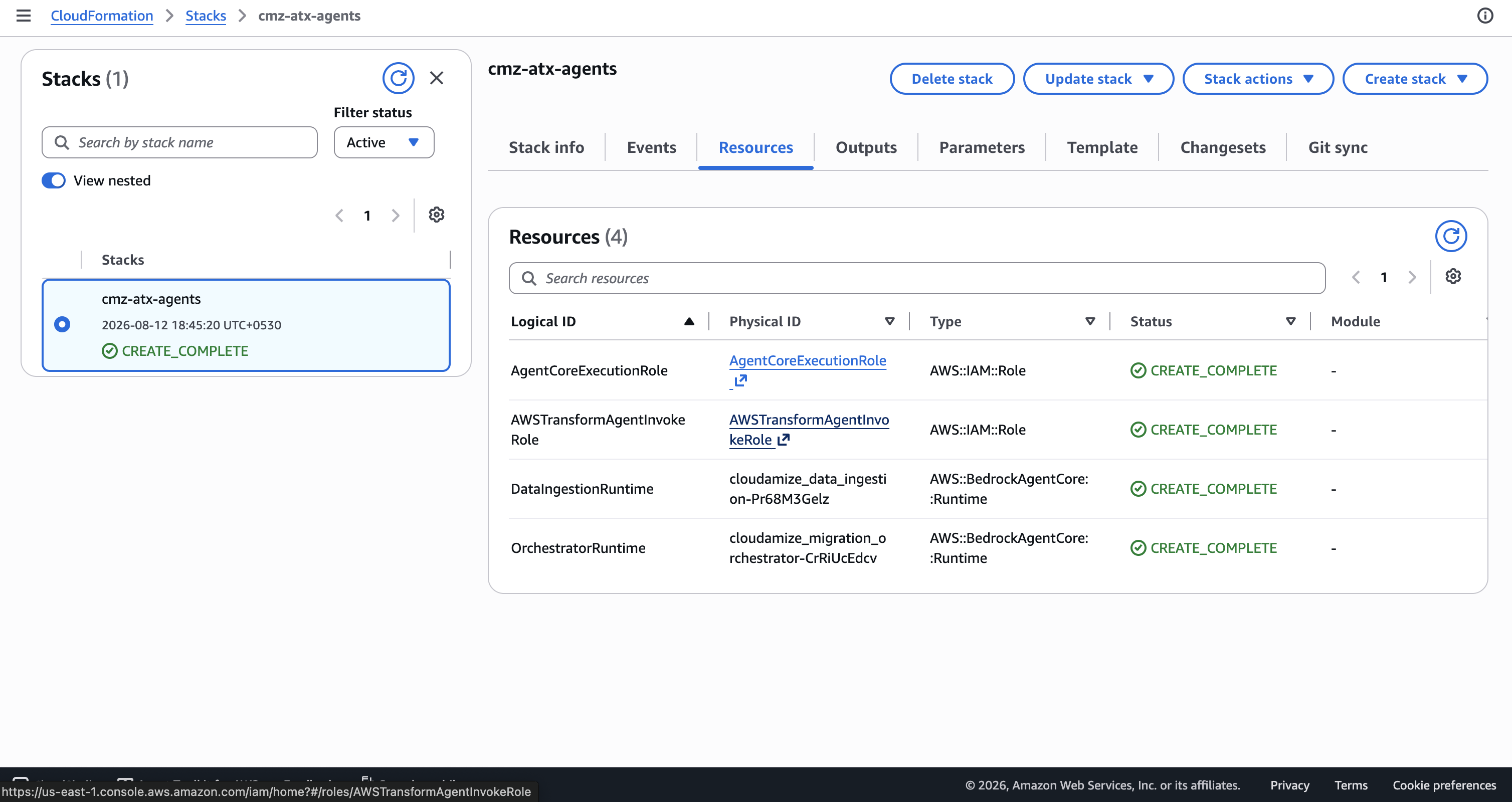
Wait until the stack reaches
CREATE_COMPLETE.
Deployment through the CLI
Use the following commands if you prefer command-line deployment.
Deploy using an existing JWT secret
aws cloudformation deploy \
  --region us-east-1 \
  --stack-name cloudamize-agents \
  --template-file deployments/cloudformation/cloudamize-agents-marketplace.yaml \
  --capabilities CAPABILITY_NAMED_IAM \
  --parameter-overrides \
    JwtSecretArn=arn:aws:secretsmanager:us-east-1:<account>:secret:<name>
Deploy and let the stack create the secret
aws cloudformation deploy \
  --region us-east-1 \
  --stack-name cloudamize-agents \
  --template-file deployments/cloudformation/cloudamize-agents-marketplace.yaml \
  --capabilities CAPABILITY_NAMED_IAM \
  --parameter-overrides \
    CloudamizeJwtToken=<your-jwt-token> \
    JwtSecretName=cmz/auth/token
Reuse existing IAM roles
CreateAgentCoreExecutionRole=false \
ExistingAgentCoreExecutionRoleArn=arn:aws:iam::<account>:role/<role-name> \
CreateAWSTransformAgentInvokeRole=false \
ExistingAWSTransformAgentInvokeRoleArn=arn:aws:iam::<account>:role/<role-name>
Validation commands
aws cloudformation describe-stacks --stack-name cloudamize-agents \
  --query 'Stacks[0].StackStatus'

aws logs describe-log-streams \
  --log-group-name /aws/bedrock-agentcore/ \
  --order-by LastEventTime --descending --limit 5 \
  --region <region>
JWT secret options
Option A — Let the stack create the secret
|
Parameter |
What to enter |
|---|---|
|
|
Leave blank |
|
|
Name for the new secret, typically |
|
|
Paste your Cloudamize JWT token |
Option B — Use an existing Secrets Manager secret
|
Parameter |
What to enter |
|---|---|
|
|
Full ARN of the existing secret |
|
|
Ignored when an ARN is provided |
|
|
Ignored when an ARN is provided |
If you use an existing secret, its value must contain either a plain-text JWT string or a JSON object with the key CLOUDAMIZE_JWT_TOKEN.
JWT token requirement
Generate a cloudamize JWT token .
How to Use cmz-auth.sh
-
Save the script as
cmz-auth.shin your working directory. -
Make it executable:
bash
chmod +x cmz-auth.sh
-
Run the script with your credentials:
bash
API_USER='your-email@example.com' API_PASS='your-password' ./cmz-auth.sh
-
If multiple engagements are found, the script lists available Customer IDs — enter the relevant Customer ID when prompted.
-
Token is returned on stdout
Important
JWTs expire after 12 hours. If the token has expired, the job will fail until the secret is updated with a fresh token.
NOTE: Prior running the AWS job please make sure to update the JWT Token AWS secret manager
Step 2: Record stack outputs
After deployment completes, capture the following values from the Outputs tab.
|
Output Key |
Used for |
|---|---|
|
|
Runtime binding in AWS Transform |
|
|
Runtime binding in AWS Transform |
|
|
Runtime binding in AWS Transform |
|
|
JWT secret rotation and reference |
Step 3: Bind runtimes in AWS Transform
(Note: Admin access is mandatory for this action)
-
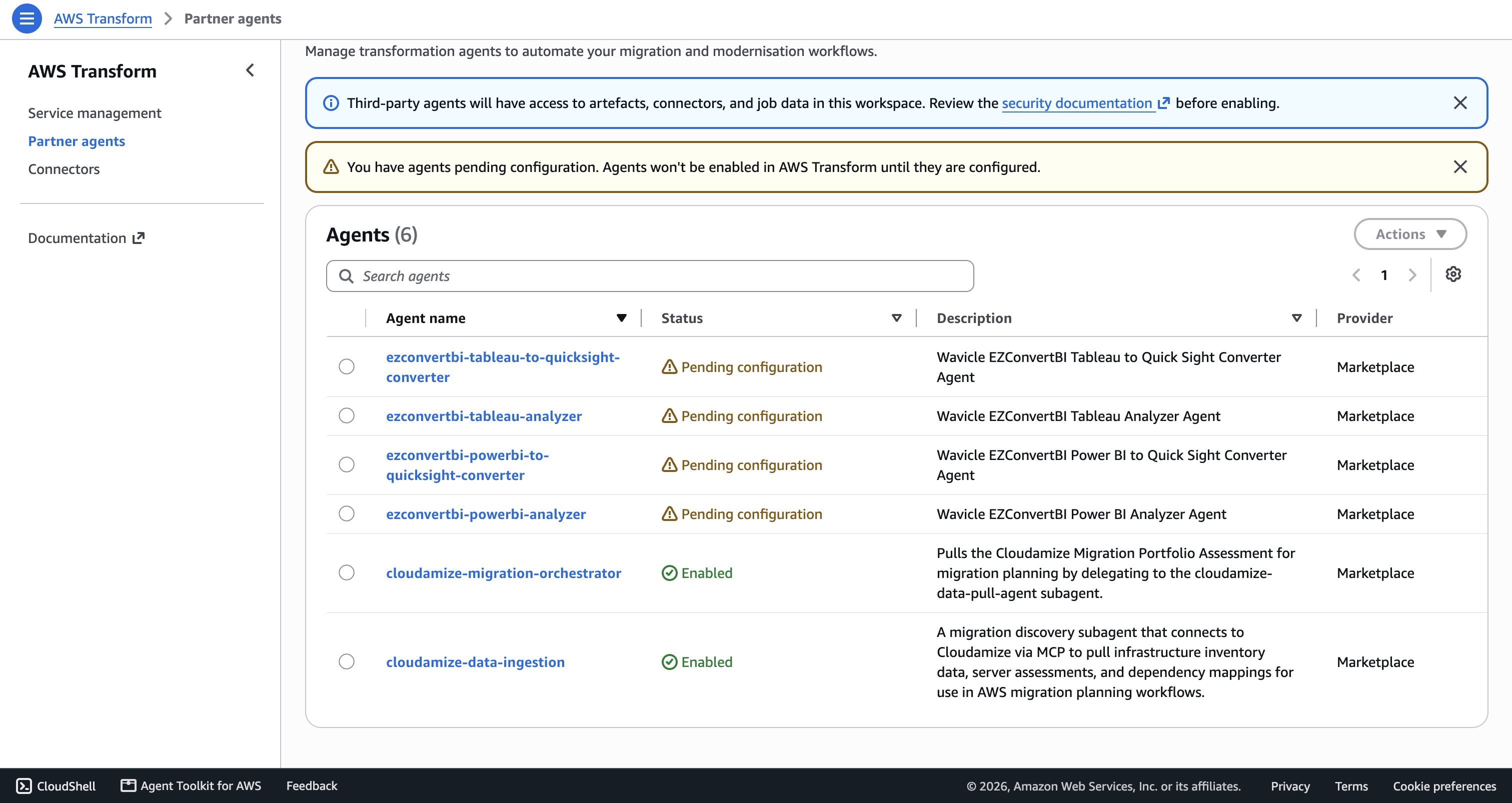
Open AWS Transform and navigate to agent configuration.
-
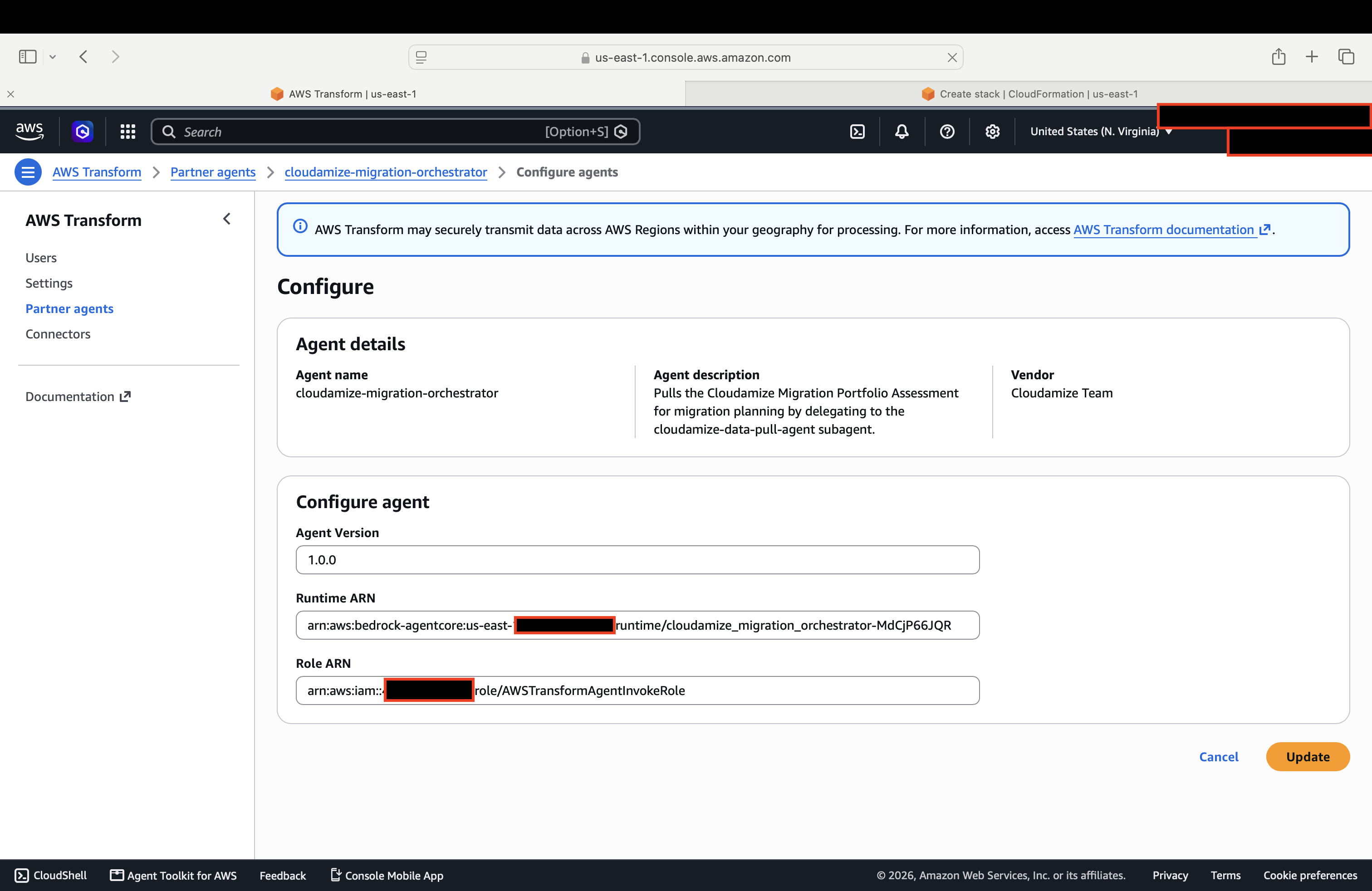
Select Cloudamize Migration Orchestrator.
-
Enter the
OrchestratorRuntimeArnandAWSTransformAgentInvokeRoleArn. -
OrchestratorRuntimeArncan be fetched from Amazon Bedrock AgentCore>Build>Runtime>cloudamize_migration_orchestrator>copy Runtime ARN -
AWSTransformAgentInvokeRoleArnIAM>AWSTransformAgentInvokeRole>copy ARN
Then configure them
-
Repeat for Cloudamize Data Ingestion Agent using
DataIngestionRuntimeArn. -
Save the configuration.
Result
After the runtime bindings are saved, the agents are ready for use. Runtimes start automatically when a Transform job invokes them.
Important
Runtime bindings must be configured manually for both console and CLI deployments.
Running a Transform Job
Start a job
-
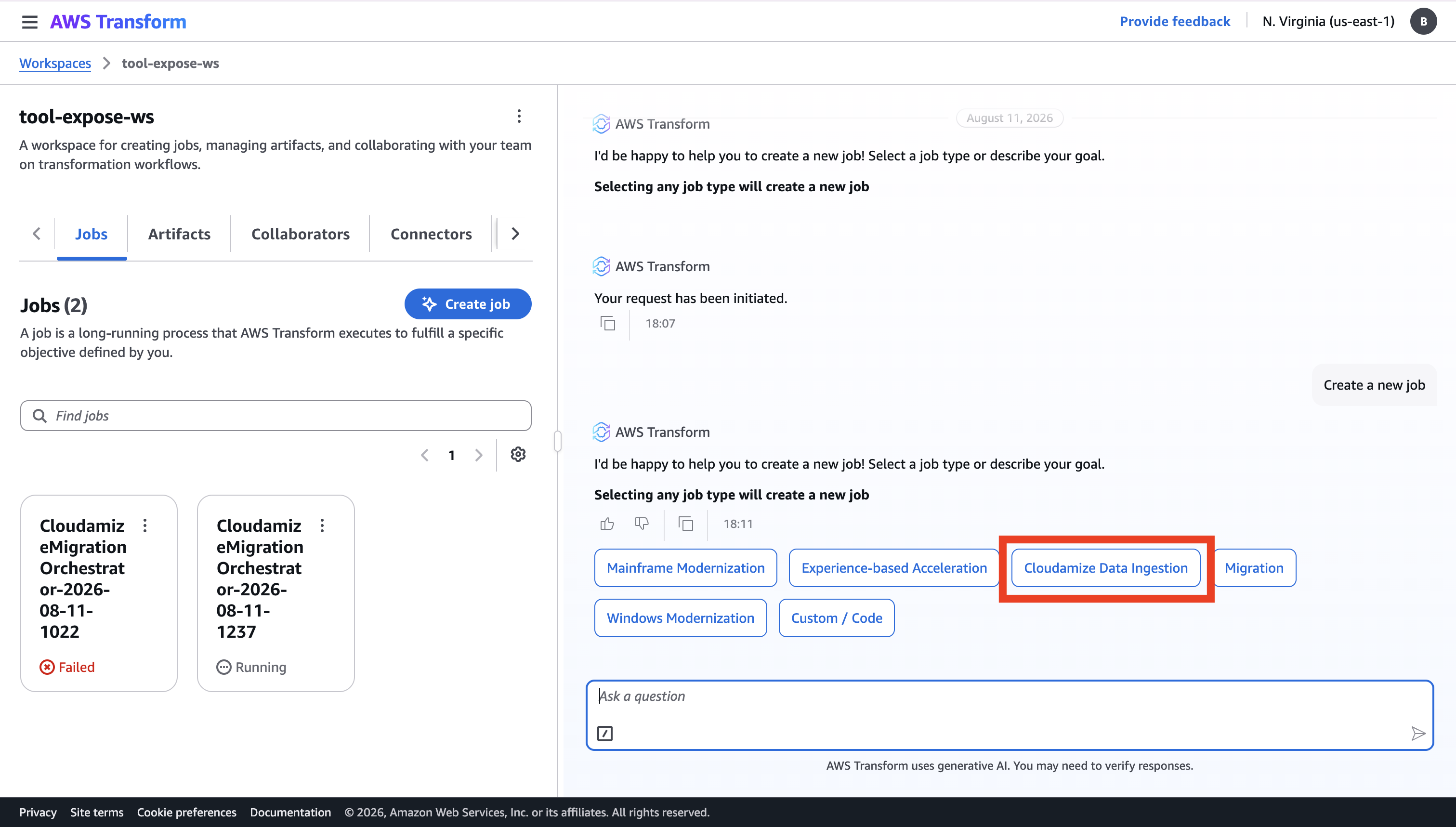
Open AWS Transform, go to workspace, and create a job option on the chat UI.
-
Select the Cloudamize Data Ingestion agent.
-
Start chatting or executing workflow with sample prompts
-
Pull the migration portfolio assessment for plan 5
-
List my Cloudamize plans
-
Get server and application data from Cloudamize plan 12
-
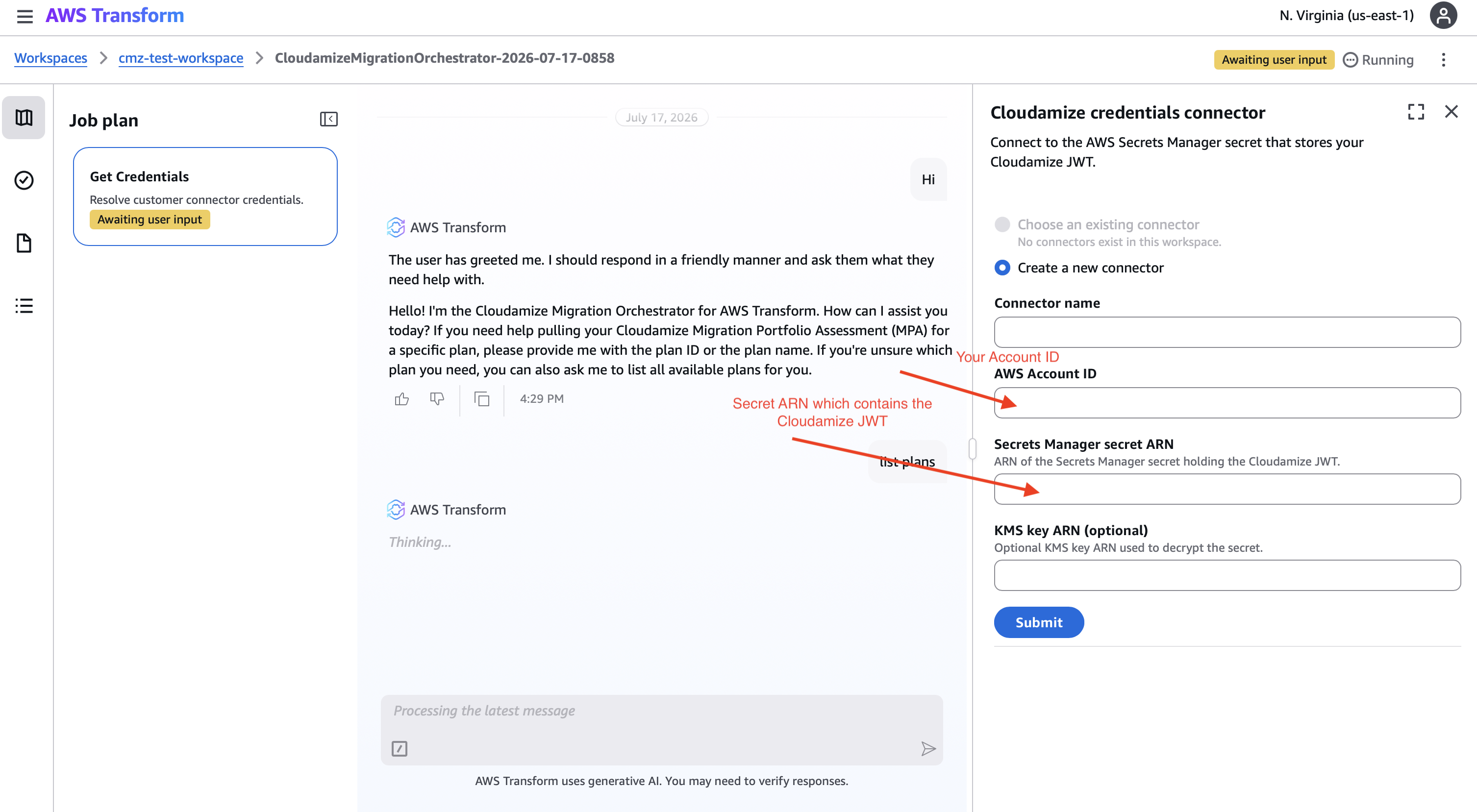
Connect credentials
On the first request in a job, the orchestrator prompts you to connect your Cloudamize credentials.
-
Select an existing Secrets Manager connector, or create a new one.
-
Provide the Secret ARN for the secret holding your JWT.
-
Optionally provide the KMS key ARN if the secret uses a customer-managed key.
-
Submit the form.
The agent resolves the JWT securely and caches it for the remainder of the job.
Reference:
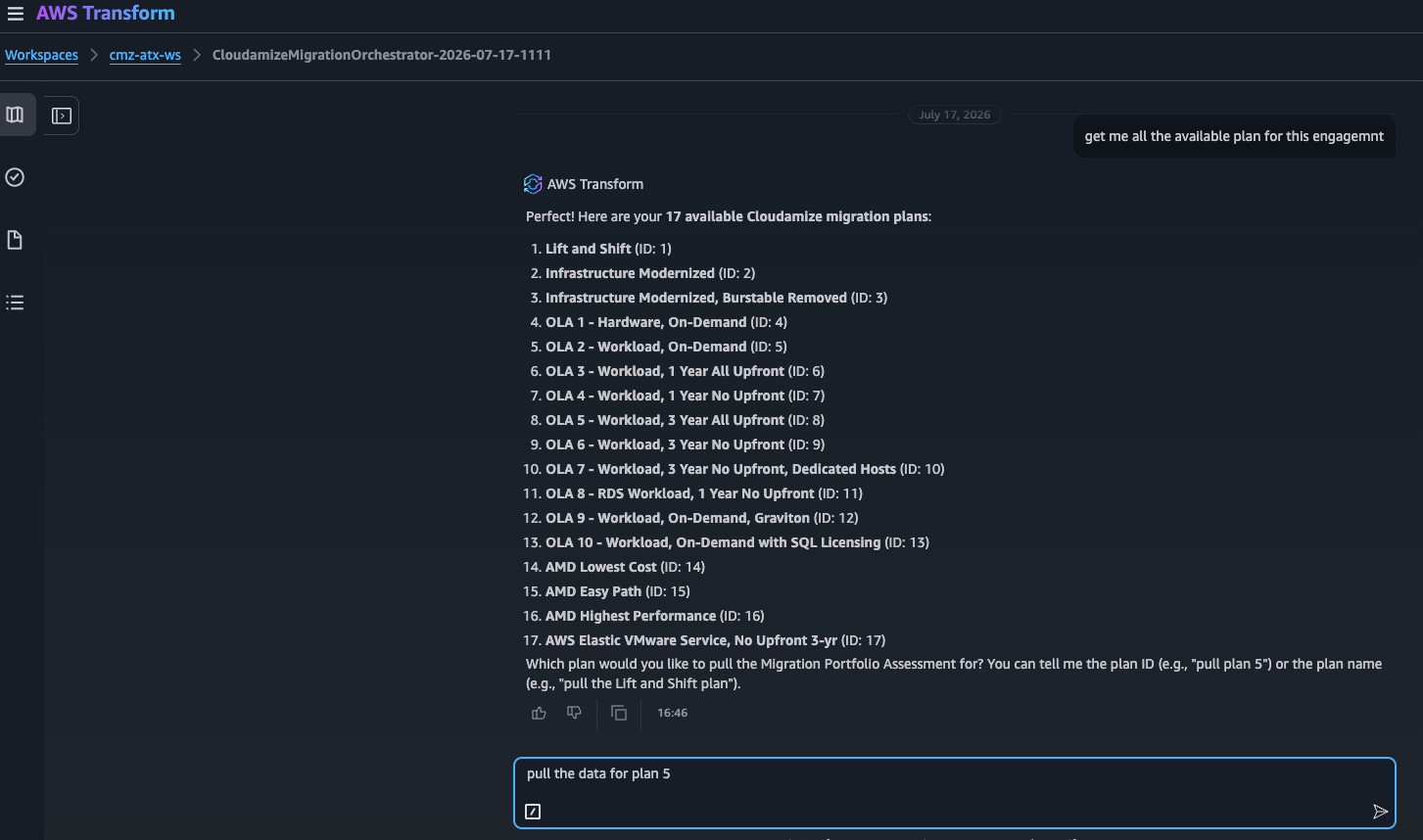
Find a plan ID
If you do not know the plan ID, ask the orchestrator to list available Cloudamize plans. It returns plan IDs and display names so you can choose the correct plan.
Retrieve assessment data
After credentials are resolved and a plan ID is provided, the workflow performs these actions:
-
Launches a subagent instance
-
Connects to the Cloudamize MCP server
-
Retrieves the full Migration Portfolio Assessment for the plan
-
Normalizes the data into the AWS Transform schema
-
Returns the result in chat
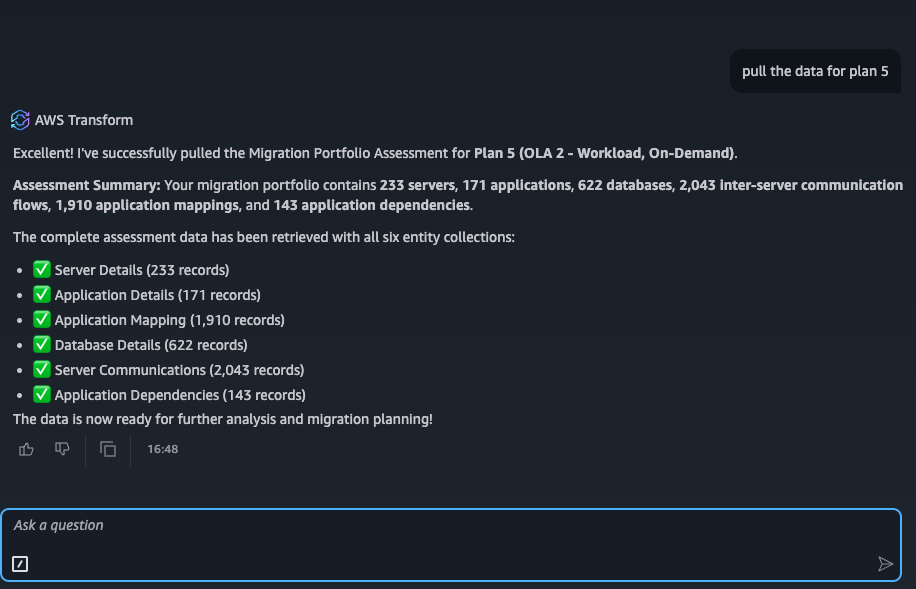
This process typically takes from 30 seconds to a few minutes depending on portfolio size.
FSxN recommendations in the pulled output
When the plan includes EBS-attached disks eligible for NetApp ONTAP conversion, the pulled recommendations now include FSxN cost/savings details:
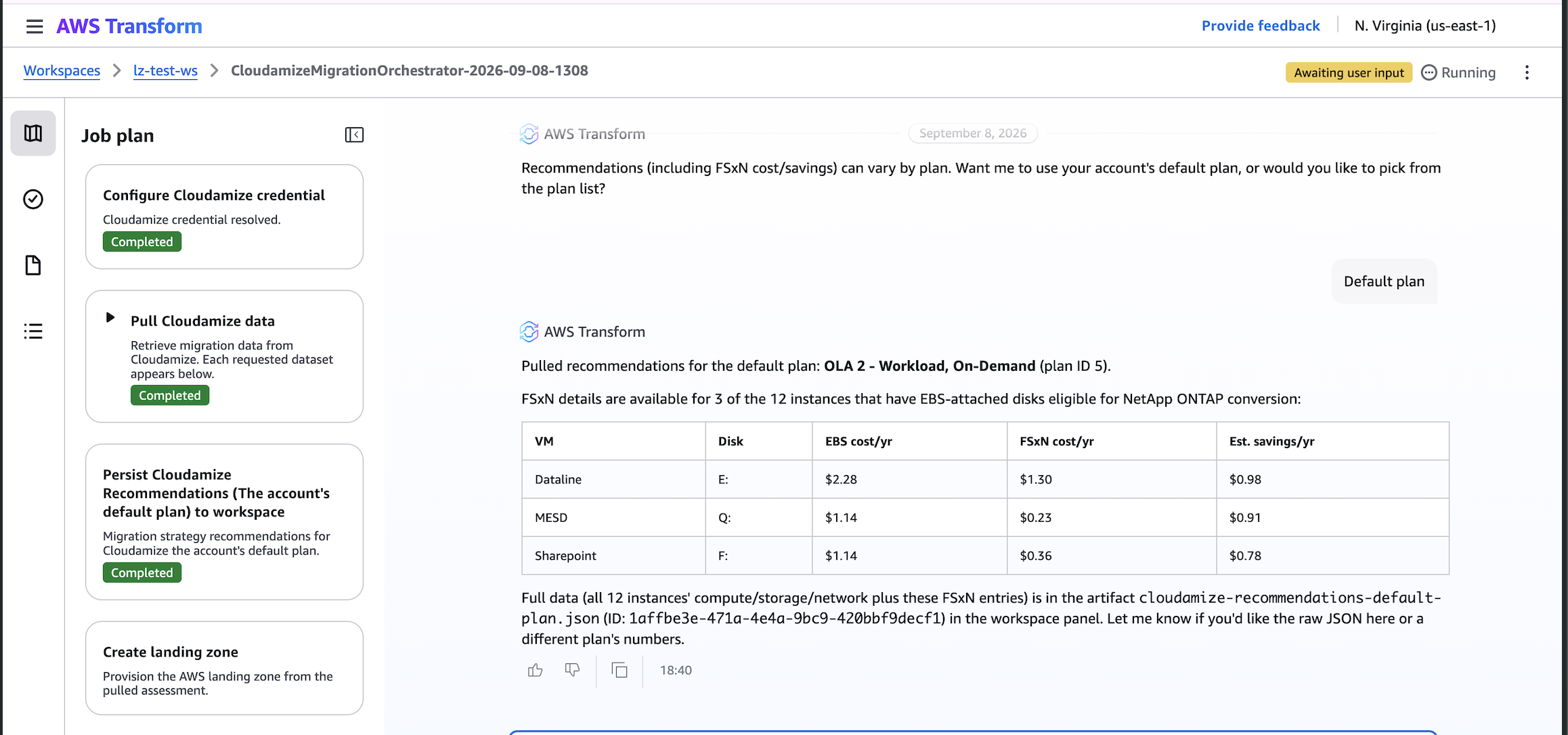
Full details for all instances, including FSxN entries, are also available in the generated JSON artifact in the workspace panel.
Timeout behavior
|
Step |
Timeout |
Behavior if exceeded |
|---|---|---|
|
Credential form completion |
30 minutes |
The job fails and a new job must be started |
|
Subagent data retrieval |
10 minutes |
The job fails with a timeout error |
|
Cloudamize MCP HTTP request |
10 minutes |
The request retries automatically up to 3 times |
Configuration Reference
Environment variables
The CloudFormation template sets required environment variables to runtime automatically. In most deployments, no manual changes are needed.
Automatically set variables
|
Variable |
Value |
Purpose |
|---|---|---|
|
|
Deployment region |
AWS SDK region targeting |
|
|
Secret ARN from the stack |
References the JWT secret |
|
|
|
API endpoint resolution |
Using existing IAM roles
|
Parameter |
Value |
|---|---|
|
|
|
|
|
ARN of the existing execution role |
|
|
|
|
|
ARN of the existing invoke role |
Your existing roles must provide the same permissions as the roles created by the deployment template.
IAM permission model
AgentCoreExecutionRole is used by Bedrock AgentCore to run agent containers and requires permissions to:
-
Read the JWT secret from Secrets Manager
-
Write logs to CloudWatch under
/aws/bedrock-agentcore/ -
Invoke Bedrock models
-
Pull images from ECR
-
Call AWS Transform Agentic APIs
AWSTransformAgentInvokeRole is used by AWS Transform and requires permissions to:
-
Invoke your Bedrock AgentCore runtimes
-
Get runtime status
-
Get runtime endpoint information
Both roles use source-account and source-ARN conditions to reduce cross-account misuse risk.
Updating and Maintenance
JWT rotation
-
Generate a new token from the Cloudamize MCP Server Admin console.
-
Update the secret value in AWS Secrets Manager.
-
No redeployment is required. The next job uses the updated token.
Container image updates
-
Cloudamize publishes updated images to the production registry.
-
Update the CloudFormation stack if a new image URI or tag is provided.
-
The runtimes pull the updated image on the next invocation.
Changing network mode
-
Update the CloudFormation stack.
-
Change the
NetworkModeparameter. -
If switching to VPC mode, ensure outbound internet access is available.
Deleting the deployment
-
Unbind the runtimes in AWS Transform.
-
Delete the CloudFormation stack.
-
Optionally delete the Secrets Manager secret if it is no longer needed.
Troubleshooting
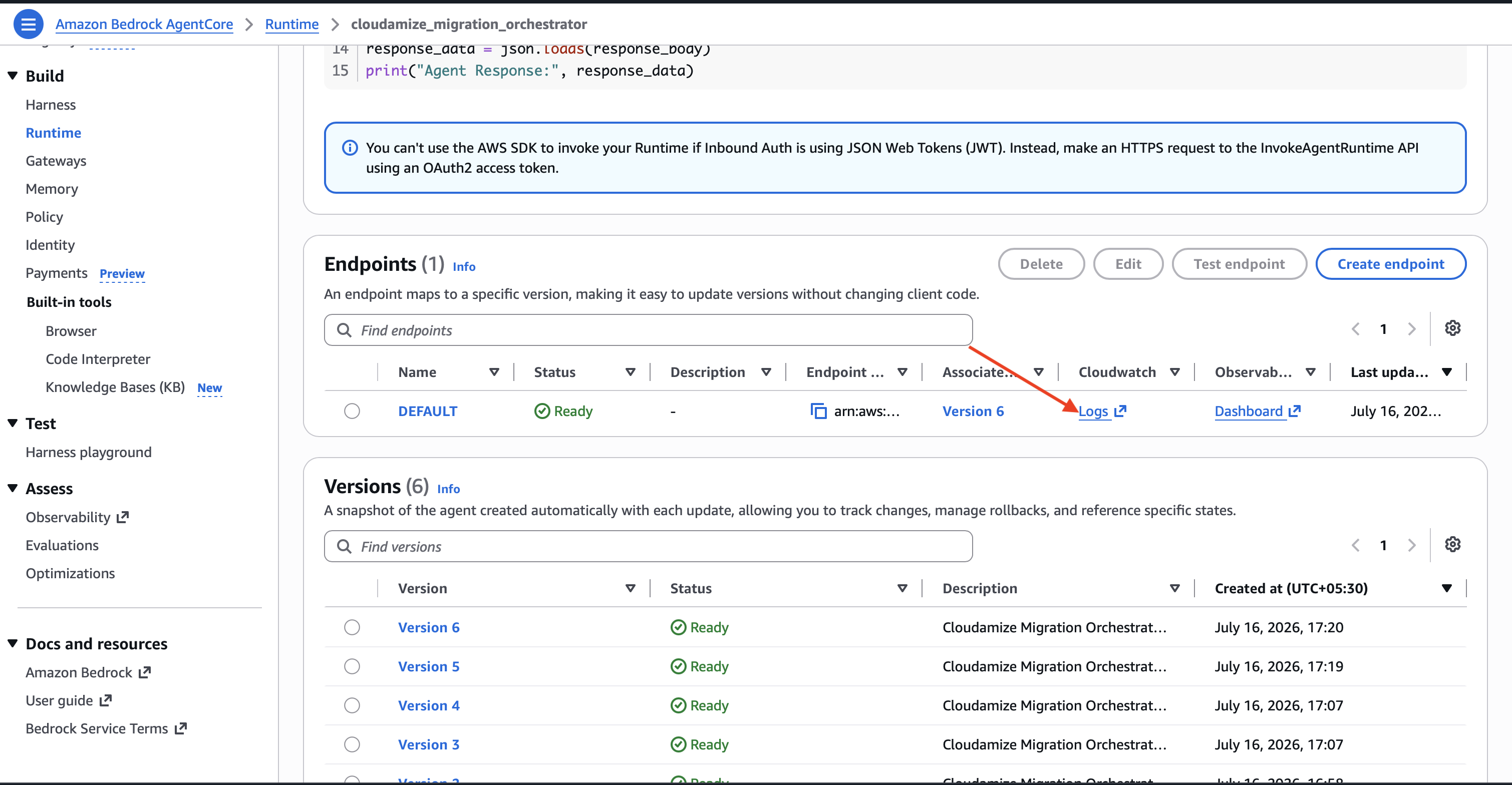
Where to view logs
Agent logs are available in CloudWatch Logs under /aws/bedrock-agentcore/. Logs are structured as JSON and sensitive values are redacted automatically.
Go to AWS Bedrock Agentcore > Runtime > cloudamize_migration_orchestrator or cloudamize_data_ingestion_agent
Click on logs , you will be redirected to Cloudwatch Log groups
Key log events
|
Log Event |
Meaning |
|---|---|
|
|
Agent startup configuration |
|
|
Credentials resolved successfully |
|
|
Credential resolution failed |
|
|
Cloudamize MCP call succeeded |
|
|
Cloudamize MCP call failed |
|
|
Data normalization completed |
Common issues and resolutions
Agent fails to start
Symptom: Runtime never reaches a healthy state.
Resolution:
-
Check CloudWatch logs for
environment.audit. -
Verify
CLOUDAMIZE_JWT_SECRET_IDpoints to a valid secret ARN. -
Confirm the execution role includes
secretsmanager:GetSecretValue. -
Confirm Bedrock model access is enabled for
us.anthropic.claude-sonnet-4-5-20250929-v1:0.
Credential form does not appear
Symptom: Connector selection UI is blank or missing.
Resolution:
-
Verify you are running agent version 1.0.0 or later.
-
Check that the Transform job created a valid HITL step.
-
Contact AWS Transform support if the connector form does not render.
No CLOUDAMIZE_JWT_TOKEN present
Symptom: Job fails because the JWT could not be resolved.
Resolution:
-
Verify the secret exists at the configured ARN.
-
Verify the secret contains either a plain JWT string or JSON with the key
CLOUDAMIZE_JWT_TOKEN. -
Confirm the execution role can read the secret.
-
Check for
orchestrator.get_credentials.successin logs.
Cannot connect to Cloudamize MCP server
Symptom: Connection failures to mcp.cloudamize.com.
Resolution:
-
Verify outbound HTTPS access on port
443. -
If using VPC mode, confirm NAT or routing supports internet egress.
-
Verify DNS resolution for
mcp.cloudamize.com. -
Check whether proxy settings block the connection.
Subagent reached terminal status FAILED
Symptom: The orchestrator reports a subagent failure.
Resolution:
-
Review the subagent CloudWatch logs.
-
Verify the JWT is valid and not expired.
-
Confirm the plan ID exists in Cloudamize.
-
Confirm network connectivity to
mcp.cloudamize.com.
Timeout after 600 seconds waiting for subagent
Symptom: The job fails after 10 minutes.
Resolution:
-
Large portfolios may take longer to retrieve and normalize.
-
Check network connectivity.
-
Check Cloudamize MCP server health.
-
For plans with more than 10,000 servers, contact Cloudamize support.
Zero records returned
Symptom: The job succeeds but record_counts are all zero.
Resolution:
-
Verify the selected plan contains discovery data.
-
Check logs for
schema.map.completed. -
Look for
schema.map.empty_payloadwarnings.
Credential step keeps repeating
Symptom: The orchestrator asks for credentials repeatedly.
Resolution:
-
Verify you are using version 1.0.0 or later.
-
Start a new Transform job if the issue persists.
Error reference
|
Error Message |
Likely Cause |
Recommended Fix |
|---|---|---|
|
|
JWT missing from the secret or stored in the wrong format |
Check the secret contents and expected format |
|
|
Missing IAM permissions |
Grant |
|
|
Cloudamize service-side issue |
Retry after a short wait; transient retries are automatic |
|
|
Network egress is blocked |
Check security groups, NAT, routing, and DNS |
|
|
Invalid plan ID input |
Use a positive integer and list plans first if needed |
|
|
Subagent runtime error |
Review subagent CloudWatch logs |
|
|
Large payload or network delay |
Check connectivity and contact support for large plans |
|
|
Connector form was cancelled or failed |
Start a new job and complete the connector step |
|
|
Secret content is invalid |
Store a plain JWT or JSON with |
|
|
Workflow order issue |
Start a new job and let the orchestrator handle sequencing |
Frequently Asked Questions
General
Do I need a Cloudamize subscription?
Yes. You need a Cloudamize account with active migration plans and MCP access.
What regions are supported?
The agent is tested in us-east-1. Other regions may work but have not been validated.
How do I find my plan ID?
Ask the orchestrator to list your Cloudamize plans and select the required ID from the returned list.
Security and operations
How often should I rotate the JWT?
Cloudamize tokens expire after 12 hours. Update the secret before each working session or automate rotation.
Is the JWT visible to the AI model?
No. The JWT is removed before the LLM processes the message and is redacted from logs.
Can I use a customer-managed KMS key?
Yes. Supply the KMS key ARN when creating or selecting the Secrets Manager connector.
What Bedrock model does the agent use?
us.anthropic.claude-sonnet-4-5-20250929-v1:0.
How do I update the JWT without redeploying?
Update the value in AWS Secrets Manager. The next job uses the new token automatically.
What happens if the Cloudamize MCP server is unavailable?
The agent retries transient failures such as HTTP 408, 429, and 5xx responses up to three times with exponential backoff.
Known Limitations
-
10-minute timeout on subagent processing
-
30-minute timeout on credential form completion
Security Summary
-
Your Cloudamize JWT is stored in your own AWS Secrets Manager account
-
The JWT is never exposed to the AI model and never appears in logs
-
All communication with Cloudamize uses HTTPS
-
IAM roles follow least-privilege design scoped to your resources
-
Trust policies include source-account conditions to reduce cross-account misuse
-
Sensitive values in logs are automatically redacted
-
Cloudamize support — Contact your Cloudamize account team for JWT generation, MCP connectivity, and plan-related issues at helpdesk@cloudamize.com
-
AWS Transform support — Use for platform issues, runtime binding problems, or HITL UI issues