

Overview
The Cloudamize Partner Dashboard is a centralized management platform designed for partners to oversee multiple customer assessments, manage tenant environments, and configure organizational settings.
This Knowledge Base article details how Partner Dashboard accounts are provisioned, how user roles are defined, and where to find instructions for adding team members.
Account Provisioning & Initial Setup
Unlike standard customer assessment consoles, a Partner Dashboard account cannot be self-created.
-
Provisioning: The Partner Dashboard environment is set up directly by your dedicated Cloudamize Account Executive (Sales) or Technical Account Manager (TAM).
-
Initial Administrator (superAdmin): The primary contact designated during the setup process is granted the superAdmin role.
-
Self-Service Administration: Once provisioned, the initial superAdmin has full privileges to manage the dashboard, create tenant environments, and manage user permissions without requiring Cloudamize Support intervention.
Partner Dashboard User Roles
When managing your team in the Partner Dashboard, you can assign specific roles to control administrative and operational access:
|
Role |
Permissions & Description |
|
superAdmin |
Full System Access. Granted to the initial primary user during account creation. Can manage all partner settings, create/delete tenant assessments, and manage all users (including assigning or modifying superAdmin, Admin, and User roles). |
|
Admin |
Administrative Access. Can create and manage customer assessment environments, view cross-tenant analytics, and add standard User accounts to the dashboard. |
|
User |
Standard Operational Access. Can view, configure, and analyze customer assessments assigned to them, but cannot add new users or alter global partner settings. |
Note on Managing Users:
For detailed, step-by-step instructions on how superAdmin or Admin users can invite and add new team members to the Partner Dashboard, please refer to the existing Knowledge Base article:
How to Add a New User in Cloudamize Partner Dashboard
First-Time Login & Password Management
Once an account has been provisioned, all users (including superAdmin, Admin, and standard User accounts) follow the standard Cloudamize onboarding workflow:
Automated Email Dispatch
The system automatically sends a welcome invitation to the newly registered email address containing:
-
Partner Dashboard URL: https://dashboard-partners.cloudamize.com/login.do
-
User ID: The user's registered email address
-
Temporary Password: A system-generated temporary password
💡 Tip: Check your Junk or Spam folder if the automated welcome email does not appear in your primary inbox within a few minutes.
Logging In & Accepting Terms
-
Navigate to https://dashboard-partners.cloudamize.com/login.do
-
Enter your registered email address and the temporary password.
-
Click Log In.
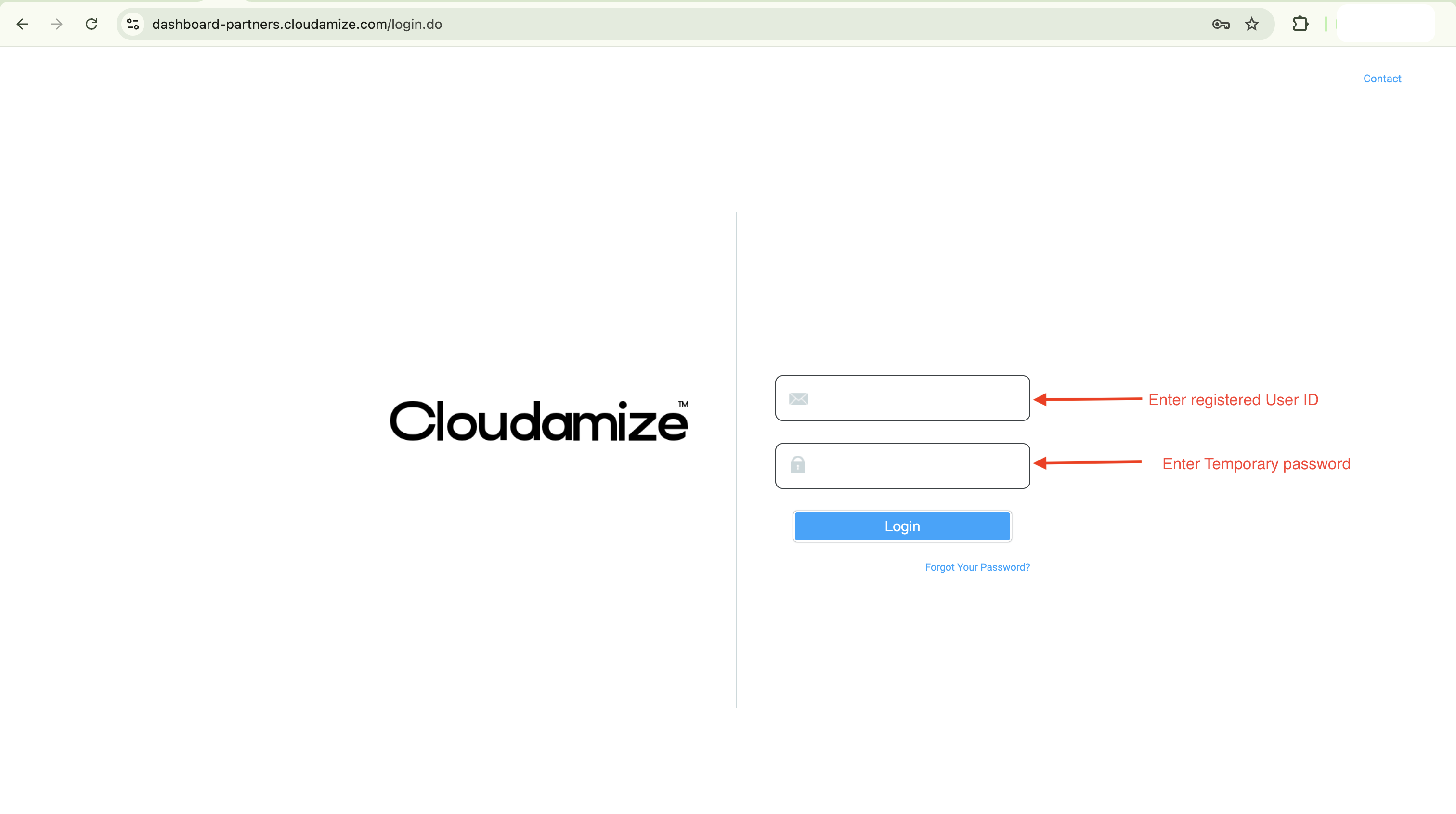
Partner Dashboard -
The system will immediately prompt you to set a new, permanent password.
Successful Login & Landing Page View
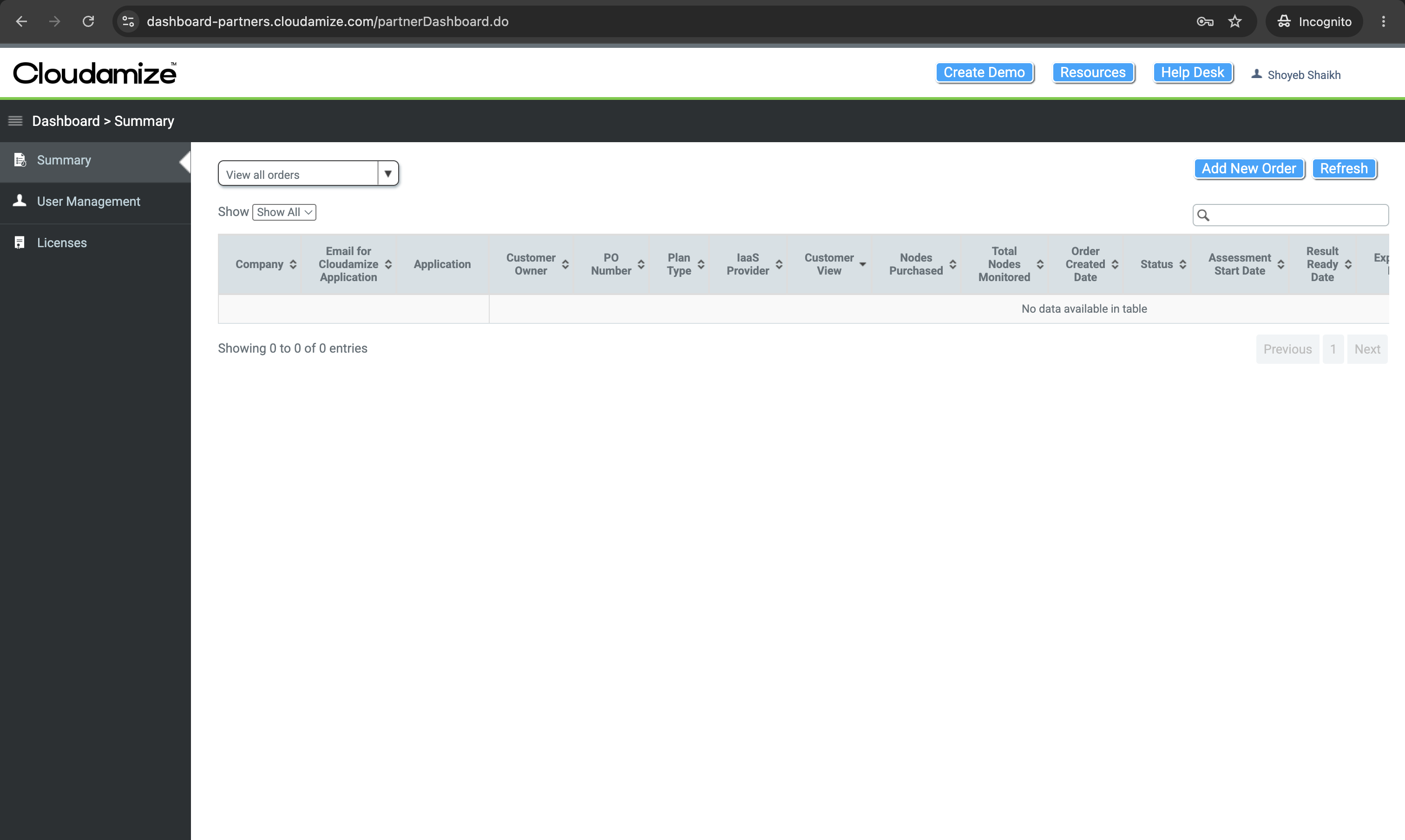
Once you successfully log in and update your password, you will be redirected to the main Partner Dashboard Landing Page (dashboard-partners.cloudamize.com):
-
Left Navigation Menu: Provides quick access to Summary, User Management, and Licenses.
-
📌 To learn how to invite and add team members from this menu, view the full guide here:
-
-
Top Header Controls: Includes options to Create Demo, view Resources, contact the Help Desk, or view your user profile.
-
Order & Customer Summary Grid: Displays a complete list of customer assessments, including Company Name, Plan Type, IaaS Provider, Nodes Monitored, and Assessment Dates.
-
Quick Actions: Use the Add New Order button to create a new customer assessment environment or click Refresh to update data tables in real time.
-
📌 For detailed instructions on setting up new customer assessments, view the full guide here:
-
Temporary Password Expiration (24-Hour Limit)
⚠️ IMPORTANT: Temporary passwords are valid for 24 hours from the moment the user is added to the system.
If a user does not complete their first login within 24 hours, the temporary password will automatically expire for security purposes.
Resetting an Expired Password:
If the 24-hour window passes before first-time login:
-
Enter your registered email address and submit.
-
Click the Forgot Password? link on the login screen.
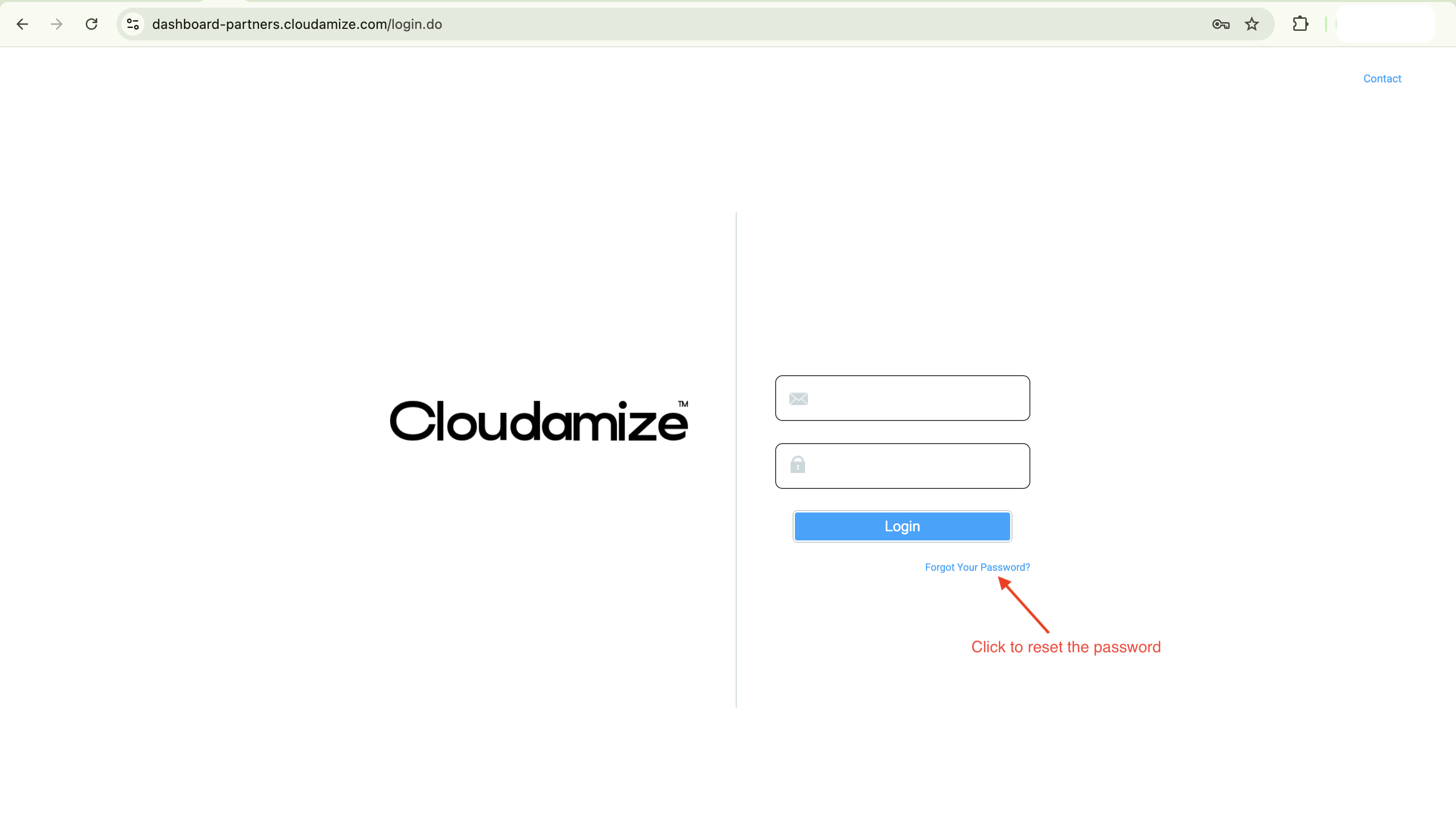
Forgot password -
Follow the link sent via email to generate a new password and complete login.
If you have any queries, please get in touch with the helpdesk via our Helpdesk Portal or by email at helpdesk@cloudamize.com.