

Overview
This article explains how to manage access for AWS team users within your Cloudamize assessment. By default, AWS access is enabled to help customers get the most value from AWS expertise. However, customers have full control and can On/Off at any time.
Manage AWS Access (On/Off)
You can choose to restrict AWS user access to your assessment at any time.
Steps to toggle On/Off of AWS Access
-
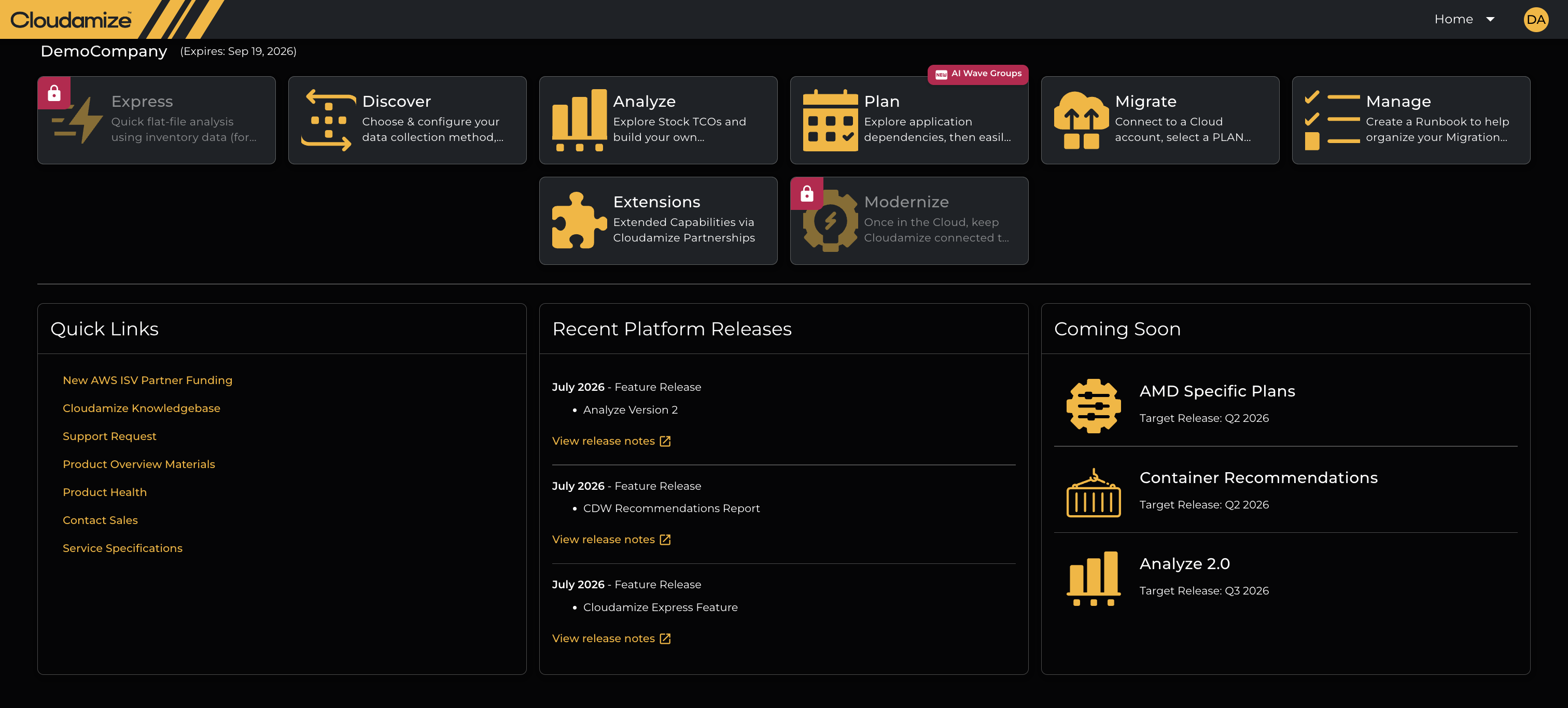
Log in to the Cloudamize Console.
-
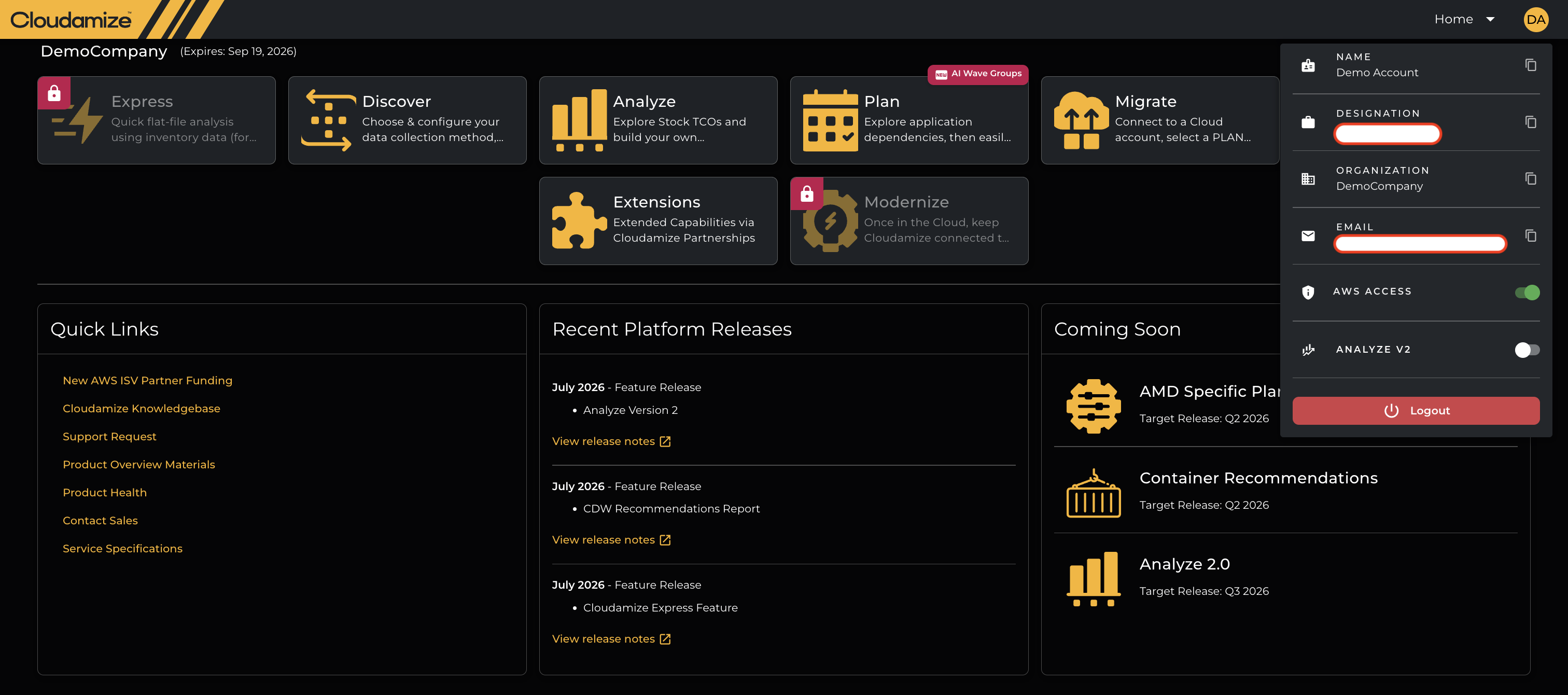
Go to the User Account dropdown Menu (top-right corner). The page shows a simple On / Off toggle.
-
A user can see the AWS Access option only when a specific assessment is selected. If no assessment is selected, the AWS access row is hidden.
-
What On/Off mean:
On - AWS access is enabled. AWS users can be invited to the assessment (from under Settings → Manage Users).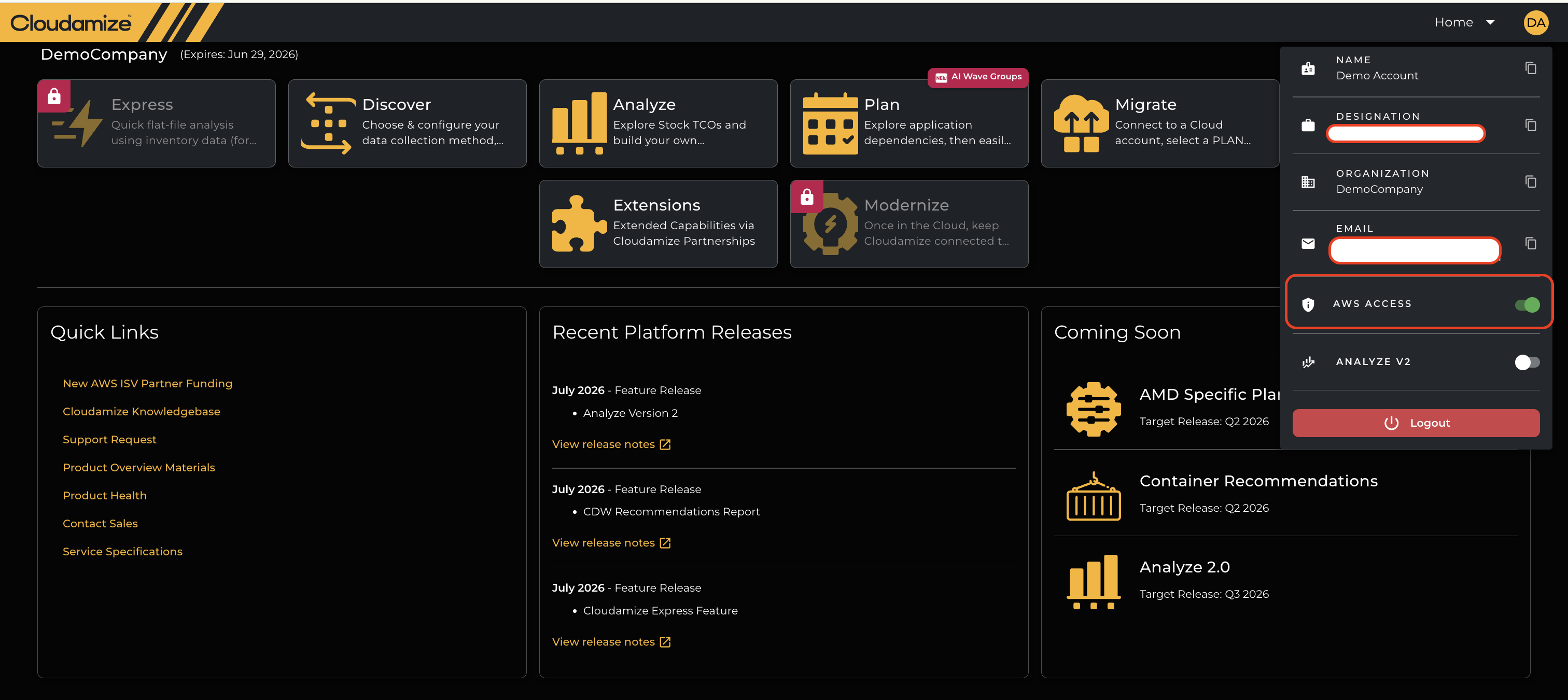
Off - AWS access is disabled. All AWS users are removed from the assessment, and no new AWS users can be added while it’s Off.
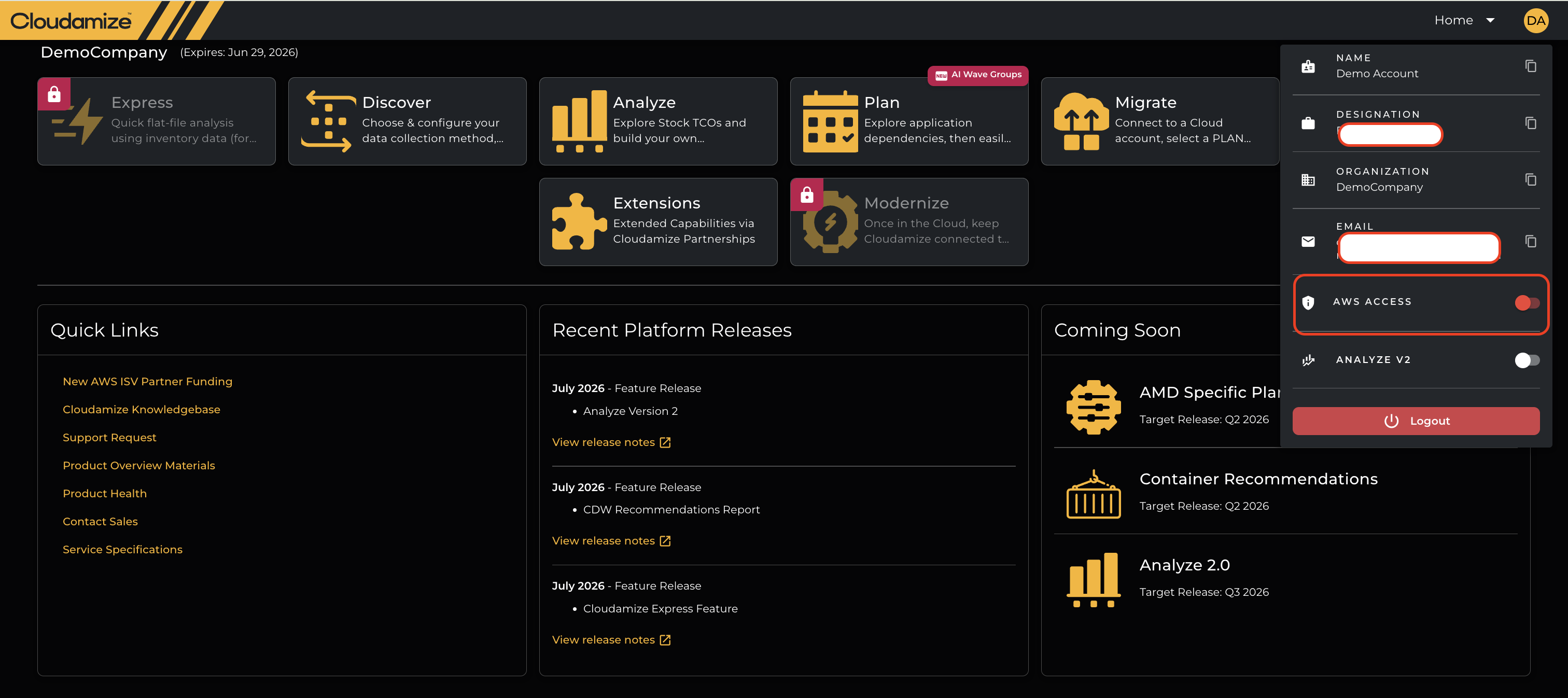
NOTE: This setting/change applies only to the assessment currently selected.
Turning AWS access Off
When a user switches the toggle from On to Off :
-
A confirmation dialog appears titled “Disable AWS Access”.
-
The dialog explains that:
-
All AWS users will be removed from this assessment immediately.
-
Customer won’t be able to add new AWS users while access is disabled.
-
This can limit the customer’s account manager or partner’s ability to bring in AWS service team experts.
-
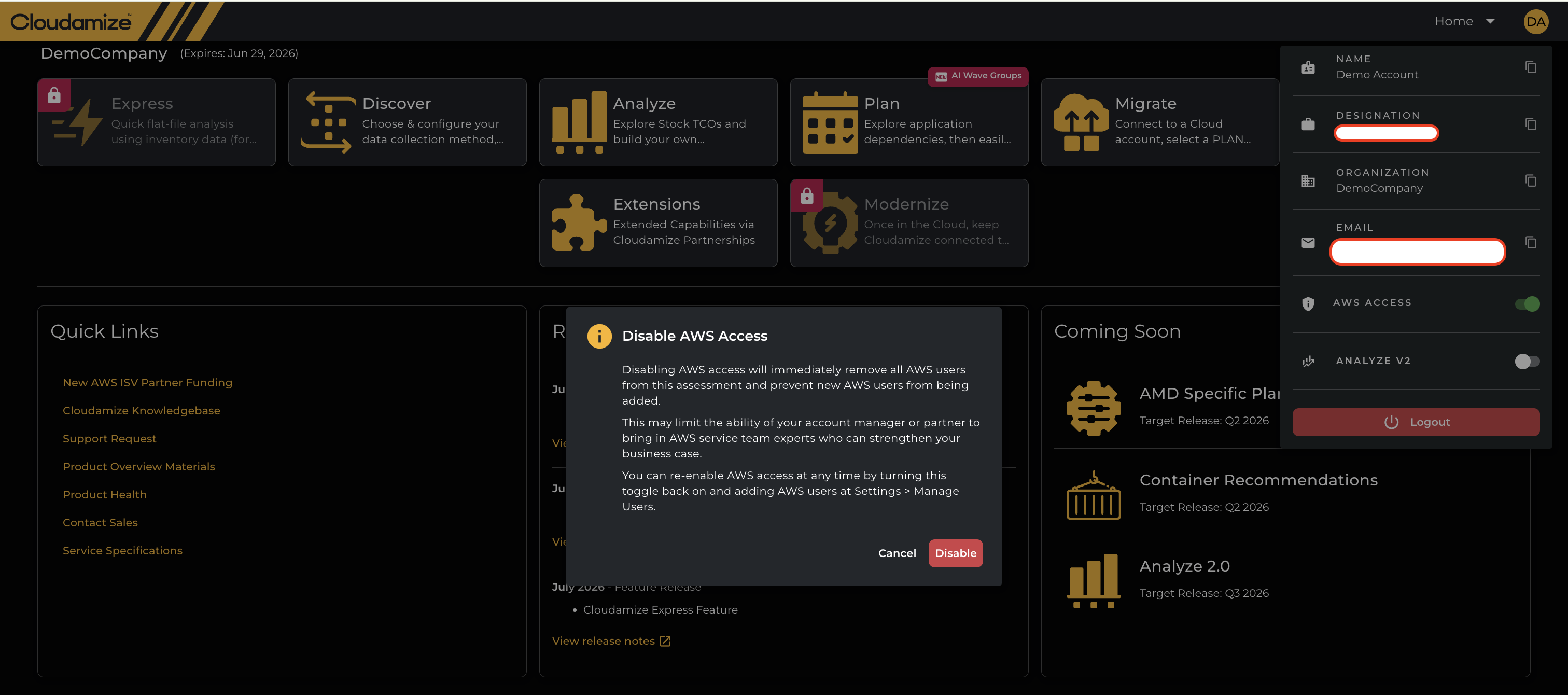
After a user confirms-
-
All existing AWS users are removed from the assessment.
-
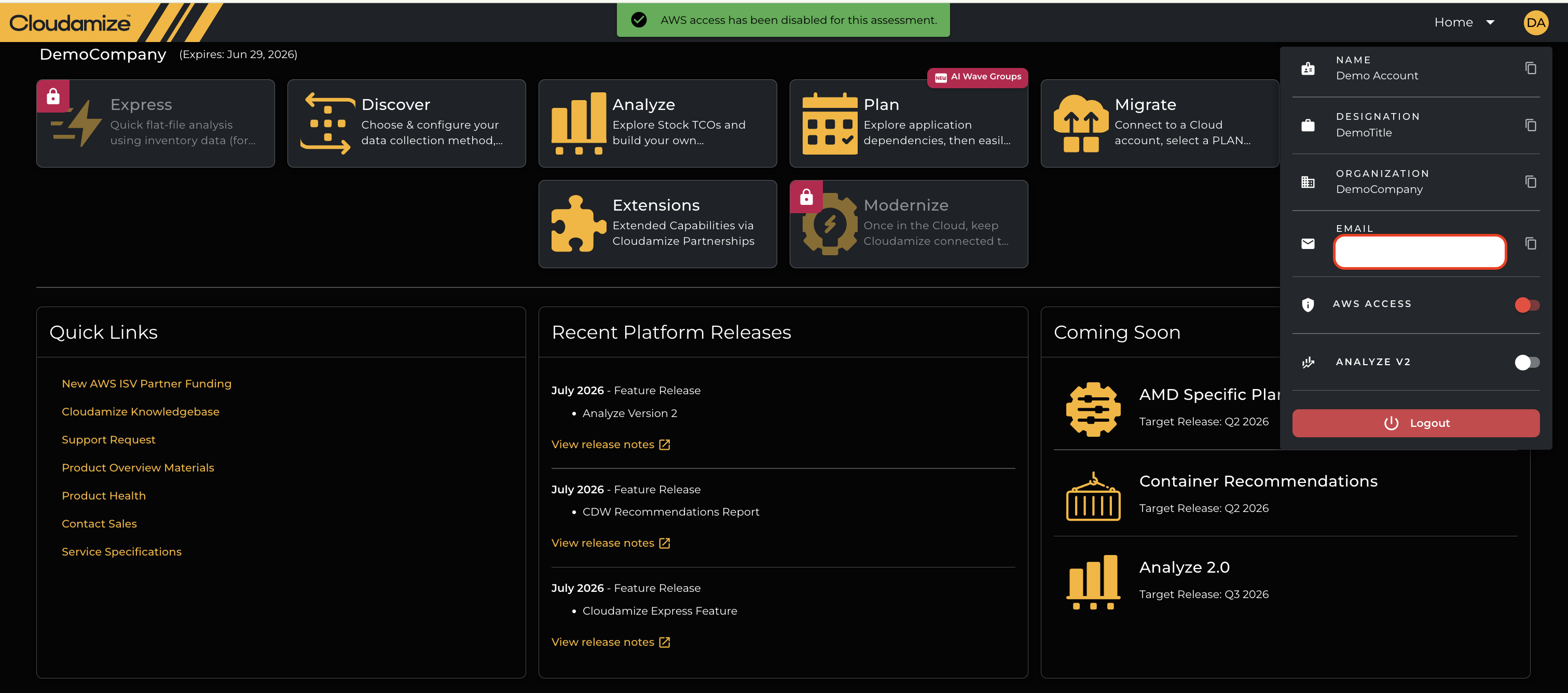
A user can see a success message, as shown below, that may include the number of AWS users removed.
-
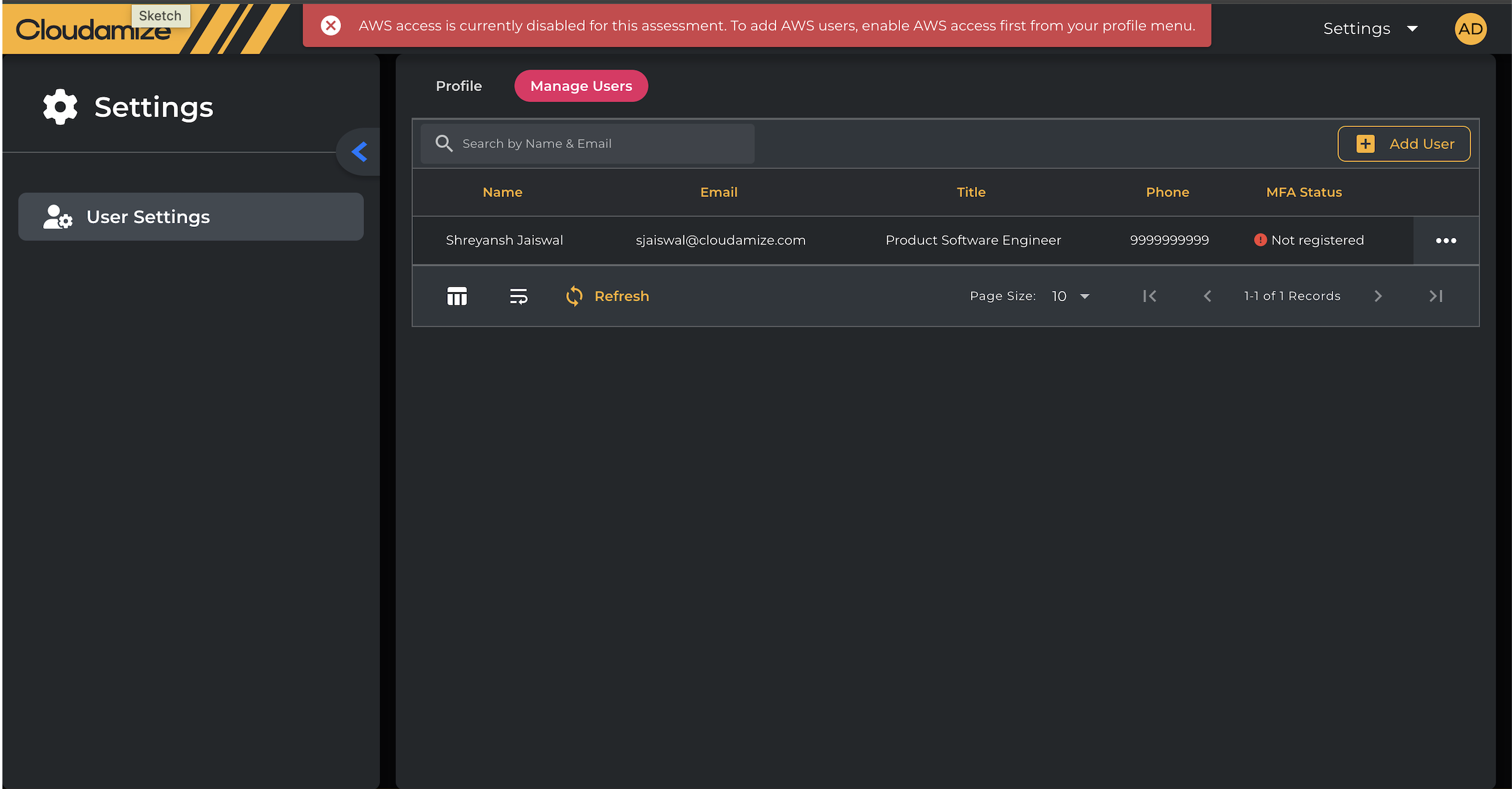
A user won’t be able to add AWS users again until you turn AWS access on.
Turning AWS access On
When the user switches the toggle from Off to On :
-
AWS access is re-enabled without a confirmation dialog.
-
Previously removed AWS users are not automatically added back.
-
To bring them back, you need to re-invite them via Settings → Manage Users.
When the user switches the toggle from On to Off, the following will happen:
-
If the user is linked to only one assessment, then the user will be immediately logged out upon refreshing the page. Furthermore, if the user logs out and then attempts to log in again, they will be unable to do so.
-
If the user is linked to more than one assessment, then upon refreshing the page, the user gets logged out from that assessment and logged in to the other assessment. Furthermore, if the user logs out and then attempts to log in again, the user will not be able to see that assessment.
-
Non-AWS user or primary user will have to enable the toggle and then can add AWS users.
When the toggle looks disabled or stuck loading
If the AWS access toggle is disabled, greyed out, or appears to be loading:
-
It may mean the current status couldn’t be loaded.
-
Try refreshing the page and opening AWS access again.
If you have any queries, please get in touch with the helpdesk via our Helpdesk Portal or by email at helpdesk@cloudamize.com.