

Overview
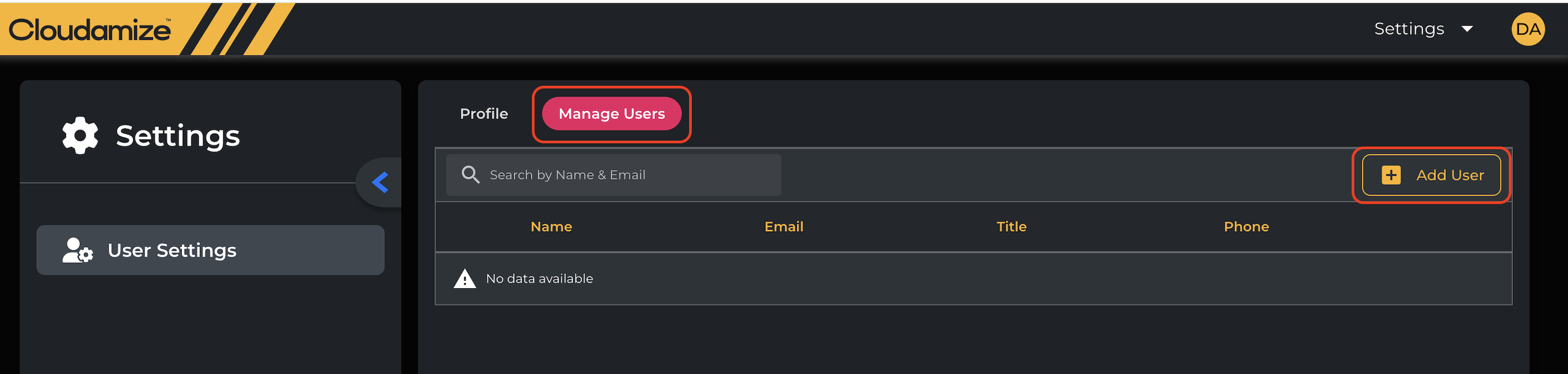
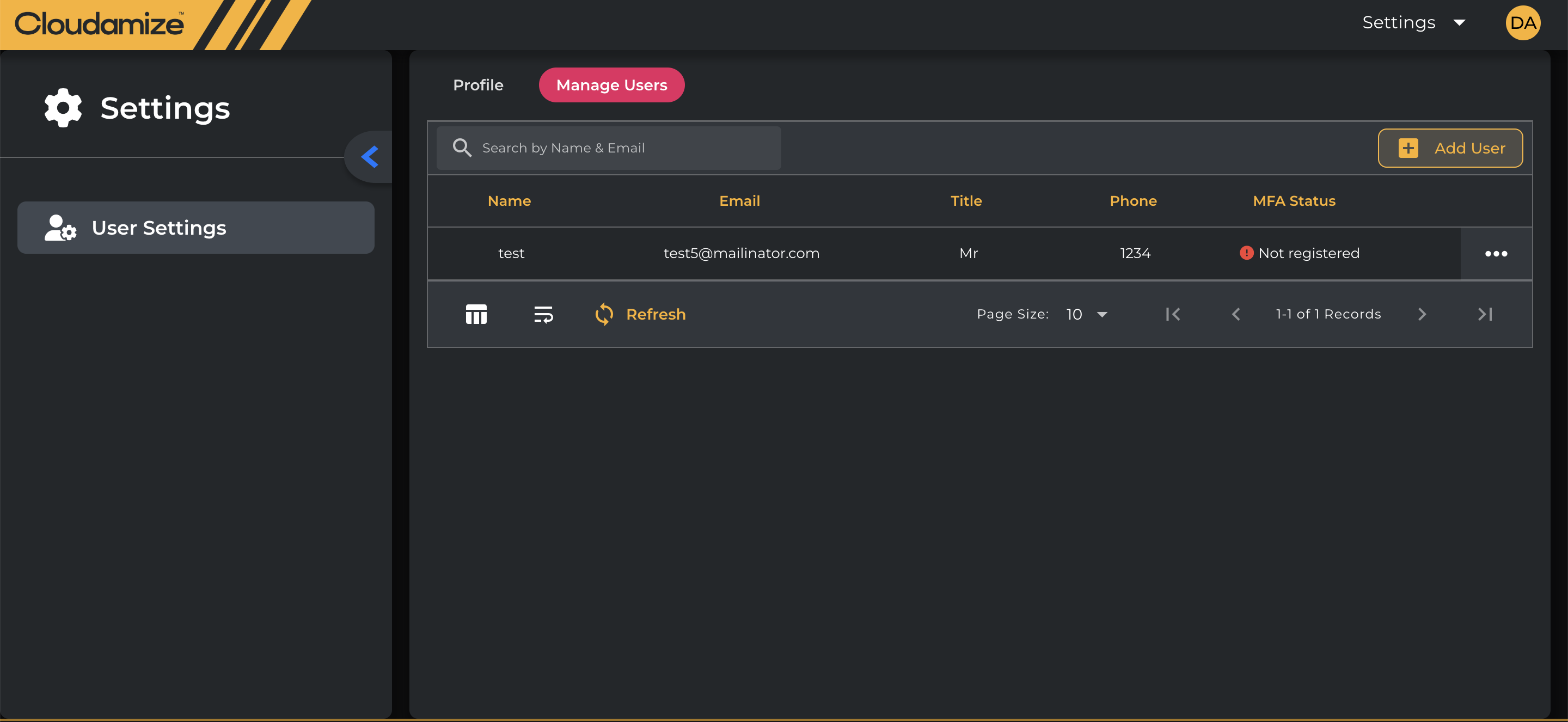
The Manage Users section shows the details of the users who are part of the assessment. This tab allows you to quickly add the user to the assessment using Add User button.
Managing Users Across Multiple Assessments:
We have enhanced user management in the Cloudamize console to improve collaboration and flexibility. Previously, the same user could not be associated with multiple assessments. Now, a user from a migration partner can be associated with multiple assessments, even if they share the same email address.
To add a user to an assessment:
Log in to the Cloudamize console: https://console.cloudamize.com
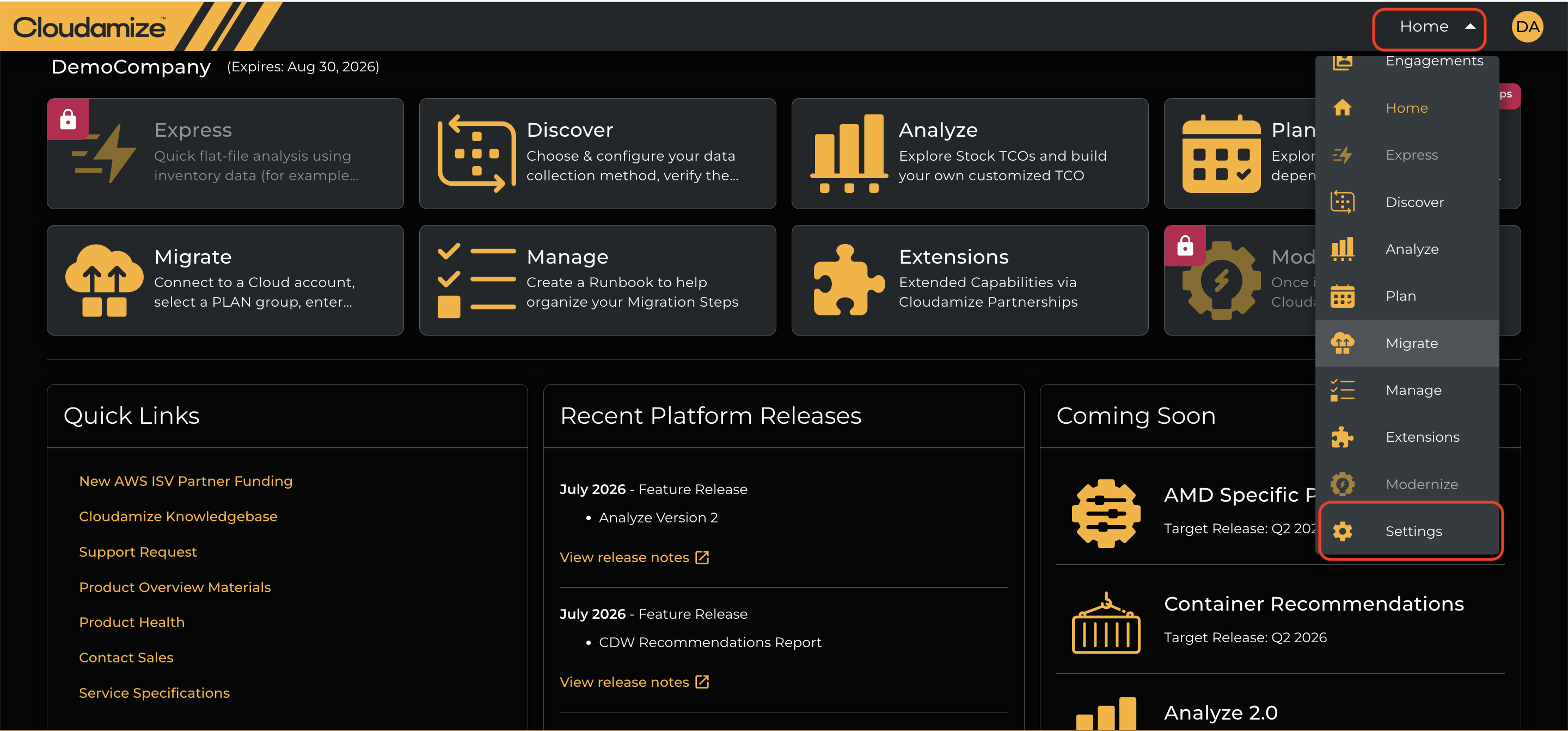
Go to Home > Settings. Select Manage Users.
Click Add User
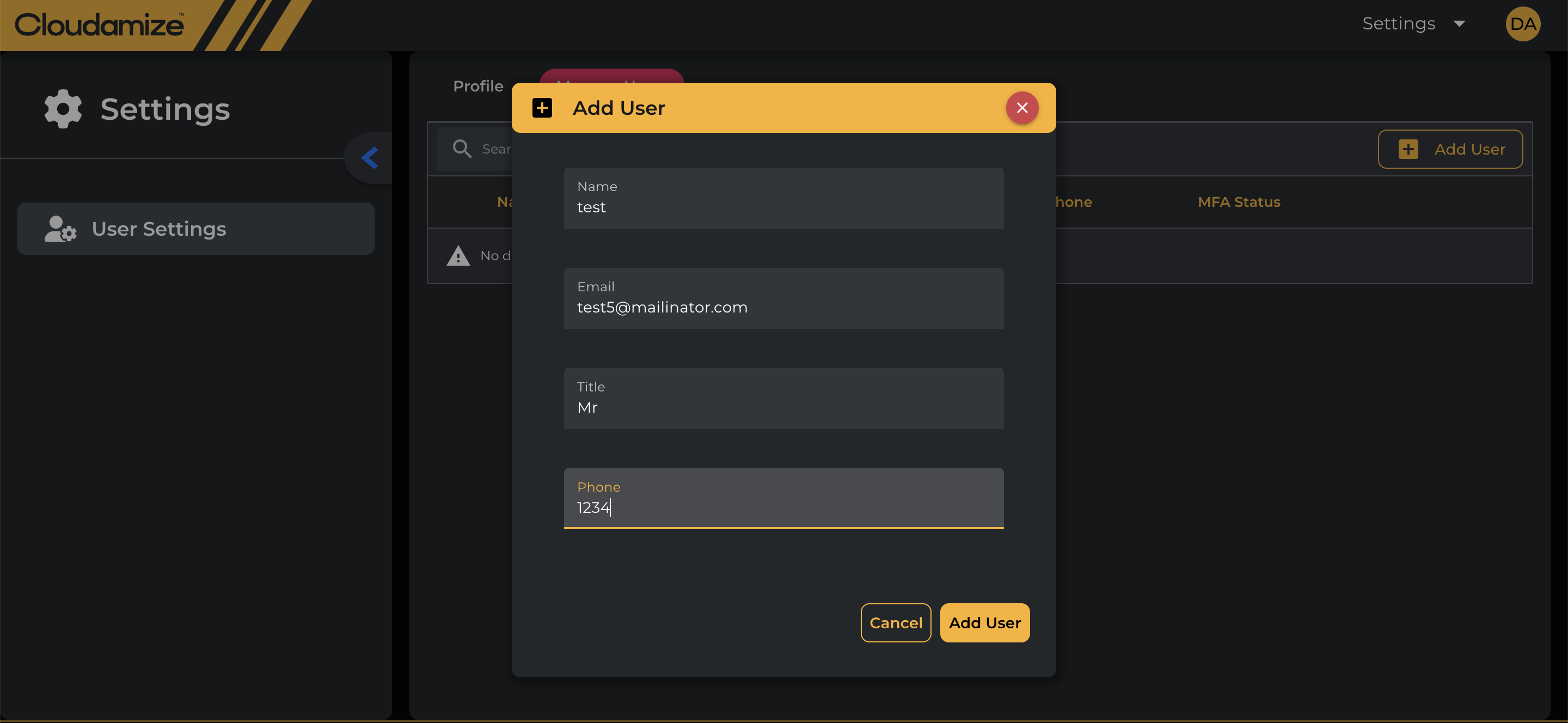
If the user you are adding already exists in another assessment, a pop-up will appear asking for confirmation.
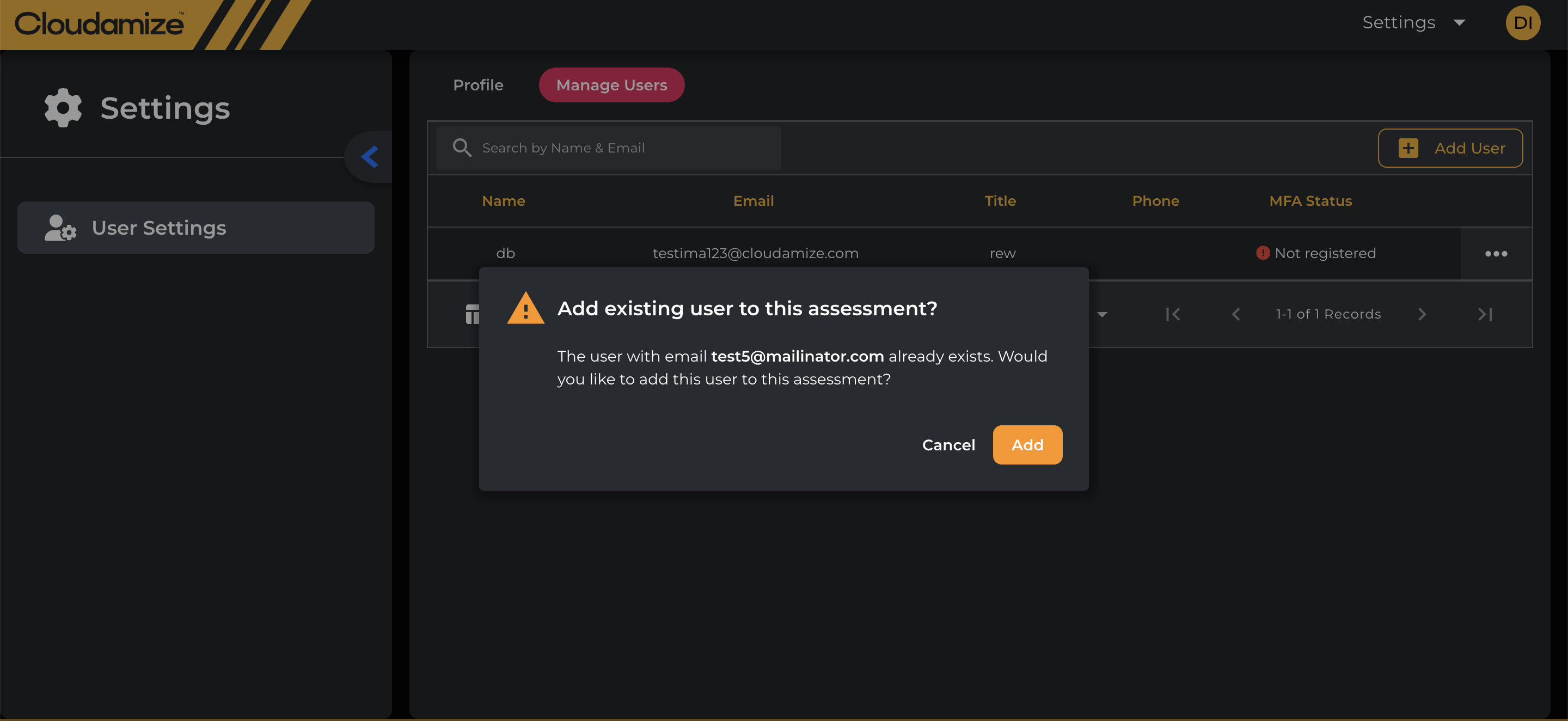
Click Add to confirm. The user will be successfully added to the assessment.
If you have any queries, please get in touch with the helpdesk via our Helpdesk Portal or by email at helpdesk@cloudamize.com.