

Overview
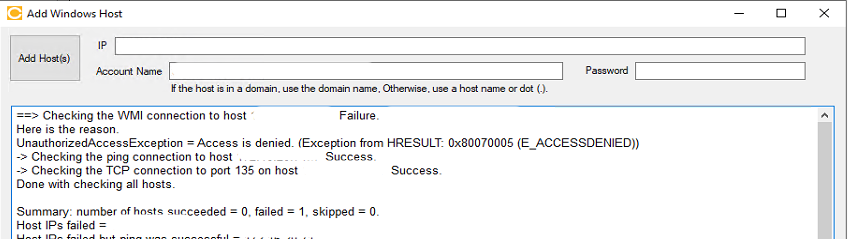
The error 0x80070005 (E_ACCESSDENIED) indicates that the Cloudamize Collector cannot establish a secure management connection to the target host and relates to a Windows error related to account privileges. This is typically due to a breakdown in permissions, network filtering, or WMI/DCOM configuration.
Troubleshooting steps
Basic Connectivity & Credentials
-
Host Availability: Ensure the target host is powered on and reachable via the network.
-
Credential Accuracy: Confirm the username and password are correct.
-
Authentication requirement: Windows machines require an account in the Administrators group (Domain Admin Account)
DCOM & WMI Configuration
Even with Admin rights, DCOM or WMI restrictions can block the collector.
1. Verify DCOM Permissions
DCOM acts as the "handshake" before WMI starts.
-
Run
dcomcnfgon the target host. -
Navigate to Component Services > Computers > My Computer > Properties.
-
In the COM Security tab, under Access Permissions and Launch and Activation Permissions, click Edit Limits.
-
Ensure the account (or the Administrators group) has Local & Remote Access and Local & Remote Launch/Activation set to "Allow."
Please check the Microsoft Article here. Check under the section "Access Denied" where there is a solution listed next to the specific error 0x80070005 E_ACCESS_DENIED
Changing DCOM permissions is a security-sensitive action. Cloudamize includes these troubleshooting steps as a how-to guide, but cannot actively recommend making any changes to access permissions without following the correct change procedure for your organisation. Please consult with your IT and/or security teams before making any changes listed here.
Microsoft provides advice for configuring DCOM permissions for remote access at this link: https://learn.microsoft.com/en-us/windows/win32/wmisdk/troubleshooting-a-remote-wmi-connection#dcom-access-denied
Full step-by-step instructions are linked here: https://learn.microsoft.com/en-us/windows/win32/wmisdk/securing-a-remote-wmi-connection#setting-dcom-security-to-allow-a-user-to-access-a-computer-remotely
The solution involves allowing the user account (the one connecting from the ADC) Remote Launch and Remote Activation permissions in dcomcnfg (the DCOM configuration file). Please follow the guides as laid out by Microsoft if you are implementing this fix.
2. Enable WMI Traffic
The target must be configured to allow WMI through its local firewall. Run this command in an elevated CMD on the target:
netsh advfirewall firewall set rule group="windows management instrumentation (wmi)" new enable=yes
When running commands via remote WMI, additional permissions are checked on the remote host by the Distributed Component Object Model (DCOM). If DCOM is not configured to allow remote WMI commands, it will return this error message and this specific error code, which the ADC will report in its output.
General WMI troubleshooting using the WBEMTEST tool provided by Microsoft may miss this error if the tool is run locally on the server that is producing this error. Local WMI commands and remote WMI commands require different levels of permission, and a particular WMI command that succeeds locally may fail remotely due to insufficient DCOM permissions. It’s important to keep this distinction between local and remote in mind when troubleshooting WMI errors using this, or any other, tool.
System Logs & Event Viewer
Windows logs specific security and system events when an access request is denied. Checking these on the target machine can pinpoint the cause:
-
System Log (DCOM Errors): * Navigate to Windows Logs > System.
-
Look for Source: DistributedCOM Event IDs that indicate failures in the initial handshake between the Collector and the Target.
-
-
Security Log (Audit Failures): * Navigate to Windows Logs > Security.
-
Look for Audit Failure. Check the "Failure Reason"—it will indicate if the password was incorrect or if the account lacks "Network Logon" rights.
-
-
WMI-Activity Logs: * Navigate to Applications and Services Logs > Microsoft > Windows > WMI-Activity > Operational.
-
Look for Error
0x80041003, it confirms the user has OS access but is blocked from the WMI namespace.
-
Note: Please follow the specific troubleshooting steps provided within the error message in the Cloudamize ADC UI.
If the issue persists, please capture a screenshot of the error output and collect the log_backup.txt file from the following directory on the Cloudamize Agentless DC:
C:\Program Files (x86)\CloudamizeAgentlessDc\log_backup.txt
Please attach both the screenshot and the log file in an email to helpdesk@cloudamize.com for further investigation.
If you have any queries, please get in touch with the helpdesk via our Helpdesk Portal or by email at helpdesk@cloudamize.com.