

Overview
When adding new Windows hosts to the Cloudamize Agentless Data Collector (ADC), you may encounter a pop-up error stating:
"Account name doesn't include a domain or a host name. Account name example: DomainName\Administrator or HostName\Administrator."
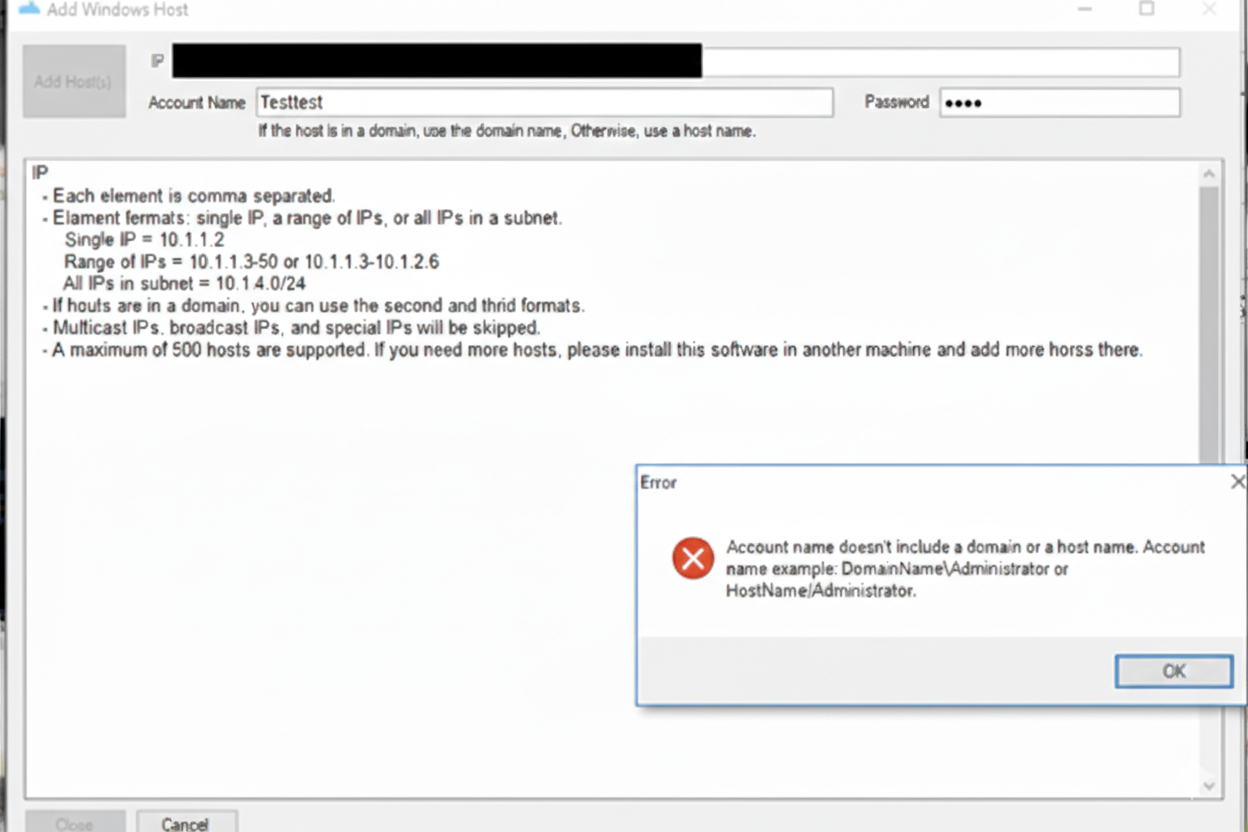
This happens because the ADC requires an explicit security context (where the account lives) to authenticate via WMI/RPC. Simply providing a username like Testtest (as seen in the image) is insufficient for the collector to establish a connection.
Root Cause
The Cloudamize ADC cannot assume whether the credentials provided belong to a Local Account on the target machine or a Domain Account within your Active Directory. Without the Domain\ or Hostname\ prefix, the authentication request fails before it even leaves the collector.
Troubleshooting Steps
Correcting the Account Format
To resolve this, you must re-enter the credentials using the logon name format.
Scenario A: Using a Domain Account (Recommended)
If the target hosts are part of an Active Directory domain, use the following format:
-
Format:
DomainName\UserName -
Example:
CORP\CloudamizeAdmin
Scenario B: Using a Local Admin Account
If the target host is in a Workgroup or you are using a local account unique to that machine, use the following format:
-
Format:
HostName\UserName -
Example:
Server01\AdminUser -
Workaround: You can often use
.\UserNameto represent the local machine context, though explicitly naming the host is preferred for remote bulk additions.
Best Practices for Adding Hosts
-
Comma Separation: When adding multiple IPs, ensure they are comma-separated.
-
IP Ranges: You can use ranges (e.g.,
10.1.1.3-50) or CIDR notation (e.g.,10.1.4.0/24). -
Host Limit: Remember that a single ADC installation supports a maximum of 500 hosts. If your project requires more, you must install an additional ADC on a separate machine.
If the issue persists, please capture a screenshot of the error output and collect the log_backup.txt file from the following directory on the Cloudamize Agentless DC:
C:\Program Files (x86)\CloudamizeAgentlessDc\log_backup.txt
Please attach both the screenshot and the log file in an email to helpdesk@cloudamize.com for further investigation.
If you have any queries, please get in touch with the helpdesk via our Helpdesk Portal or by email at helpdesk@cloudamize.com.