

Overview
To collect data from Linux servers using the Cloudamize Agentless Data Collector (ADC), the collector requires SSH access with proper sudo privileges. This guide covers the creation of the necessary user accounts and the configuration of permissions across different Linux distributions.
General User Creation & Root Permissions
For the ADC to function correctly, the service account must have elevated privileges to run discovery commands.
Creating a Service User
-
Create the user:
sudo useradd [username] -
Set the password:
sudo passwd [username]

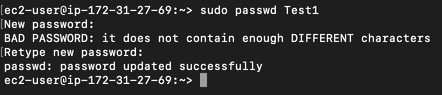
Granting Sudo Access (Universal Method)
-
Navigate to the
/etcdirectory:cd /etc -
Open the sudoers file using the safe editor:
sudo visudo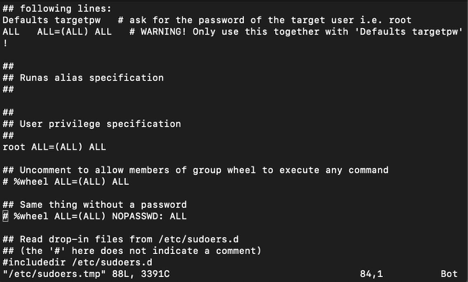
Granting Sudo Access -
Locate the User Privilege section (usually under
root ALL=(ALL) ALL).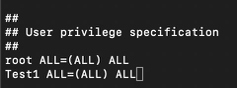
-
Add the following line for your new user:
[username] ALL=(ALL) ALL -
Save and exit (In visudo/vi: Press
Esc, type:wq!, and pressEnter).
Distribution Specific Configuration
Red Hat Enterprise Linux (RHEL) / CentOS
On Red Hat-based systems, it is often preferred to manage permissions via the wheel group.
-
Create and password-protect the user as shown in the Section General User Creation & Root Permissions.
-
Enable the wheel group: Open
sudo visudoand ensure the following line is NOT commented out (remove the#if present):%wheel ALL=(ALL) ALL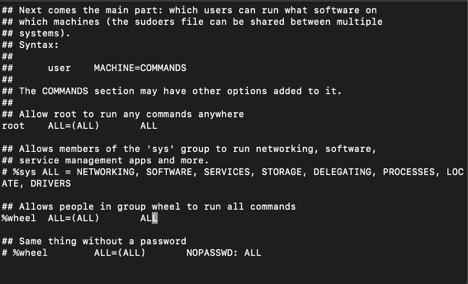
-
Add the user to the group:
sudo usermod -aG wheel [username]
-
Verify: Check the group membership to ensure the user was added correctly.

Ubuntu / Debian
Ubuntu uses the sudo group for administrative access.
-
Create and password-protect the user as shown in Section 1.
-
Add the user to the sudo group:
sudo usermod -aG sudo [username]
-
Verify permissions: Switch to the new user:
su - [username].Test sudo access:sudo whoami(The output should beroot).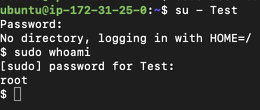
Important Requirements & Troubleshooting
Sudo Requirements
-
requiretty: Ensure that
requirettyis disabled in the/etc/sudoersfile. The Cloudamize ADC cannot collect data ifrequirettyis set to true, as it prevents sudo commands from running without a real interactive terminal.
Authentication Failures
If the ADC reports authentication errors or cannot resolve the node:
-
Credentials: Ensure the username and password provided in the ADC UI match the credentials created on the Linux host.
-
Connectivity: Ensure port 22 (SSH) is open between the ADC Windows machine and the Linux target.
-
Logs: If issues persist, collect the log files from the following locations:
-
Windows (ADC Side):
C:\Program Files(x86)\CloudamizeAgentlessDC\log_backup.txt
-
If you see any issues, please capture a screenshot of the error output and collect the log_backup.txt file from the following directory on the server:
C:\Program Files (x86)\CloudamizeAgentlessDc\log_backup.txt
Please attach both the screenshot and the log file in an email to helpdesk@cloudamize.com for further investigation.
If you have any queries, please get in touch with the helpdesk via our Helpdesk Portal or by email at helpdesk@cloudamize.com.