

Overview
Analyze V2 introduces a redesigned user interface that improves the overall usability of the Analyze workspace, especially for assessments containing large infrastructure inventories. The new experience replaces the traditional horizontal tab layout with a left-hand navigation panel, allowing users to navigate more efficiently while keeping infrastructure cost information visible throughout the analysis process.
Note: Analyze V2 is an interface enhancement only. No assessment calculations, recommendations, or costing logic have changed.
Benefits of Analyze V2
Analyze V2 provides several usability improvements over the classic Analyze experience.
Improved Navigation
The previous horizontal navigation tabs have been replaced with a left-hand navigation panel, allowing users to move between analysis sections more efficiently without losing context.
Better Cost Visibility
Users can see infrastructure costs for each major section directly in the navigation panel, making it easier to identify cost-intensive areas before drilling into detailed data.
Improved Workspace
The navigation panel can be collapsed, providing additional screen space for reviewing large infrastructure tables, recommendations, and reports.
Entity-focused Overview
Each infrastructure category now presents an overview tailored to the selected entity, allowing users to quickly move from high-level costs to detailed infrastructure information.
What's New in Analyze V2
|
Area |
Enhancement |
|---|---|
|
Navigation |
Horizontal tabs replaced with a left-side navigation panel |
|
Cost Visibility |
Section-level costs are displayed directly within the navigation menu |
|
Savings Indicator |
Overall savings percentage displayed at the top of the navigation panel using Lift & Shift as the comparison baseline |
|
Overview |
Entity-specific overview pages for Compute, Storage, Network, and other supported entities |
|
Workspace |
Collapsible navigation panel for additional viewing space |
|
Menu Organization |
Compute, Storage, Network, License, Designer, and Reports moved into the left navigation panel |
Analyze V2 Navigation
The left navigation panel serves as the primary navigation area for the Analyze workspace.
Instead of displaying multiple tabs across the top of the page, all major analysis sections are consolidated into a single navigation menu.
The available sections include:
-
Summary
-
Compute
-
Storage
-
Network
-
License
-
Designer
-
Reports
This navigation model provides a consistent experience across assessment types while supporting future enhancements. Scope and compatibility
In scope: Layout redesign, left-panel navigation with cost-per-section, updated menu options, savings indicator, collapsible panel, and analysis overview.
Compatibility: Analyze V2 is an optional user interface enhancement and does not replace the classic Analyze experience. Users can switch between the two interfaces at any time using the Analyze V2 toggle.
User-Level Toggle
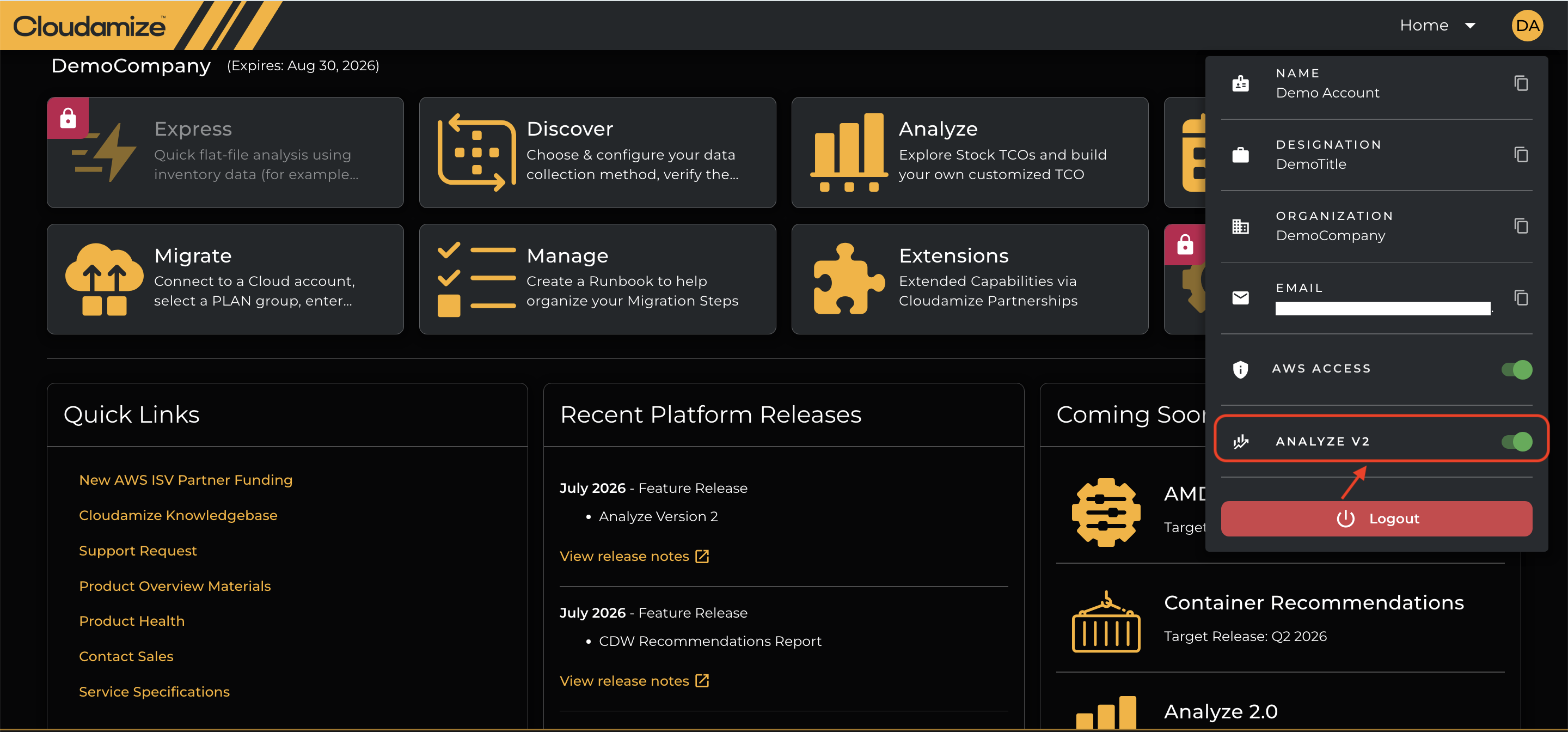
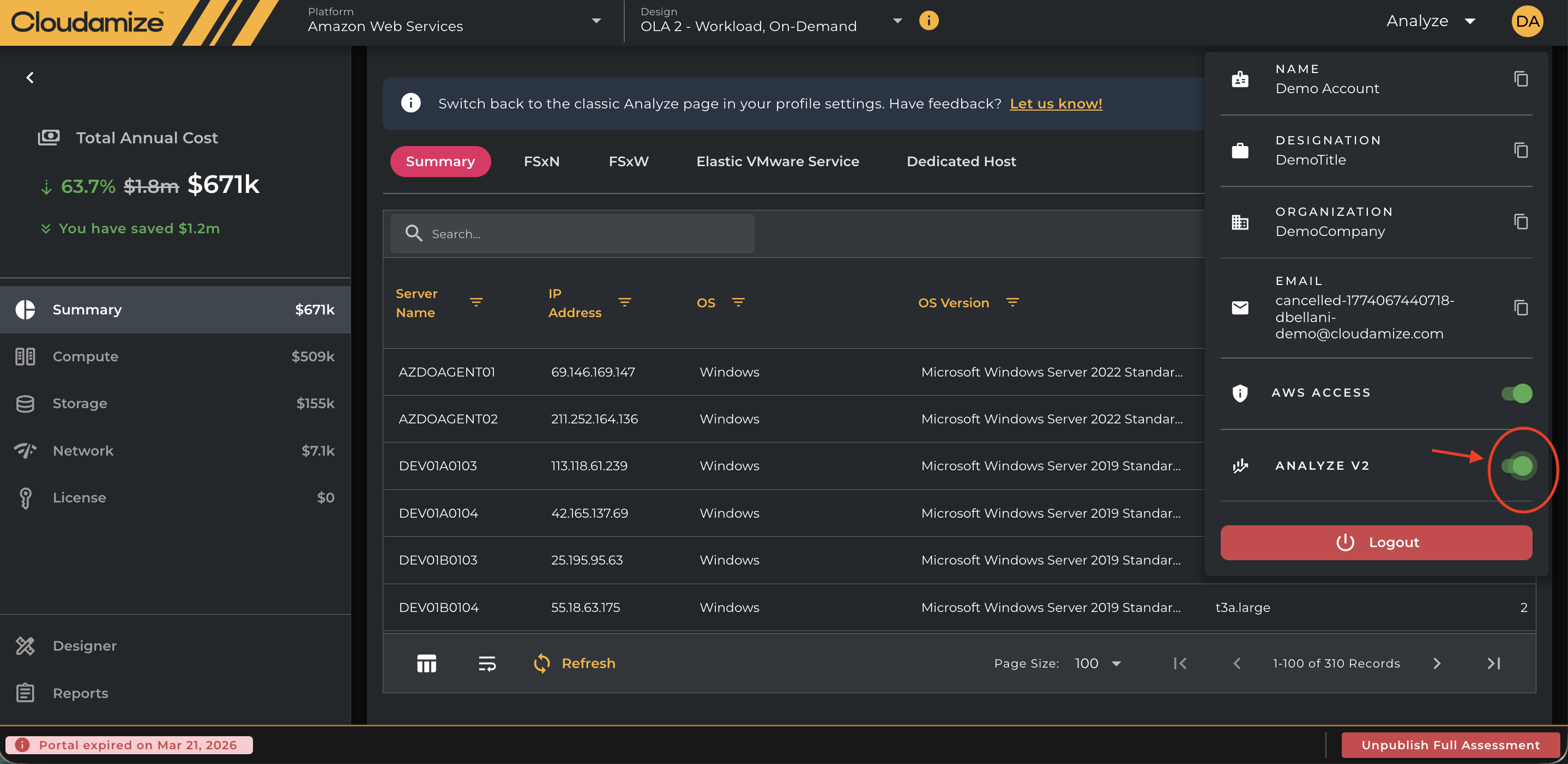
Users can enable or disable Analyze V2 from the user profile menu using the Analyze V2 toggle.
This allows users to:
-
Experience the redesigned interface.
-
Switch back to the classic Analyze page whenever needed.
-
Compare both interfaces during the transition period.
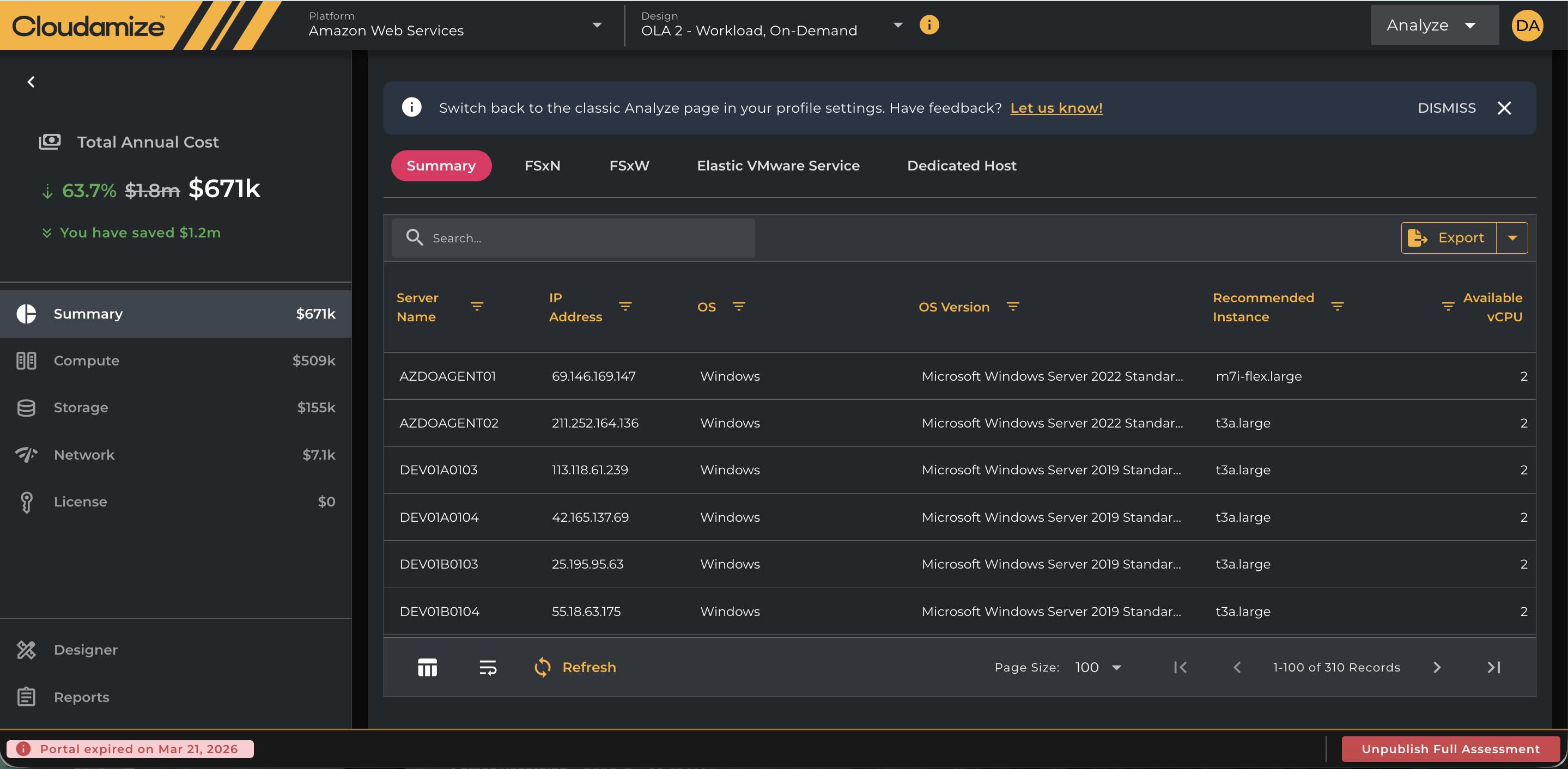
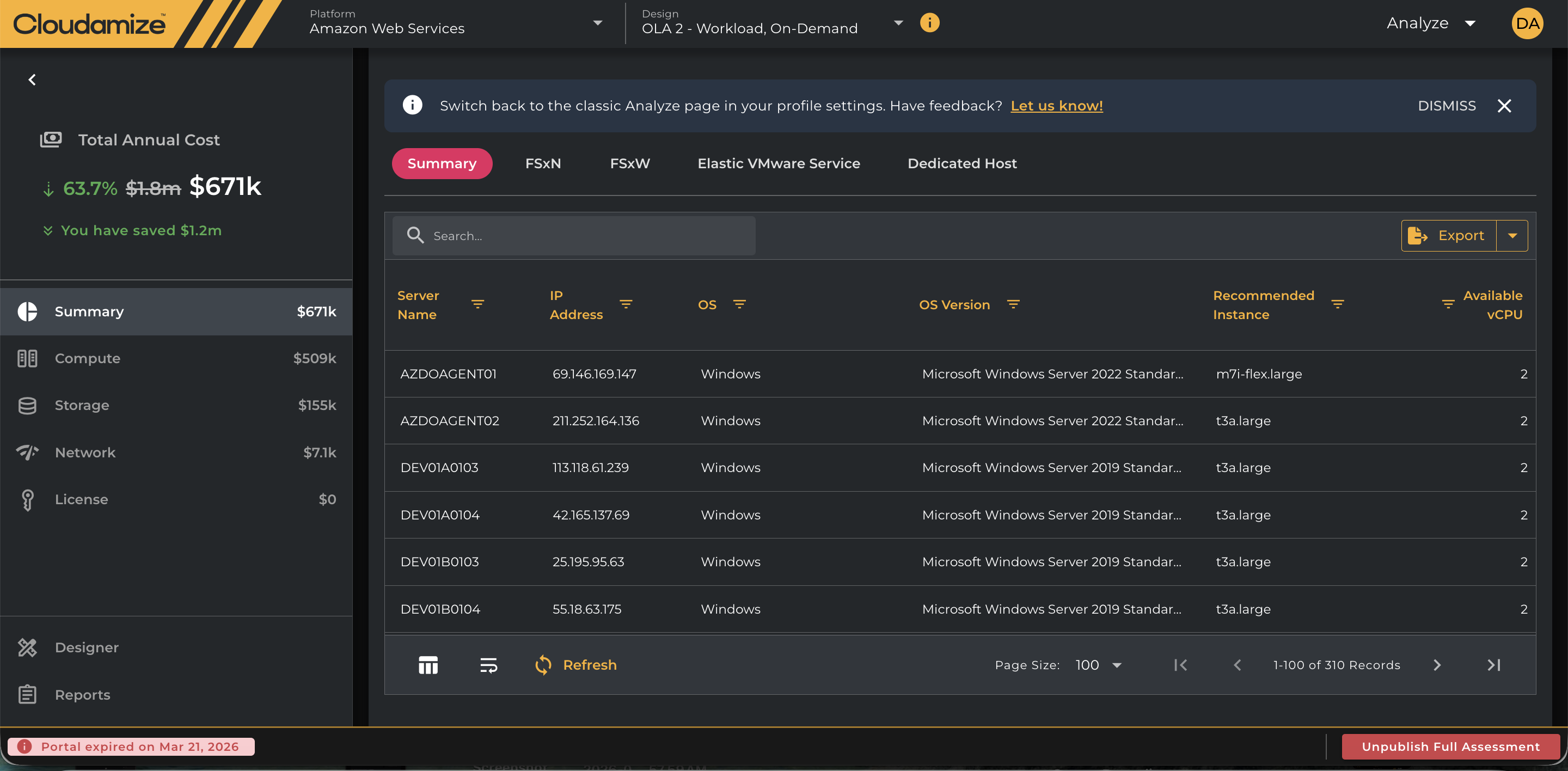
Analyze V2 Home Screen
The redesigned Analyze page moves the primary navigation to the left-hand panel and displays infrastructure costs alongside each navigation section.
The expanded navigation panel provides full visibility into available analysis sections, while the collapsible view maximizes workspace for reviewing larger infrastructure inventories.
The right side of the page displays data for the selected section. For example, the Summary and Compute pages present infrastructure information in a table that includes:
-
Search
-
Filters
-
Export
-
Refresh
-
Pagination
These capabilities make Analyze V2 suitable for both high-level infrastructure reviews and detailed analysis.
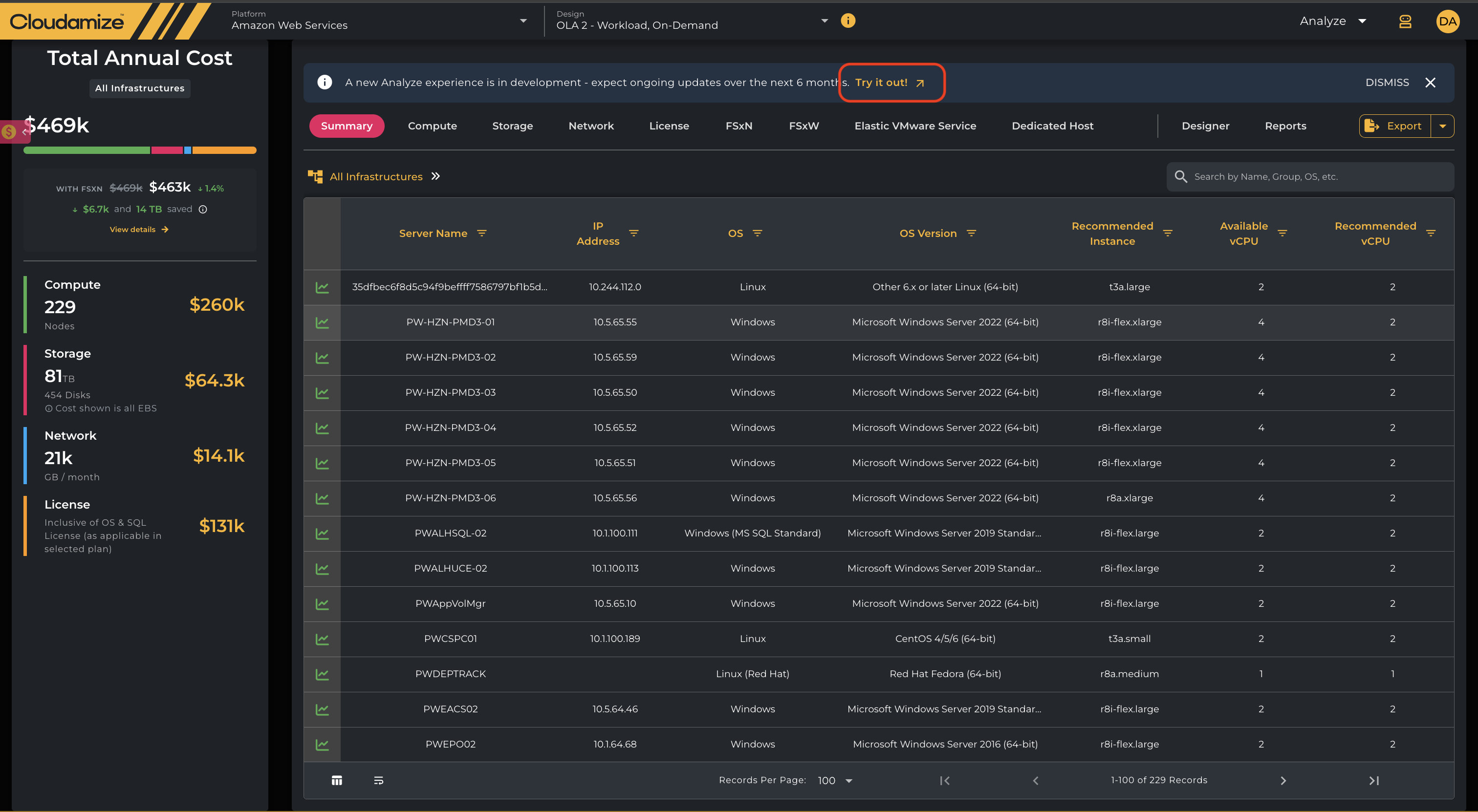
Classic Analyze Banner
The classic Analyze page shows a banner that invites users to try the new Analyze experience. This provides a gradual migration path: users can discover Analyze V2 from the existing workflow, try the new layout, and still return to the classic view through the profile setting if needed.
Switching Back to Classic Analyze
Users can return to the classic Analyze interface at any time by disabling the Analyze V2 toggle from the user profile menu.
Caveat: If a user is viewing the EVS tab in the classic Analyze page and then switches directly to Analyze V2, the overview/TCO cost may not be displayed correctly. In some cases, the overview cost may fail to load due to an error while retrieving the overview cost information.
As a workaround, navigate away from the EVS tab before enabling Analyze V2, or refresh the Analyze V2 page after switching.
If you have any queries, please get in touch with the helpdesk via our Helpdesk Portal or by email at helpdesk@cloudamize.com.