

Overview
Customer Custom Designs allow AWS customers to define their own named sets of sizing, architecture, and pricing preferences directly within the Cloudamize Classic UI.
Previously, assessments generated standard Cloudamize presets and OLA options (OLA 1–10). Applying alternative assumptions, such as excluding burstable instances, adding storage headroom, switching to RDS, or modifying Savings Plans, required building plans in the legacy Designer. Custom Designs streamline this process, enabling users to generate right-sizing recommendations that directly reflect their target AWS procurement and modernization strategies.
Key Capabilities
-
First-Class Assessment Integration: AWS customers define their initial design during the Start Assessment wizard.
-
Always Editable: Designs can be created, updated, or re-run at any time before, during, or after assessment processing.
-
Default Analysis View: Once built, the Analyze page defaults to the customer's primary design (fallback is OLA 2 while pending).
-
Modernization Tracking: Highlights customer interest in AWS modernizations (Graviton, AMD, Amazon RDS, FSx for NetApp ONTAP, FSx for Windows File Server) to assist Partners and Technical Account Managers (TAMs) in migration planning.
Where to Find Custom Designs
1. Assessment Page (Custom Design Card)
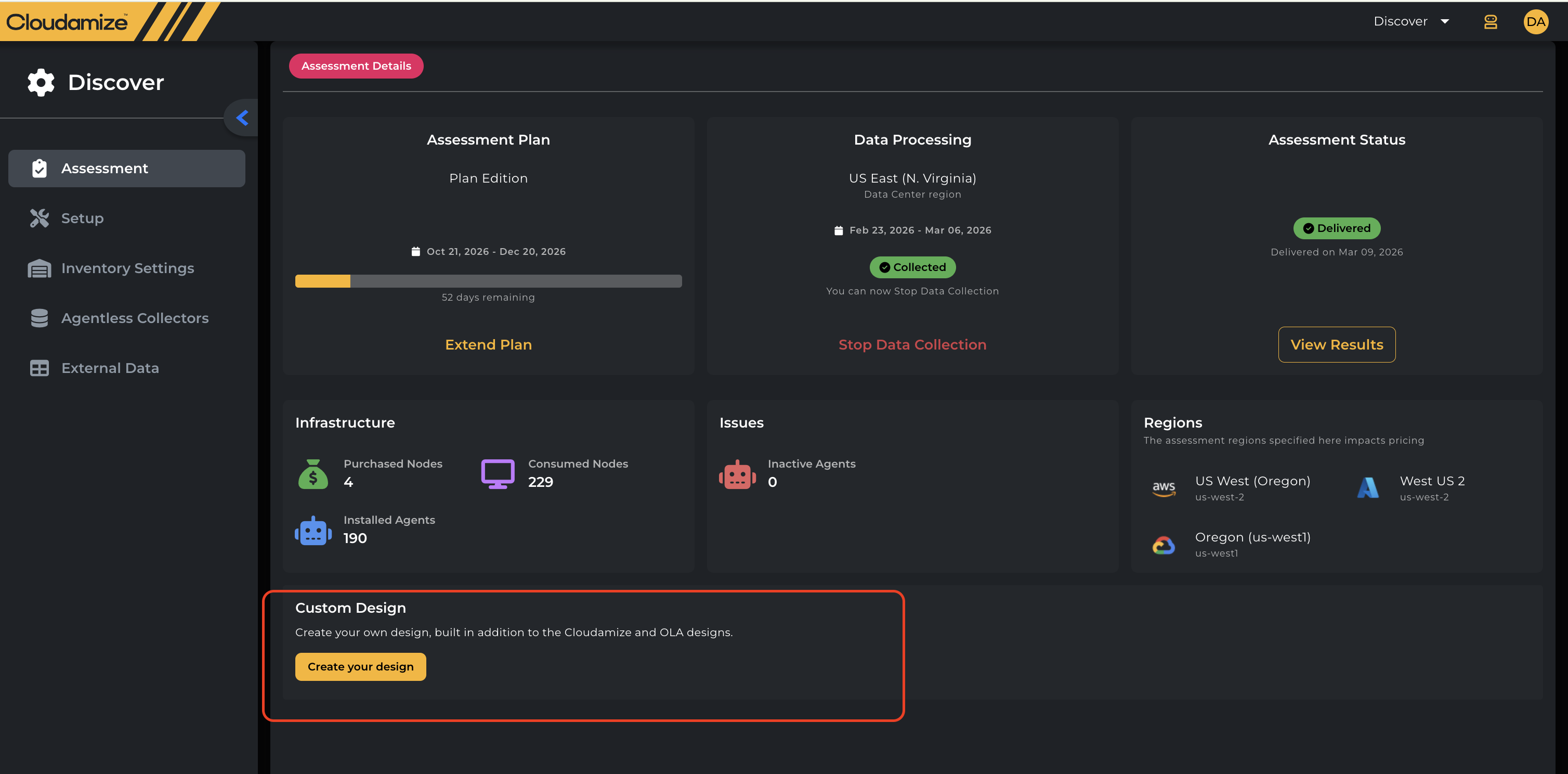
The Assessment overview displays a dedicated Custom Design status card showing:
-
Current Default Design Name
-
Build Status:
-
Ready: The design has finished building, and its results are available in Analyze (the assessment itself may still be running). -
Building: Plan processing is underway. -
Build failed: Build could not complete; displays aTry againaction.
-
-
Quick Actions: Use Edit design to modify settings. (Note: Accounts created before this release will display Create your design.
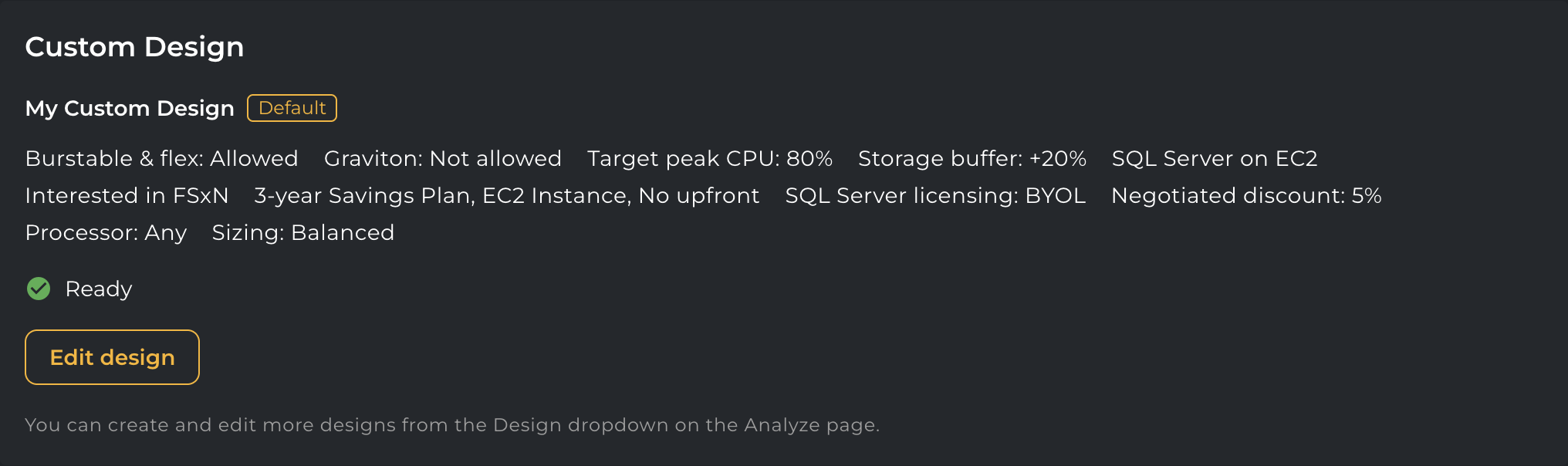
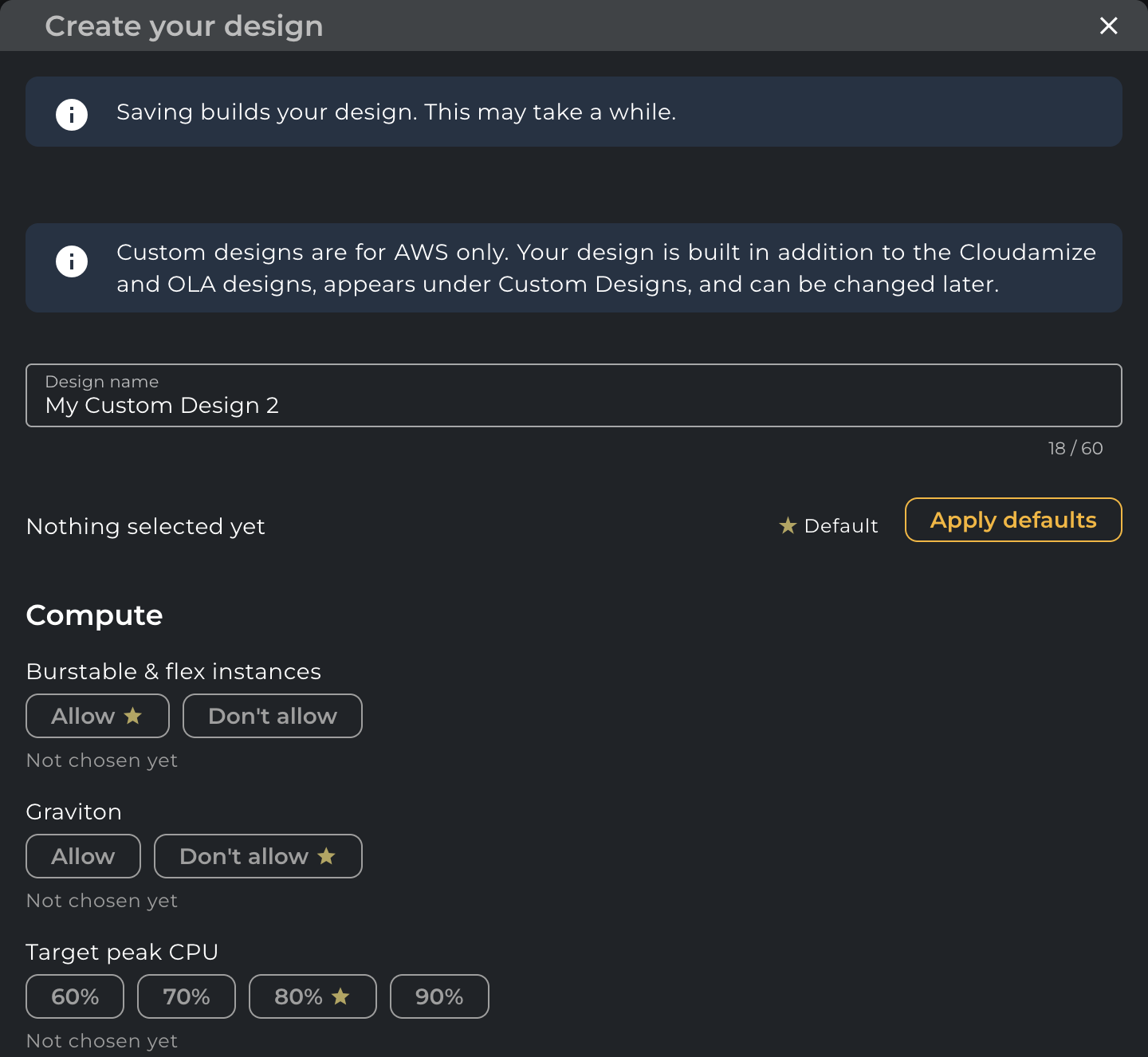
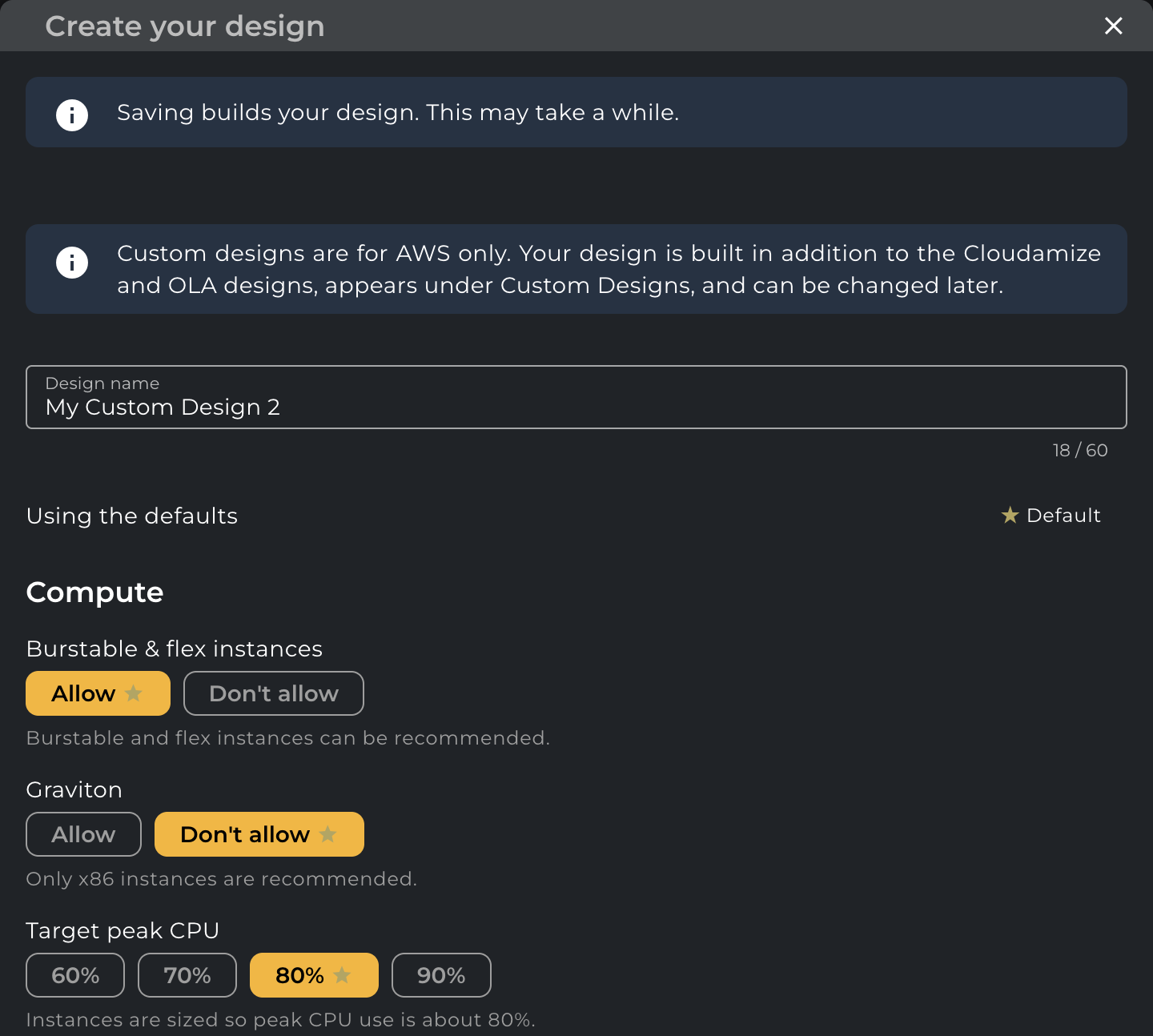
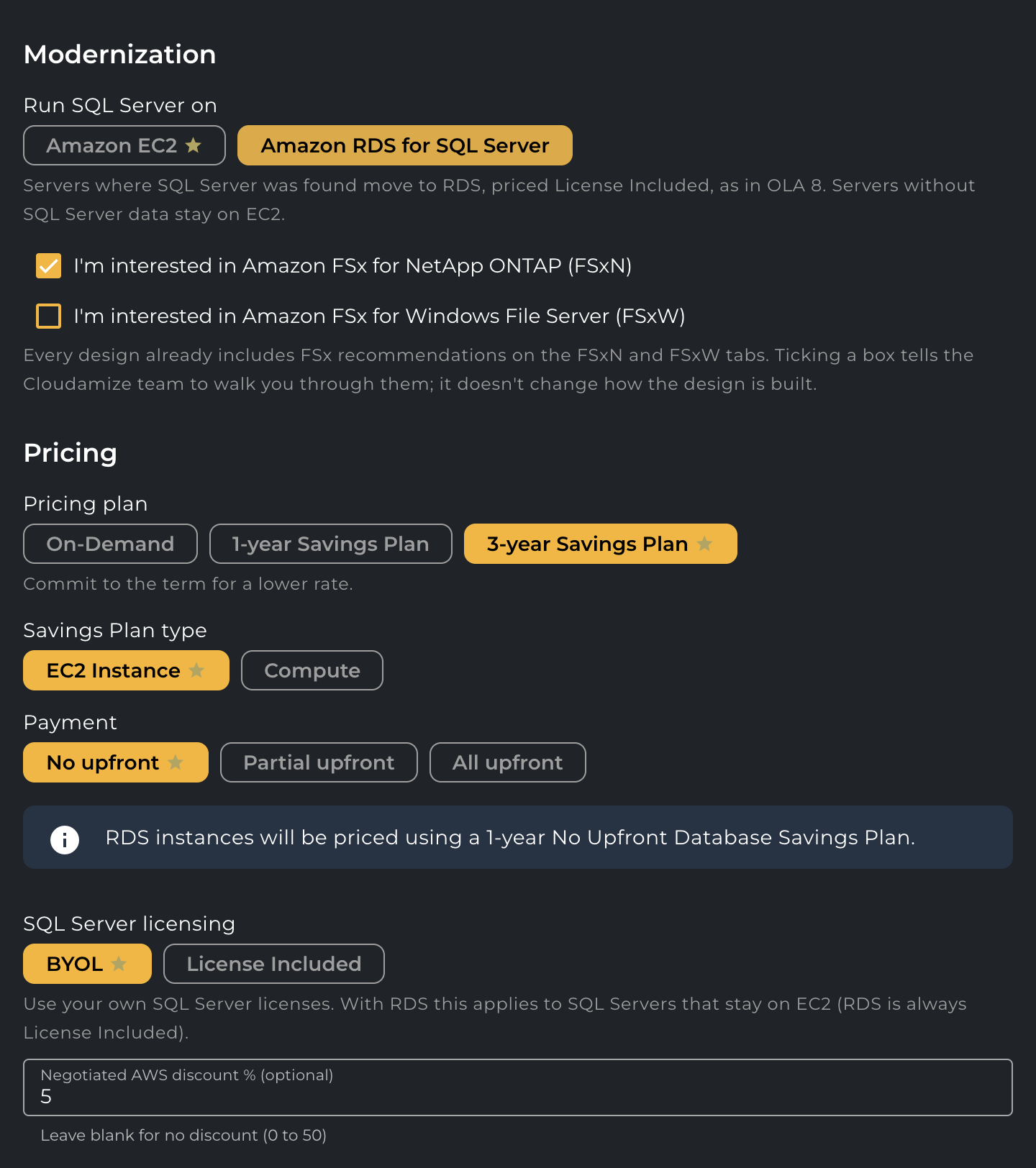
Even after the assessment has started, you can still create a Custom Design. Navigate to the Assessment tab, where you will find the Custom Design button located at the bottom of the page.
2. Design Dropdown (Analyze Page)
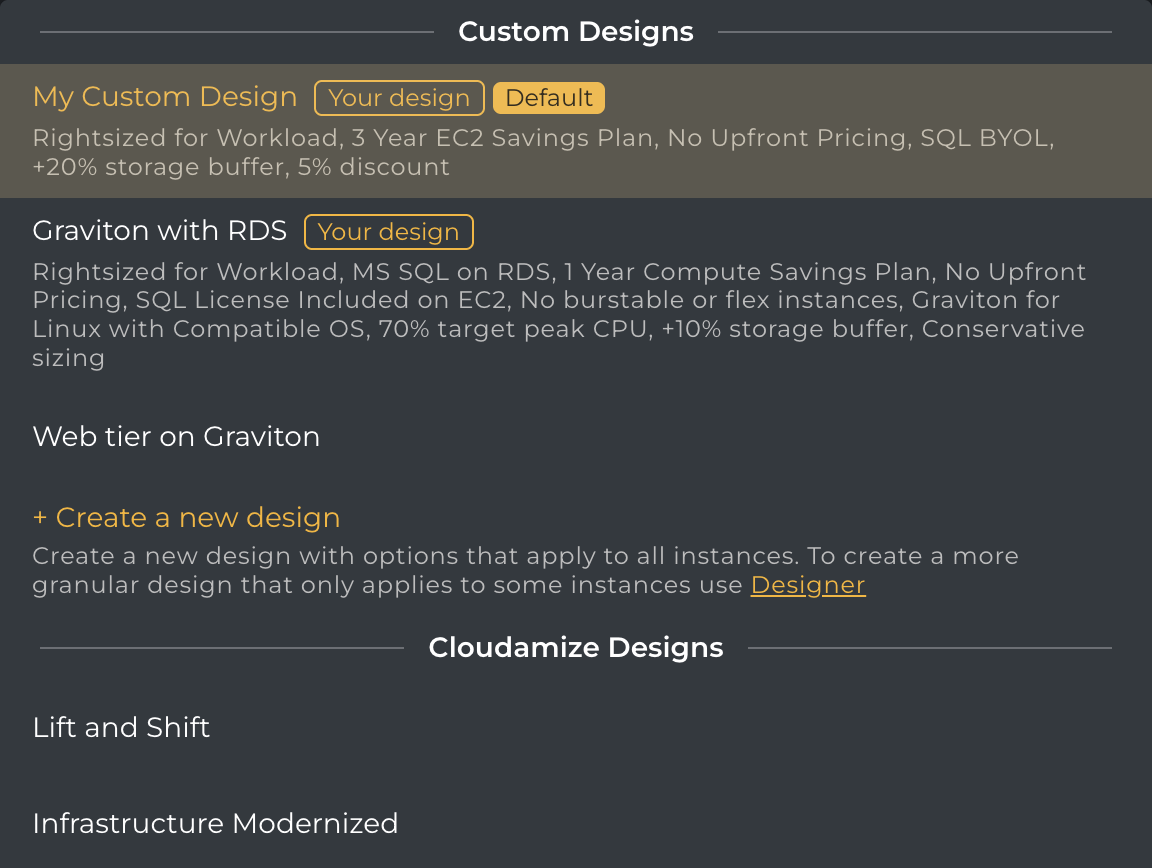
Custom Designs appear at the top of the Design selector:
-
Your Designs: User-created designs (tagged
Your design; initial plan taggedDefault). -
Designer Designs: Complex or custom-filtered plans from legacy Designer.
-
+ Create a new design: Opens the design configuration form. -
Standard Designs: Standard Cloudamize templates and OLA 1–10.
Start Assessment Wizard Workflow (AWS)
When launching an assessment with AWS selected as a target provider, the wizard includes a dedicated setup step:
|
Step |
Step Name |
Description |
Status |
|
1 |
Node Summary |
Review discovered nodes and data collection readiness. |
Standard |
|
2 |
Region Settings |
Select target cloud deployment regions. |
Standard |
|
3 |
Custom Design |
Define target sizing, modernization, and pricing parameters. |
New and available only for AWS. |
|
4 |
Duration Settings |
Select processing observation dates. |
Standard |
|
5 |
Review |
Review summary of all setup steps with inline Edit links. |
New |
|
6 |
Assessment Started |
Confirmation screen verifying assessment processing. |
Standard |
Note: The wizard keeps your design as a draft during setup and saves it when you click Start Assessment. The design is then built alongside the first results delivery, and its results will appear in the Analyze dropdown once that delivery is published.
Configuration Settings & Options
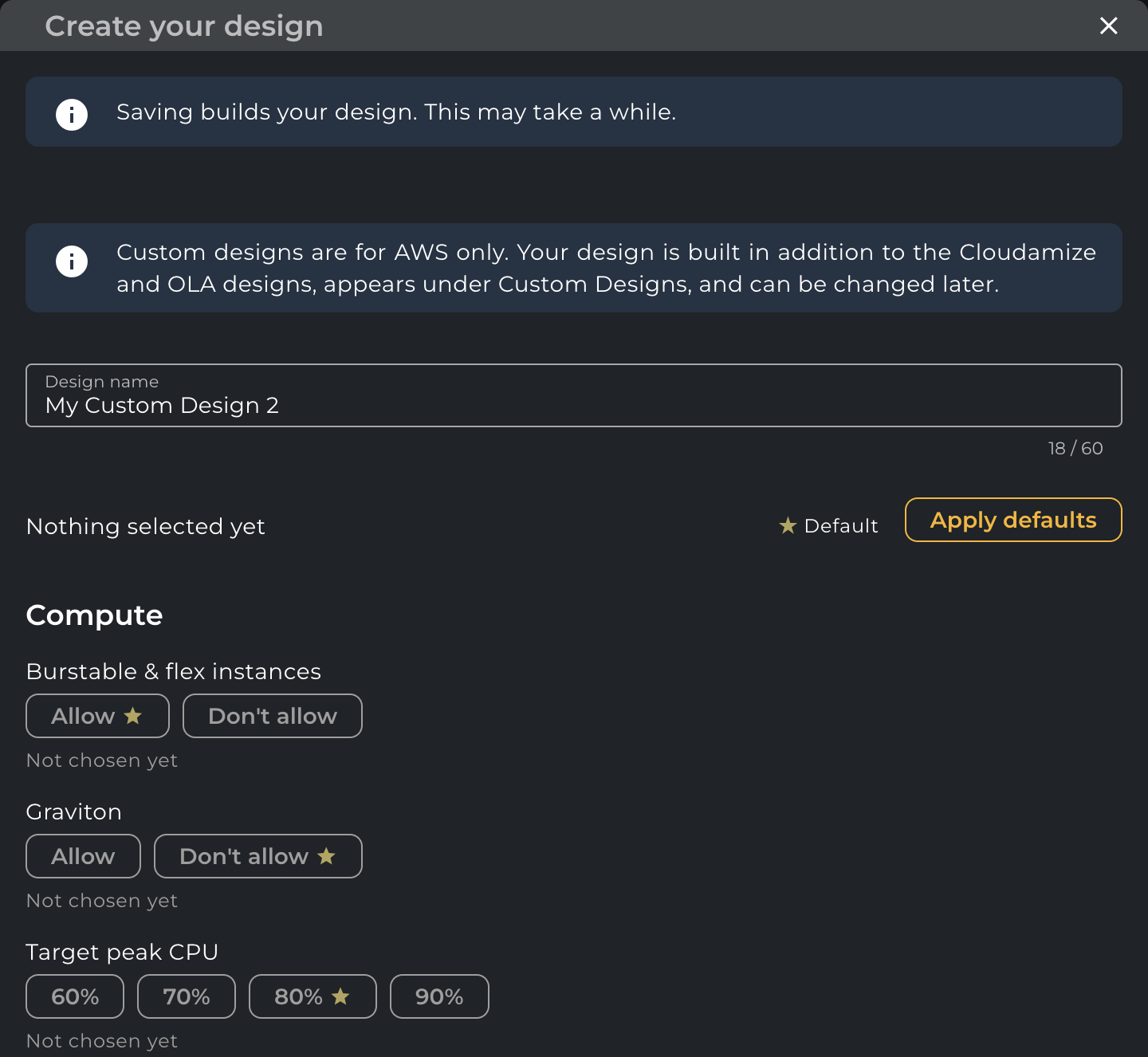
Every field must be populated to save a design.
-
A faint yellow star indicates the system default.
-
Use Apply defaults to populate all fields automatically (a confirmation appears if settings were already changed).
-
Once values are modified, this button switches to Reset to defaults.
|
Section |
Setting |
Available Options |
Default (Matches OLA 6) |
Details & Behavior |
|
Compute |
Burstable & flex instances |
|
|
Toggle inclusion of T-series and burstable/flex families. |
|
Compute |
Graviton instances |
|
|
Disabled if Preferred processor is set to Intel or AMD. |
|
Compute |
Target peak CPU |
|
|
The highest CPU utilization the recommended instance should reach during peak load (for example, an 80% target reserves 20% headroom). |
|
Storage |
Storage buffer |
|
|
Adds headroom across all EBS volumes (including root). Does not apply to FSx. |
|
Modernization |
Run SQL Server on |
|
|
Choosing RDS matches OLA 8 logic: discovered SQL instances move to RDS (License Included). RDS compute is priced On-Demand or using a 1-year No Upfront Database Savings Plan when a Savings Plan is selected. |
|
Modernization |
FSx interest |
Checkboxes:
|
|
Captures modernization intent for shared storage architectures. |
|
Pricing |
Pricing plan |
|
|
When selecting a Savings Plan, specify:
|
|
Pricing |
SQL Server licensing |
|
|
Applies to EC2 deployments. |
|
Pricing |
Negotiated AWS discount |
|
|
Optional enterprise discount percentage. |
|
Advanced |
Preferred processor |
|
|
Setting Intel or AMD locks out the Graviton option above. |
|
Advanced |
Sizing sensitivity |
|
|
Governs utilization aggression when calculating instance recommendations. |
Known Limitations
-
Design Limit: Maximum of 3 Custom Designs per customer workspace.
-
Deletion: Custom designs cannot be deleted once created for now.
-
Scope: Custom designs apply across all assessment instances. To create designs scoped to specific subsets or groups of machines, use the Designer tool.
-
FSx Modernization Checkboxes: Selecting FSx for NetApp ONTAP (FSxN) or FSx for Windows File Server (FSxW) does not alter the sizing or pricing output, as every design already calculates and includes FSx recommendations by default. These checkboxes serve only to record the customer's modernization interest.
-
Legacy Designer Compatibility: Custom designs appear as disabled rows in the legacy Designer list with instructions to manage them via the Analyze screen. You cannot open, edit, or delete them from the Designer view.
If you have any queries, please get in touch with the helpdesk via our Helpdesk Portal or by email at helpdesk@cloudamize.com.